 HF Panel
Web firewall
Turn the web application firewall on or off per website, review caught requests and let false alarms through.
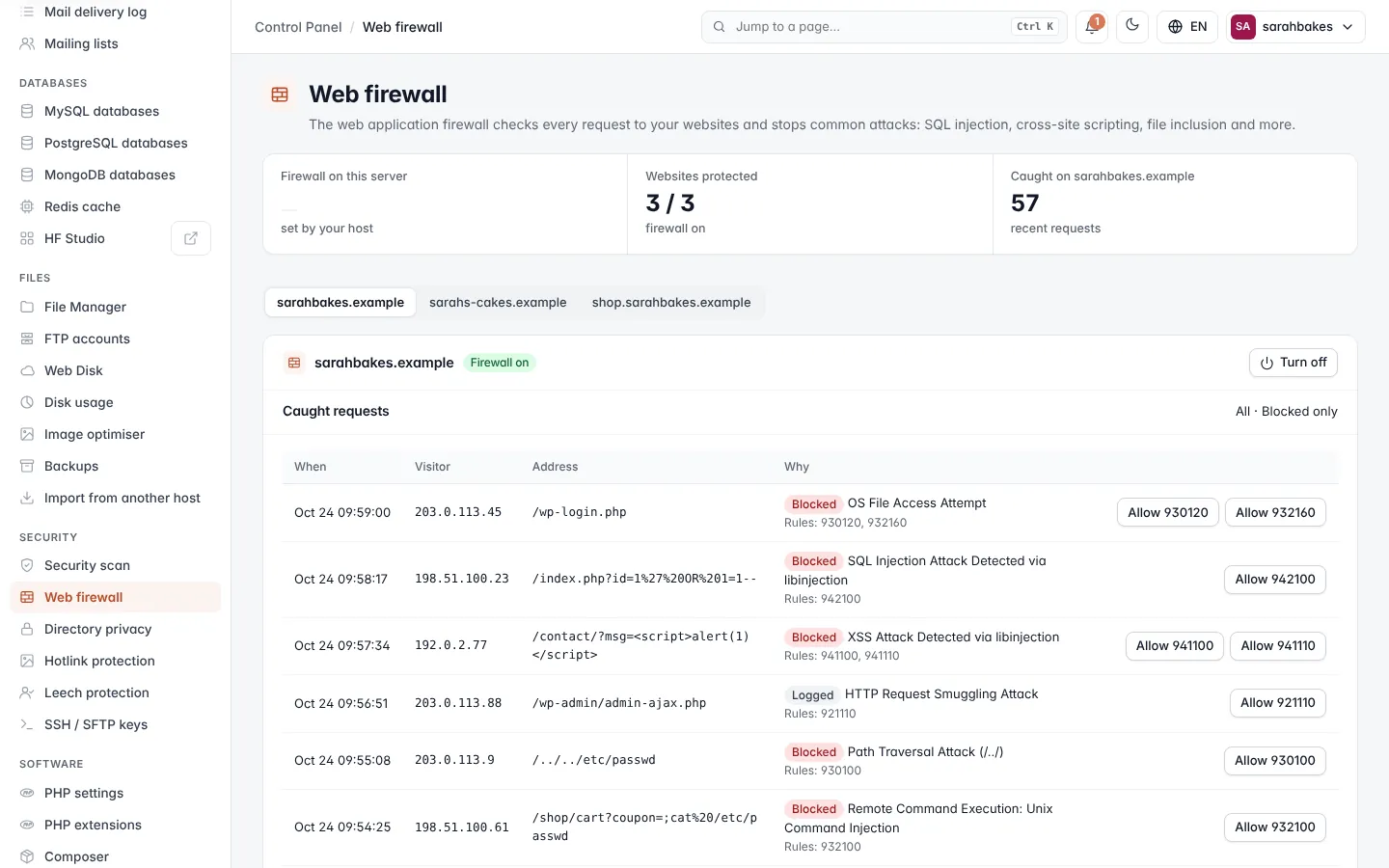
The Web firewall screen controls the web application firewall for each of your websites. The firewall checks every request and stops common attacks: SQL injection, cross-site scripting, file inclusion and more.
Where: Control Panel › Security › Web firewall
Figures
| Figure | What it shows |
|---|---|
| Firewall on this server | the server-wide mode, set by your hosting provider: Blocking attacks, Logging only or Off |
| Websites protected | how many of your websites have the firewall on |
| Caught on yourdomain.com | how many requests were caught on the website you picked |
Note: when the server is in logging mode, the firewall records attacks but does not block them yet.
Note: if the screen says Your hosting package doesn't let you change the firewall, the buttons and forms below are hidden. If something is blocked by mistake, ask your hosting provider and quote the rule number.
Turn the firewall on or off
- Pick the website at the top. Websites with the firewall off show Off.
- Click Turn on, or Turn off and confirm.
Tip: rather than turning the firewall off, let one rule or path through (see below).
Caught requests
Caught requests lists what the firewall caught on the website, 25 at a time: When, Visitor, Address and Why (Blocked or Logged, the message and the Rules that matched). Choose All or Blocked only, and use Newer and Older to move between pages.
Click Allow with a rule number to let that rule through on this website, then confirm. Only do this for a normal action of your site.
Exceptions for false alarms
If a normal action of your site (saving a page, a form, a plugin) is blocked, let the rule that caught it through — or, for one address only, its path. Only this website is affected.
Let a rule through
- Under Rules let through, type the 6-digit rule number, for example
942100. - Click Let rule through.
Click × on a rule to apply it again.
Let a path through
- Under Paths let through, type the path, for example
/wp-admin/admin-ajax.php. - Click Let path through.
The firewall then no longer checks that path. Click × on a path to check it again.
| Rule | Detail |
|---|---|
| Rule number | 6 digits. Scoring rules cannot be allowed — allow the rule that matched instead. |
| Rules per website | at most 50 |
| Path | starts with /; letters, numbers and . _ ~ @ + - / only. A full address is cut to its path; ? and # parts are dropped. |
| Whole website | / is not accepted — use Turn off instead |
Related
- Web firewall control (Server Admin)
- Security scan
- Hotlink protection