 HF Panel
Redirects & IP blocks
Send old pages to new addresses, redirect a whole site to another domain, or block an IP address from a website.
Redirects & IP blocks lets you send old pages to new addresses, move a whole site to another domain, or stop specific visitors from opening a website. Every change is published to the web server at once — it works straight away.
Where: Control Panel › Websites › Redirects & IP blocks
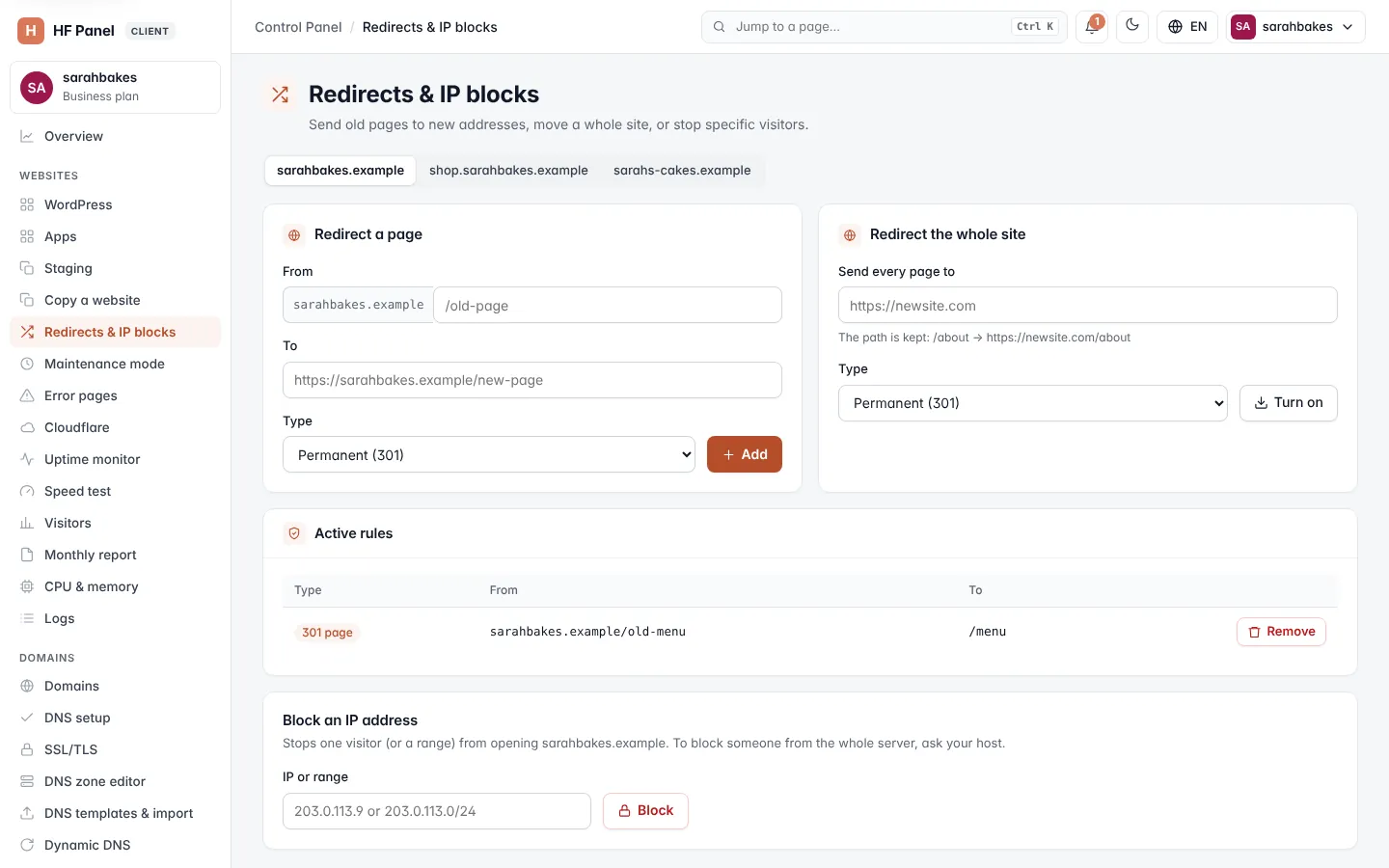
Choose a domain
The rules belong to one domain at a time. Click a domain in the picker at the top to show and change its rules. If you have no domains yet, click Add domain.
Redirect a page
- In Redirect a page, enter the From path after the domain, for example
/old-page. - Enter the To address — a full address, for example
https://yourdomain.com/new-page. - Choose the Type.
- Click Add.
| Field | What it does |
|---|---|
| From | the path on this domain. Letters, numbers and . _ ~ / - only, up to 200 characters. Each path can have one redirect. |
| To | the full address to send visitors to, starting with http:// or https:// |
| Type | Permanent (301) for a page that has moved for good (search engines update their links), or Temporary (302) |
Redirect the whole site
- In Redirect the whole site, enter the new site in Send every page to, for example
https://example.com. - Choose the Type.
- Click Turn on (or Update to change an existing one).
Enter the site's address only, without a path. The path is kept: /about goes to https://example.com/about. A domain
can have one whole-site redirect; saving a new one replaces the old one.
Note: while the whole site redirects, a notice at the top says so. Page redirects and IP blocks don't apply while it is on. To stop it, remove its rule under Active rules.
Block an IP address
- In Block an IP address, enter an IP or range, for example
203.0.113.9or203.0.113.0/24. - Click Block.
A blocked visitor sees "403 Forbidden" on this domain. The block only applies to this domain. To block someone from the whole server, ask your hosting provider.
Active rules
Active rules lists the domain's rules:
| Type | From | To |
|---|---|---|
| 301 page / 302 page | yourdomain.com/old-page |
the target address |
| 301 whole site / 302 whole site | yourdomain.com/* |
the new site, /* |
| Blocked IP | the IP or range | sees "403 Forbidden" |
To delete a rule, click Remove on its row.