 HF Panel
Import accounts
Move hosting accounts from your old server with their full account backups — websites, databases, email, DNS records and cron jobs.
Import accounts brings hosting accounts over from your old server using their full account backups. Each import recreates the account with its websites, databases, email with all messages, forwarders, DNS records and cron jobs. Customers keep their passwords.
Where: Server Admin › Accounts › Import accounts
Before you start
On your old server, download a full account backup of each account: one .tar.gz, .tgz, .tar or .tar.zst file
with its websites, databases and email. Nothing changes on the old server.
Import an account
-
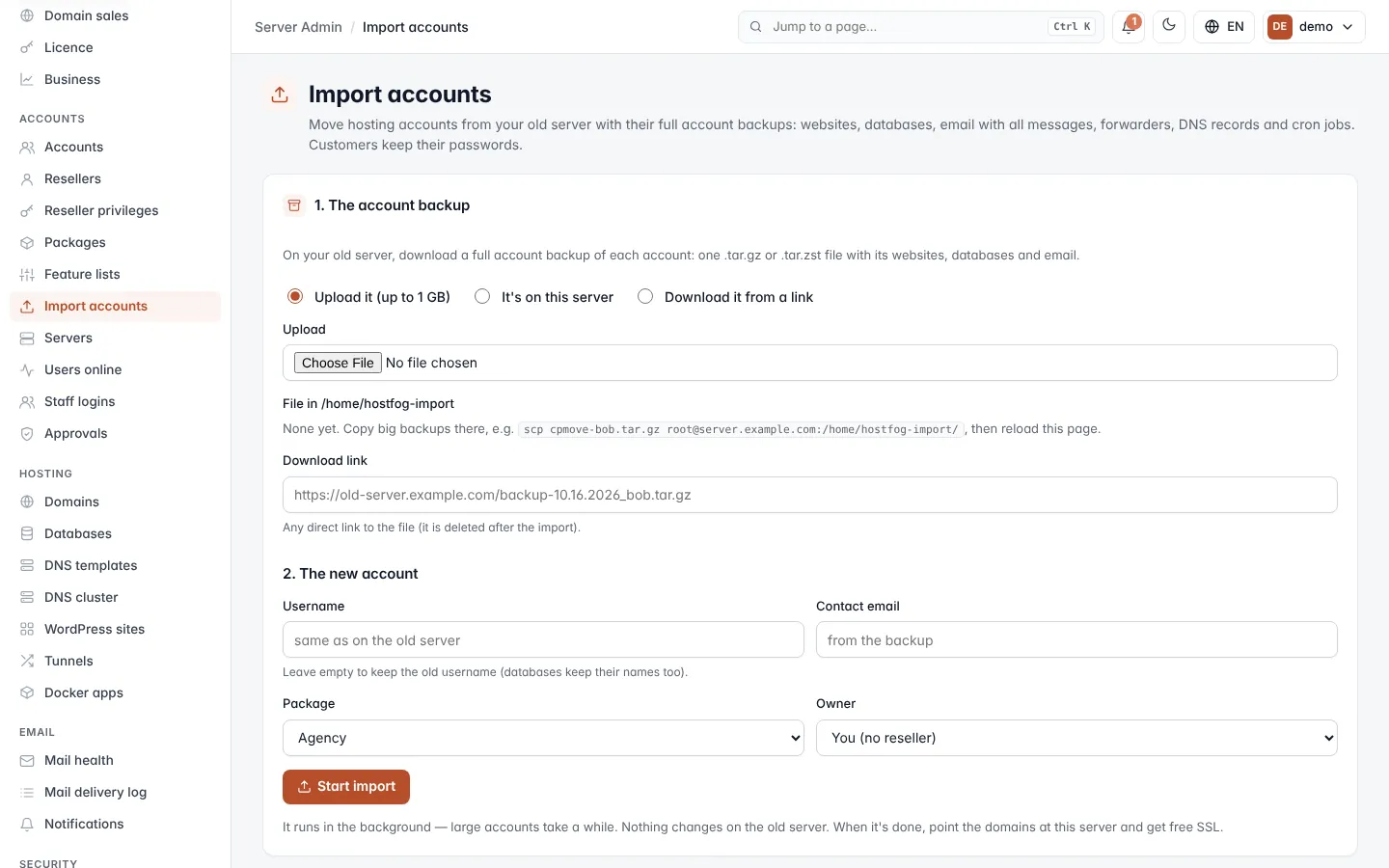
Under 1. The account backup, choose where the file is:
Option What to do Upload it (up to 1 GB) Choose the file under Upload. It's on this server Copy the file to /home/hostfog-importon the server first, then choose it under File in /home/hostfog-import. Tick Delete the file when the import is finished to clean up afterwards.Download it from a link Paste a direct Download link to the file. It is deleted after the import. -
Under 2. The new account, choose:
Field What it does Username Leave it empty to keep the old username; databases keep their names too. Contact email Leave it empty to use the one from the backup. Package The package for the new account. Owner You (no reseller), or the reseller the account belongs to. -
Click Start import.
The import runs in the background; large accounts take a while. You can leave the page.
Tip: backups over 1 GB cannot be uploaded through the browser. Copy them to
/home/hostfog-importinstead, for example with SFTP, then reload the page.
Follow an import
After you start, the page shows Import #… with its status and log, which update as it runs: Waiting, Downloading, Reading the backup, Importing, then Done or Failed.
When it is done:
- Check these: lists anything that needs a look, if there is something.
- If the backup had no usable account password, the account got a new one, shown once.
- Click Open the account to log in as the customer, or Import another.
If the import failed and an account was already created, delete it under Accounts before trying again.
After the import
Point the domains at this server and get free SSL for them.
Recent imports
Recent imports lists the last 30 imports with the account, where it came from, status and start time. Click View to open one, or Remove to take a finished import off the list.