 HF Panel
Team
Invite other people to help run your hosting account, each with their own login, role, two-factor login and passkeys.
The Team screen lets other people help run your account, each with their own login, two-factor login and passkeys. They only see the screens their role allows, and the activity log shows their name on everything they do. Invite a developer for the websites, a colleague for email, or your bookkeeper for billing.
Where: Control Panel › Account › Team
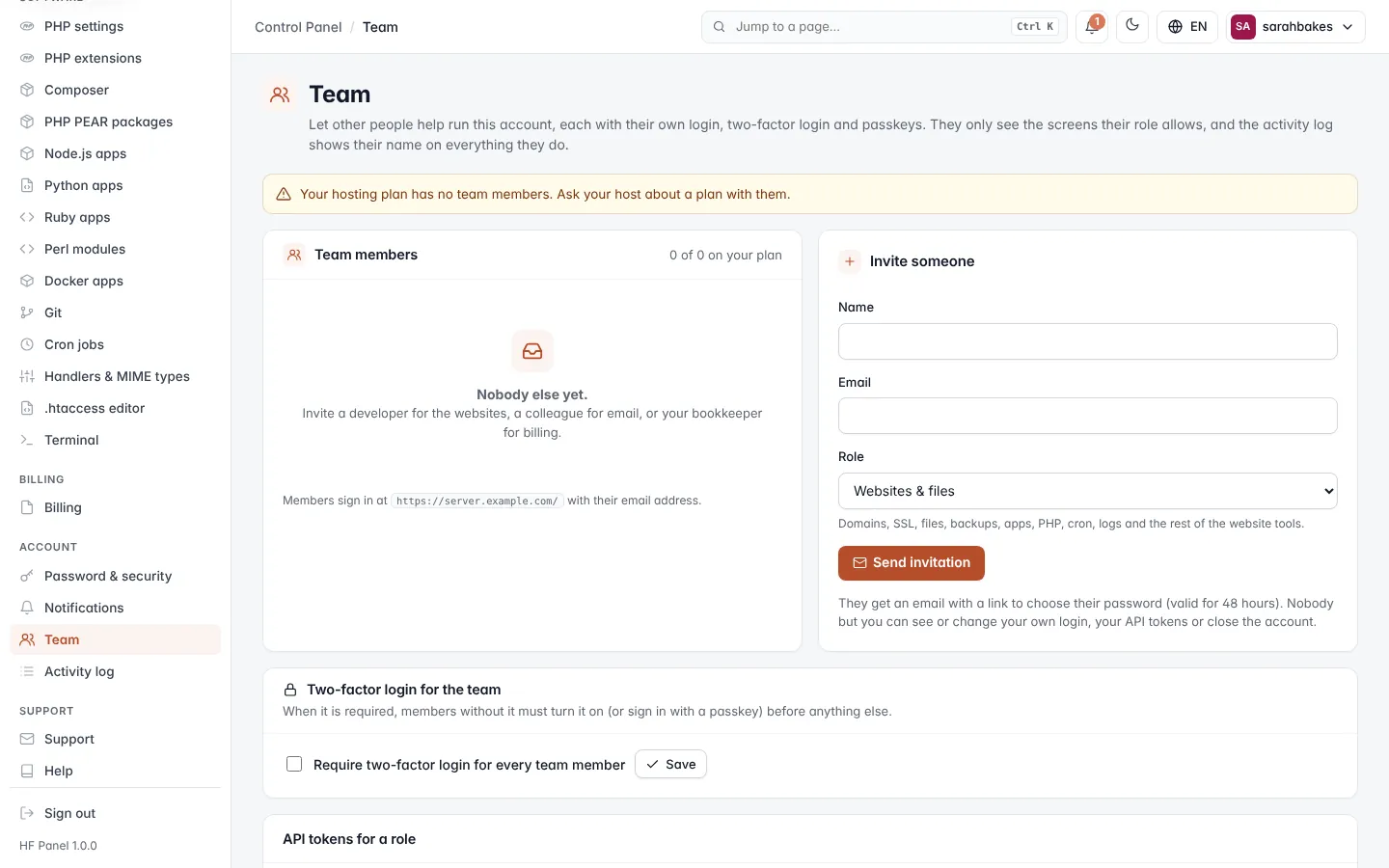
How many team members you can have is set by your plan; the card shows, for example, 2 of 5 on your plan. If the screen says Your hosting plan has no team members, ask your hosting provider about a plan with them. When your account belongs to a reseller with their own panel address, your team signs in there.
Invite someone
- Under Invite someone, enter the person's Name and Email.
- Choose a Role (see below). For Custom, tick the screens they may use.
- Click Send invitation.
They get an email with a link to choose their password, valid for 48 hours. Members sign in at your Control Panel's address with their email address.
| Rule | Detail |
|---|---|
| one team login per email address on the panel; not your own address | |
| Invitations | at most 20 an hour per account |
Roles
| Role | What they can use |
|---|---|
| Full access | Websites, files, email, databases, billing, support and the activity log. Never the team, your own login or your API tokens. |
| Websites & files | Domains, SSL, files, backups, apps, PHP, cron, logs and the rest of the website tools. |
| Websites & DNS | Domains, DNS, SSL, redirects, WordPress and apps — not files, email or databases. |
| Files only | The File Manager, FTP accounts, Web Disk and disk usage. |
| Email only | Email accounts, forwarders, mailing lists, deliverability and webmail. |
| Databases only | MySQL, PostgreSQL and MongoDB databases and HF Studio. |
| Billing only | Invoices, the payment card and Refer a friend. |
| Read-only | Can look at websites, email and databases, but can't change, download or open anything. |
| Custom | Only the screens you pick (at least one). |
Every member can always open the overview, their own login (My login), help and announcements. A read-only member never opens the File Manager, HF Studio, webmail or the Terminal.
Manage members
The Team members table shows each Member (with whether two-factor login is on and how many passkeys they have), their Role, Status (Active, Invited with the link's expiry, or Suspended) and when they Last signed in.
| Button | What it does |
|---|---|
| Role | change the role; click Save role. It applies from their next click. |
| Envelope icon | sends the invitation again, or for an active member a link to choose a new password (at most once a minute) |
| Suspend | stops them signing in and signs them out at once, after you confirm |
| Let in again | lets a suspended member sign in again |
| Bin icon | removes them from the team after you confirm |
Suspending or removing a member also suspends every login they invited.
Note: a member whose role includes the Team screen can manage other members only within their own rights: they can't give screens they don't have, change members who have more, or change their own login.
Two-factor login for the team
Tick Require two-factor login for every team member and click Save. Members without it must turn it on (or sign in with a passkey) before they can do anything else.
API tokens for a role
Only you, the account owner, can make API tokens scoped to a role — for example for a deploy script.
- Enter a Name, for example
Deploy script. - Choose the Role (a preset role, not Custom) and the Access: Read only or Read & change (a Read-only role always gets read-only access).
- Enter Your password.
- Click Make token.
Copy the token straight away — it is shown only once. The table lists each token with its role, access and when it was last used; click Delete and confirm to revoke one. You can have up to 20 tokens in all.
For team members: My login
A team member manages their own login on My login (the button next to their own row on the Team screen): their name (shown to the team and in the activity log), password (a new password signs them out on every other device), passkeys and two-factor login with backup codes. When the administrator's two-step sign-in policy requires it for team members, they set it up before anything else opens.
My API tokens
Under My API tokens a member makes tokens for their own login (up to 5): enter a Name, choose the Access and confirm with their password (or a code from their app), then click Make token. A token can do only what the member's role allows at the time of each call, stops working when the owner suspends or removes them, and everything it changes is logged with their name. The owner sees these tokens in API tokens for a role with the member's name.