 HF Panel
DNS setup
See what DNS your domain needs so its website and email work here — use our nameservers or add the records at your DNS provider, checked live.
DNS setup tells you what your domain needs so its website and email work on this server. It checks your domain live against public DNS and shows which records are already visible and which are still missing.
Where: Control Panel › Domains › DNS setup
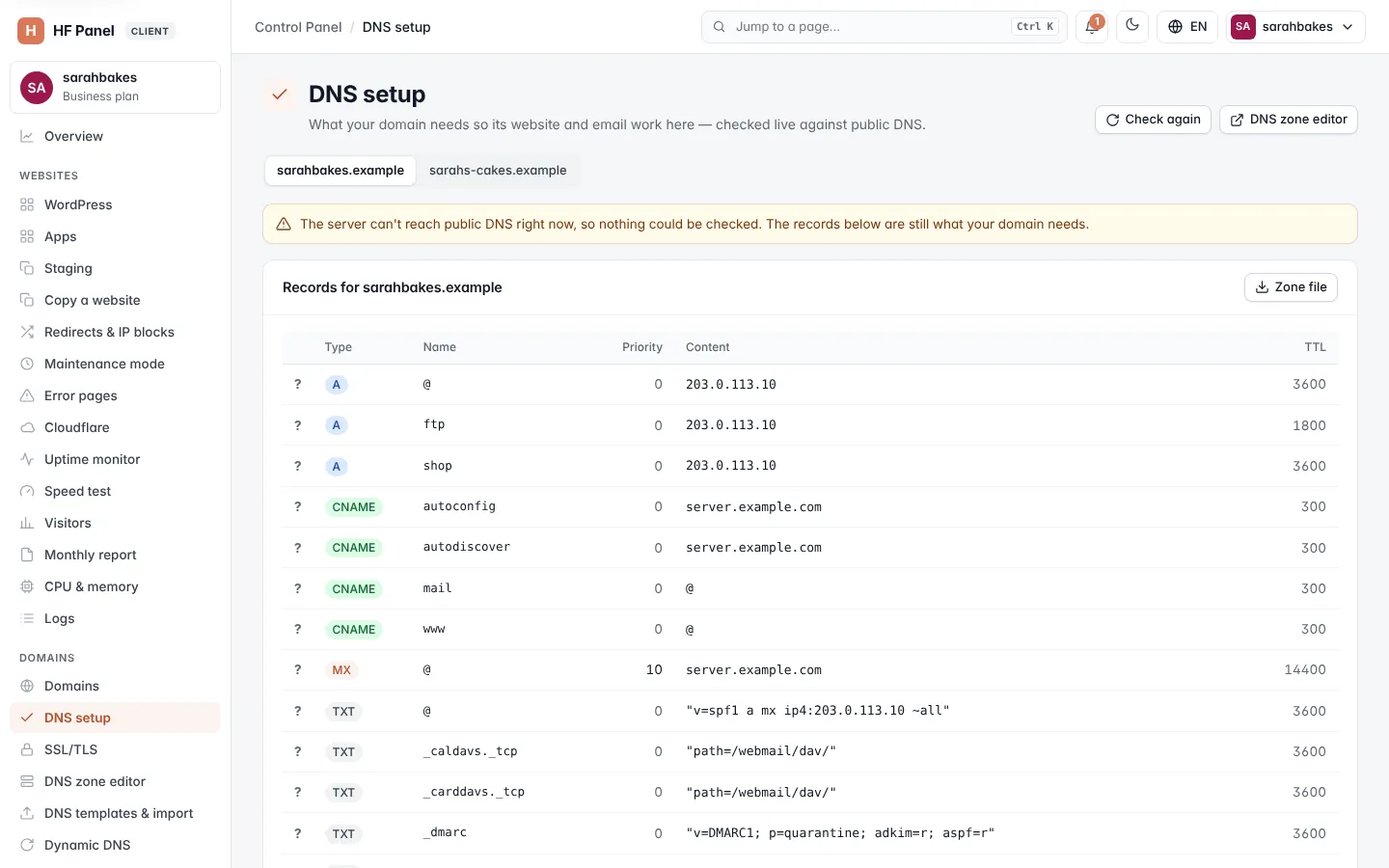
Click a domain in the picker at the top. Only main domains are listed: subdomains and parked domains use the records of their main domain.
If your domain already uses our nameservers
The card shows All set — yourdomain.com uses our nameservers. Every record is published by this server automatically. You change records in the DNS zone editor. If some changes are still on their way, the card says how many (they arrive within the TTL, usually minutes).
If your domain's DNS is somewhere else
The card says who runs your domain's DNS now, for example "Your domain's DNS is run by" provider, with the current nameservers. You have two ways to point the domain here.
Easiest: use our nameservers
- Go to the company where you registered your domain.
- Replace the nameservers with the ones shown, for example
ns1.yourdomain.comandns2.yourdomain.com.
Then every record is set up for you, and changes you make in the panel go live by themselves. It takes from a few minutes up to 24 hours.
Note: this way is only offered when the server runs DNS.
Or keep your DNS where it is
- Look at Records for yourdomain.com below.
- Add every record marked ✘ in your DNS provider's settings for the domain.
Many providers can also import the zone file: click Zone file to download the records as yourdomain.com.zone.txt.
Important: already have an MX or SPF record there for email elsewhere (Google, Microsoft)? Replace it only if this server should handle the domain's email.
If public DNS has no nameservers for the domain at all, check that the domain is registered and not expired.
The records table
| Column | What it shows |
|---|---|
| ✔ / ✘ / ? | ✔ = visible in public DNS, ✘ = not visible yet, ? = could not check |
| Type | A, AAAA, MX, CNAME, TXT and so on |
| Name | @ means the domain itself (some providers want it left empty) |
| Priority | for MX and SRV records |
| Content | the value to enter. Long values (such as DKIM keys) can be expanded. |
| TTL | how long, in seconds, other servers may remember the record |
The card head shows how many records are visible, for example All 9 visible or 2 of 9 not visible yet. New records usually show up within 10–30 minutes.
Click Check again at the top to run the check again.
If the server can't reach public DNS, nothing can be checked. The records shown are still what your domain needs.
After the domain points here
Free SSL is added by itself within a few minutes of the domain pointing here. See SSL/TLS.