 HF Panel
MongoDB in HF Studio
Work with MongoDB databases in HF Studio: collections, documents, indexes, find and aggregate queries, and JSON or CSV import and export.
MongoDB databases open in HF Studio with views made for documents. Values are shown and typed as MongoDB Extended
JSON (relaxed): {"$oid": "…"} for ObjectIds and {"$date": "2026-01-31T10:00:00Z"} for dates.
Where: HF Studio › a MongoDB database
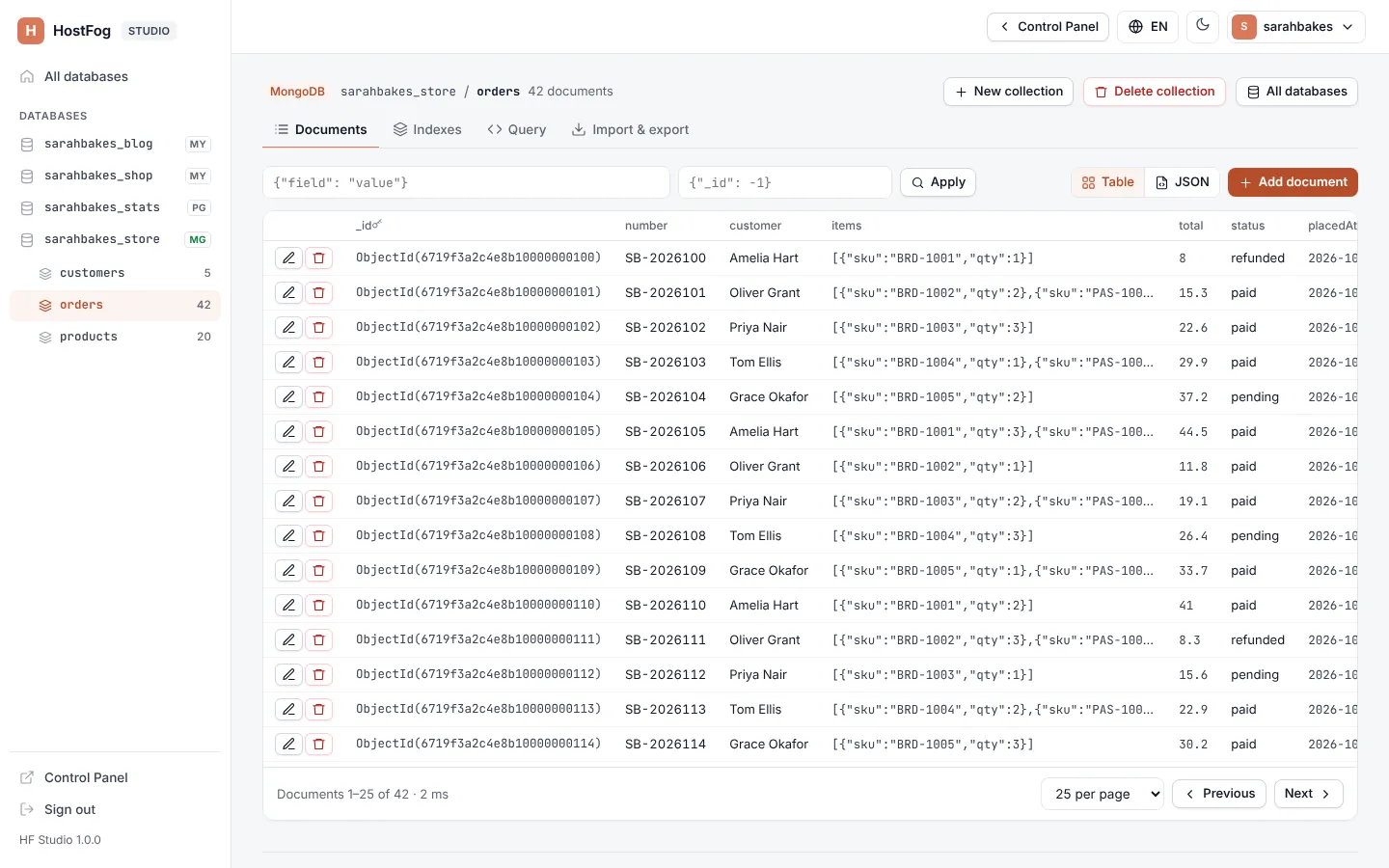
Collections
The side menu lists the database's collections. Pick one to see its documents and indexes.
- New collection: type a Collection name and click Create. Names use letters, digits,
_,-and.(120 characters at most). - Delete collection: open the collection and click Delete collection, then confirm.
An empty database says Create a collection, or import a JSON or CSV file.
Tabs
| Tab | What it does |
|---|---|
| Documents | browse, add, edit and delete documents |
| Indexes | the collection's indexes and their Keys and Options (primary, unique, sparse) |
| Query | run a find or aggregate query |
| Import & export | JSON, JSON Lines and CSV files |
Documents
- Choose how many Documents per page to show, and move with Previous and Next.
- Show as switches between Table and JSON.
- Type a Filter (JSON) and Sort (JSON) and click Apply to narrow the list; Clear removes them.
- Add document: type the Document (JSON) and click Save.
- Edit: change the JSON and click Save. A document over 1 MB is too big to edit here.
- Delete document: removes it after you confirm.
Indexes are made and removed with your application or the MongoDB shell, not in HF Studio.
Query
- Choose the Query type: Find or Aggregate.
- For Find, type the Filter (JSON), and optionally Sort (JSON) and Fields (JSON projection). For Aggregate, type the Pipeline (JSON).
- Choose Show up to (100, 500 or 1,000 documents) and click Run (or press
Ctrl+Enter).
Note: aggregations only read here:
$outand$mergeare not allowed.
Export
- Choose the Format: JSON, JSON Lines or CSV.
- Click Export collection, or Whole database (.zip of JSON Lines).
Exports are MongoDB Extended JSON (relaxed). CSV holds the fields of the first 1,000 documents. For a full backup with indexes, use the MongoDB page of your Control Panel.
Import
- Choose the File: a JSON array, JSON Lines (one document per line,
.jsonlor.ndjson) or CSV with a header line..gzfiles are allowed. - Choose the collection in Into collection. A new name makes a new collection.
- Click Import.
The import stops at the first document that can't be added. The file size limit is the same as for SQL imports.