 HF Panel
Directory privacy
Password-protect a folder of your website so visitors must log in, and manage the logins for it.
Directory privacy password-protects a folder of a website. Visitors must sign in with a username and password to see it — useful for a members' area, a staging copy or files for a client.
Where: Control Panel › Security › Directory privacy
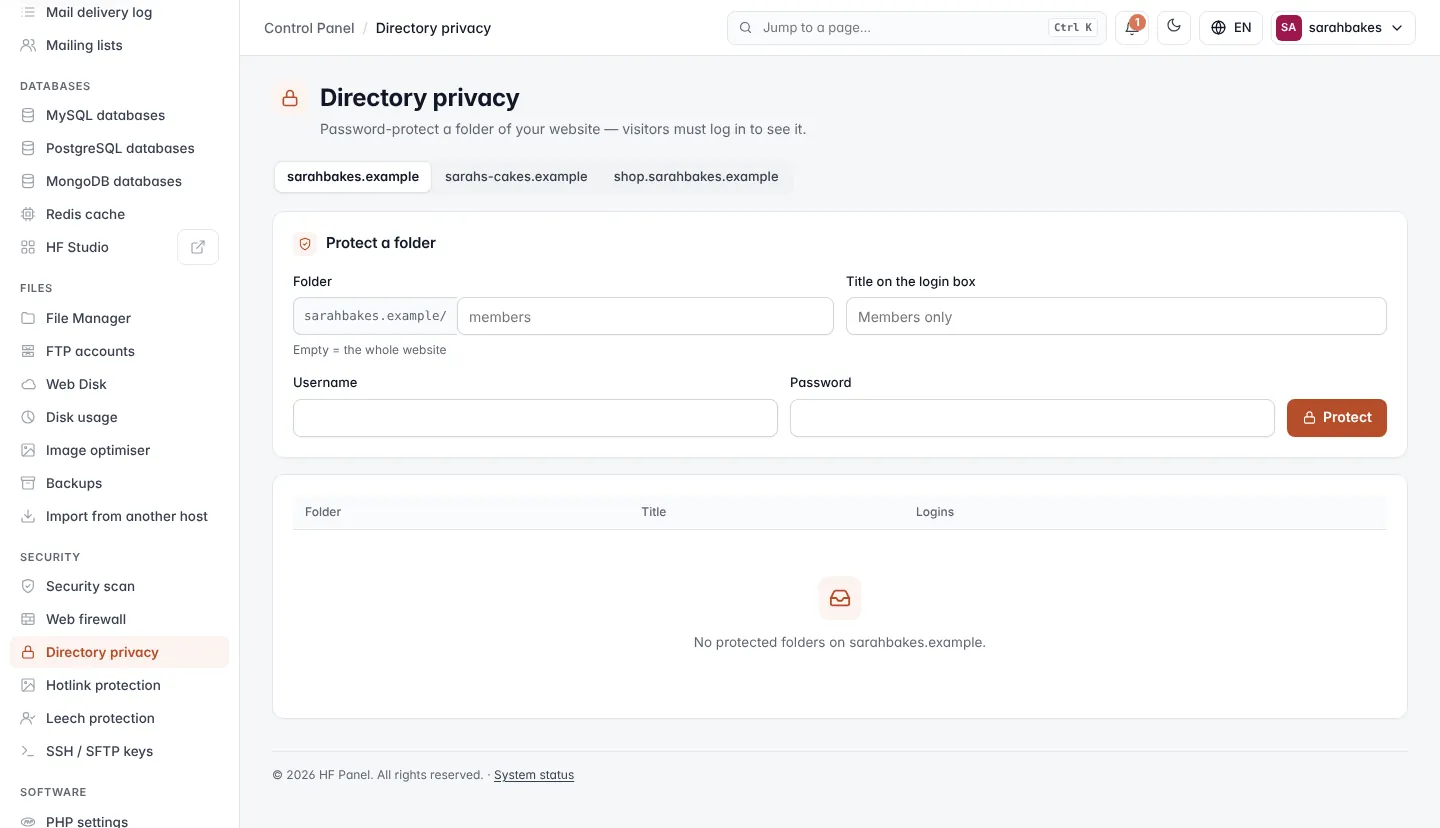
Protect a folder
- Pick the website at the top.
- Under Protect a folder, enter the Folder after the domain, for example
members. Leave it empty to protect the whole website. - Enter the Title on the login box — the name the browser shows when it asks for the password. When empty, Private area is used.
- Enter the first Username and Password.
- Click Protect.
| Field | Rules |
|---|---|
| Folder | below the website's root; letters, numbers, ., _, - and / only. Each folder can be protected once. |
| Title on the login box | up to 60 characters |
| Username | 2–40 letters, numbers, ., _, @ or - |
| Password | 8–128 characters, no quotes ('), backslashes or control characters |
Manage logins
The table lists each protected Folder, its Title and its Logins.
- Add login — enter a Username and Password and click Save login. Entering an existing username sets a new password for it.
- × next to a login removes it. At least one login must stay.
- Unprotect makes the folder public again, after you confirm. Its leech protection goes too.
Note: passwords are stored only as secure hashes. The screen shows login names, never passwords.