 HF Panel
Mail health
Check the server's mail reputation, set the sending limits, see the top senders, use the spam guard, and clear or retry the mail queue.
The Mail health screen shows your server's email reputation and gives you the limits that stop one hacked website or mailbox from getting the whole server blocklisted. It also shows who is sending this hour and lets you retry or delete mail that is waiting in the queue.
Where: Server Admin › Email › Mail health
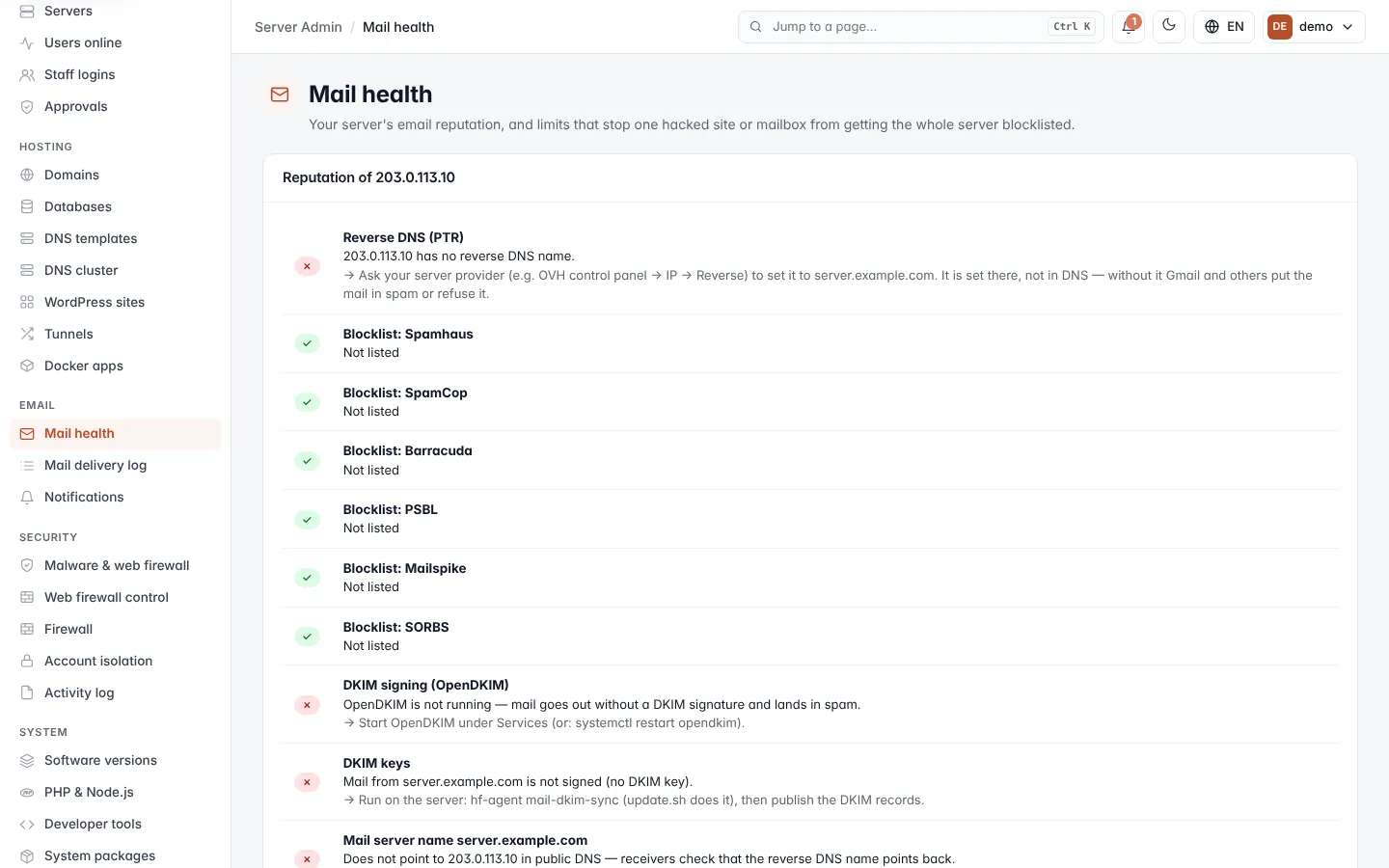
Check the server's reputation
The Reputation of IP address card runs a list of checks each time you open the screen. Each row has a mark: green ✓ (fine), amber ! (worth a look) or red ✗ (a problem), a short explanation and, when something is wrong, what to do about it (after →).
| Check | What it looks at |
|---|---|
| Reverse DNS (PTR) | Whether the server's IP address has a reverse DNS name, and whether it is the mail server name. The reverse DNS is set at your server provider, not in DNS. |
| Blocklist: name | Whether the IP address is listed on each spam blocklist. Not listed is good. If a list refuses the server's DNS resolver, the row says it could not check. |
| DKIM signing (OpenDKIM) | Whether outgoing mail is signed. |
| DKIM keys | Whether every mail domain on the server has a DKIM key. |
| Mail server name | Whether the mail server name points to the server's IP address in public DNS. |
| SPF of mail server name | Whether the name the panel's own emails come from publishes an SPF record. |
| Panel domain: SPF, DKIM, DMARC | The same checks customers' domains get, for the panel's own domain. Strict DMARC alignment is flagged because it fails the panel's own mail. |
| IPv6 sending | Whether mail may leave over IPv6, which often fails without IPv6 reverse DNS. |
Note: if the server IP is not set, the screen asks you to set it in Settings before the checks can run.
Tip: if the server is listed on a blocklist, find out why on that list's website, fix the cause (often a hacked site or mailbox sending spam), then ask the list to remove the IP address.
Set the sending limits
The limits count every recipient an account sends to, from mailboxes (SMTP) and from websites (PHP mail()). Mail
over a limit waits and is retried later; the account owner and you are told once.
- In Sending limits, type Emails per hour (0 = unlimited) and Emails per day (0 = unlimited).
- Click Save.
These are the defaults for accounts whose package and account have no limit of their own. The card shows Active when the limit service runs, or Limit service not running in red. Sending limits per account gives one account its own limits and lists the limits reached in the last 24 hours, with Let it send again. See Sending limits.
See who is sending this hour
Sending this hour lists the 15 busiest accounts of the current hour:
| Column | What it shows |
|---|---|
| Account | The account, with a red Paused label if its sending is paused. |
| Recipients | How many recipients it has sent to this hour. |
| Limit | Its hourly limit (∞ = none). |
| Held back | Messages held this hour because it went over a limit. |
| Last 24 hours | Recipients in the last 24 hours, and its daily limit (∞ = none). |
| Spam guard pauses at | The number of recipients at which the spam guard pauses it (— when the spam guard is off). |
Let it send again appears for an account that was held back or put on hold. To stop a customer account sending at once, click Pause sending and confirm. All its outgoing mail, from mailboxes and from websites, is paused. Receiving keeps working.
Use the spam guard
The spam guard watches for an account that suddenly sends far more email than usual. When that happens it puts all of the account's sending on hold at once, from mailboxes and from its websites, and tells you and the account owner. Receiving keeps working.
- Tick Pause accounts that suddenly send far more than usual.
- In Pause at, type the minimum number of recipients in an hour (50–100,000; the default is 300).
- Click Save.
An account is paused when it reaches that number in an hour and five times its busiest hour of the last seven days.
Let a paused account send again
Paused accounts are listed under the spam guard with the time they were paused. When you have dealt with the cause, click Allow sending again.
Manage the mail queue
The Mail queue card shows email waiting to go out, with the number of messages (amber over 30, red over 200). Most of it is retried by itself for up to 5 days. A long queue from one sender usually means spam.
| Button | What it does |
|---|---|
| Retry all now | Asks the mail server to try delivering every message again. |
| Delete all | Deletes every message in the queue. They will not be delivered. |
| Delete all from this sender | In By sender, deletes every waiting message from that address. |
| ↻ (Retry delivery) | Retries one message. |
| Bin (Delete) | Deletes one message. |
By sender appears when more than one sender has mail waiting, or one sender has more than five messages. It lists up to 10 senders with the account they belong to and how many messages are waiting.
The message table shows up to 100 messages: Waiting since, From (with the account), To, Why it waits (the other server's reply, or Being sent now / Waiting) and Size.
Warning: deleted messages cannot be recovered and are never delivered.