 HF Panel
PostgreSQL databases
Create PostgreSQL databases with their own user, change passwords, import and export pg_dump files.
The PostgreSQL databases screen manages your account's PostgreSQL databases. Each database comes with its own
user of the same name, which owns it. Your app connects with host 127.0.0.1, port 5432.
Where: Control Panel › Databases › PostgreSQL databases
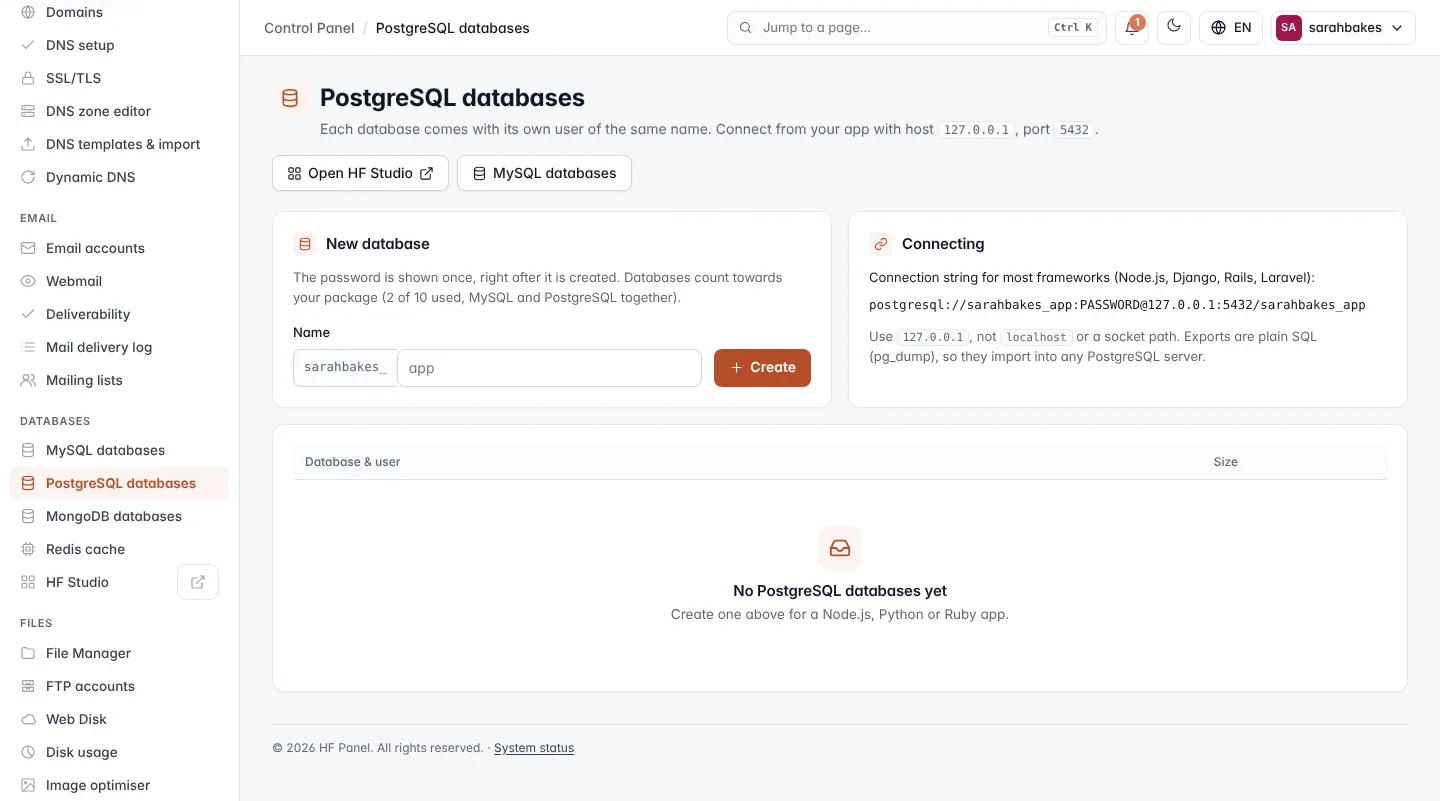
The buttons at the top right open HF Studio in a new tab and go to MySQL databases.
Note: if the screen says PostgreSQL isn't installed on this server yet, your hosting provider has to add PostgreSQL to the server first.
Create a database
- Under New database, type the rest of the Name after your account prefix, for example
app. - Click Create.
The message at the top shows the database, the user (the same name), a random 20-character password, the host
127.0.0.1 and the port 5432.
Important: the password is shown only once, right after the database is created. Save it before you leave the page.
| Rule | Detail |
|---|---|
| Name | your account name, _, then 1–15 lowercase letters, numbers or _ |
| Unique | the name cannot already be used by another PostgreSQL or MongoDB database |
| Limit | MySQL and PostgreSQL databases count together towards your package's database limit. The card shows how many you use of the limit. |
Connecting
The Connecting card shows a connection string that works for most frameworks (Node.js, Django, Rails, Laravel):
postgresql://sarahbakes_app:PASSWORD@127.0.0.1:5432/sarahbakes_app
Tip: use
127.0.0.1, notlocalhostor a socket path.
Manage a database
The table lists each database (the database and user have the same name) with its Size.
| Button | What it does |
|---|---|
| Browse | opens the database in HF Studio, in a new tab |
| Export | downloads the database as a .sql.gz file of plain SQL (pg_dump), which imports into any PostgreSQL server |
| Import | uploads a .sql or .sql.gz file made by pg_dump in plain format, up to 1 GB. The import stops at the first error. |
| Password | sets a new password for the database's user |
| Delete | deletes the database, all its data and its user, after you type its name |
Change the password
- Click Password next to the database.
- Type a new password, or leave it blank to generate one.
- Click Change password.
The new password is shown once. Update your app's settings. HF Studio connections made with the old password end.
A password must be 8–128 characters and cannot contain quotes ('), backslashes or control characters.
Delete a database
- Click Delete.
- Type the database name exactly.
- Click Delete.
Warning: the database, all its data and its user are removed. This cannot be undone.