 HF Panel
Domain sales
Sell domain names and paid SSL certificates through a domain reseller account, set prices per ending, and follow orders.
Domain sales lets your customers buy domain names and paid SSL certificates from you, billed with their hosting. The panel places the orders with your domain reseller account, renews them, and keeps a log of every request. While domain sales are off, customers see nothing of them.
Where: Server Admin › Billing › Domain sales (on the official edition: Server Admin › Business › Domain sales)
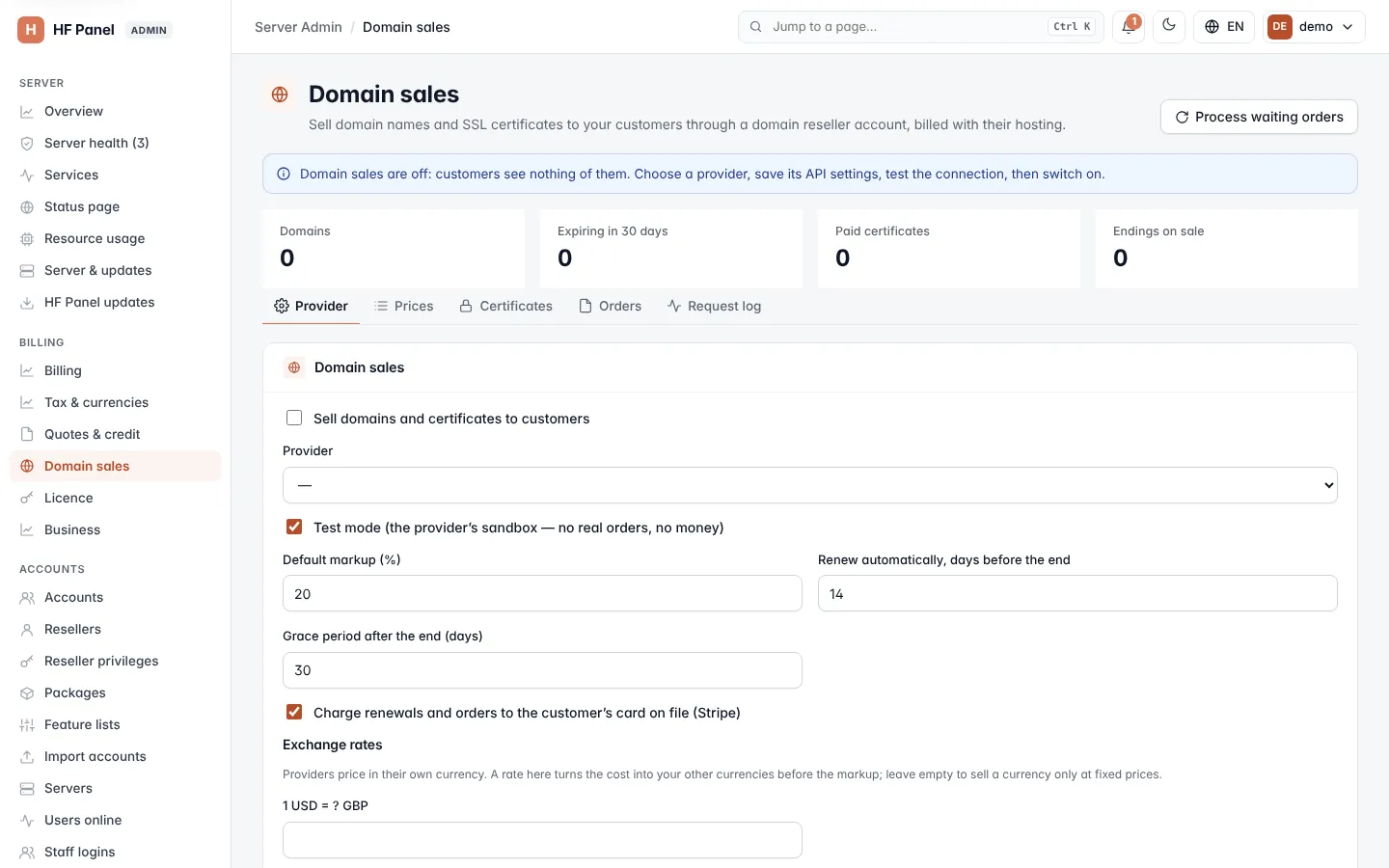
The figures at the top show the number of Domains sold, those Expiring in 30 days, Paid certificates and Endings on sale. The screen has five tabs: Provider, Prices, Certificates, Orders and Request log.
Set up the provider
Do these steps in order: choose a provider, save its API settings, test the connection, then switch on.
Save the API settings
The Provider tab has a card for each supported provider: Namecheap, ResellerClub / LogicBoxes and OpenSRS. Each card lists the provider's live and test addresses and a link to its API documentation.
- On the card of your provider, fill in its fields, for example:
- Namecheap: API user, API key, Account username, This server's IPv4 address.
- ResellerClub / LogicBoxes: Reseller ID, API key, Customer ID, Account currency, DV certificate plan ID (only to sell certificates).
- OpenSRS: Reseller username, API key, Account currency, TLDs to price.
- Click Save API settings.
Secrets are kept encrypted with the server's key and are never shown again. Leave a secret empty to keep the saved one.
Important: whitelist the server's address shown on the card at your provider, or its API refuses the requests.
Main settings
- In Domain sales, choose the Provider.
- Keep Test mode (the provider's sandbox — no real orders, no money) ticked while you try it out.
- Set the Default markup (%) (0 to 1000), Renew automatically, days before the end (1 to 60) and Grace period after the end (days) (0 to 60).
- Tick Charge renewals and orders to the customer's card on file (Stripe) to charge them automatically.
- Under Exchange rates, enter rates such as 1 USD = ? GBP to turn the provider's costs into your other currencies before the markup. Leave a rate empty to sell a currency only at fixed prices.
- Click Save, then Test the connection.
- When the test succeeds, tick Sell domains and certificates to customers and click Save.
Customers now see Domain names & SSL in their Control Panel. A notice reminds you while test mode is on.
Note: switching domain sales off leaves domains already sold as they are, but no renewals are made while off.
Set prices
The Prices tab lists each domain ending with its cost (register / renew / transfer), its selling price in each currency, and whether it is on sale.
- Click Sync from provider to read the provider's price list. New endings start switched off.
- Click Edit on an ending.
- Tick On sale.
- For each currency, optionally set a Markup % or fixed prices: Fixed register, Fixed renew and Fixed transfer. Left empty, the default markup is used, on the cost.
- Click Save.
To switch every ending on or off at once, click All on or All off. All on only switches on endings that have a price in your main currency.
Important: an ending needs a price in your main currency — a fixed price or an exchange rate — before customers can buy it.
Sell paid certificates
Free AutoSSL certificates stay the default for every website. A paid domain-validated certificate is an extra customers can buy; the panel makes the key, puts the domain check in place, installs the certificate and renews it yearly.
- On the Certificates tab, tick Sell paid certificates.
- Enter the Price per year in each currency. Your main currency needs a price.
- Click Save.
Certificates are sold through ResellerClub / LogicBoxes, with its DV certificate plan ID saved.
Orders
The Orders tab lists every order with the date, customer, order, amount, invoice and state. When paid orders need attention, a notice and a red count on the tab tell you.
| Button | What it does |
|---|---|
| Retry | Places a paid order that failed again. |
| Cancel | Cancels an order that is not done. Its unpaid invoice is voided. If it was paid, give the customer a refund or credit under Quotes & credit. |
Click Process waiting orders at the top to run waiting work now: paid orders, paid invoices whose orders did not start, and certificates waiting for their domain check.
Request log
The Request log tab lists every request to the provider: when, which provider and operation, the domain, the customer, whether it worked, and how long it took. Test-mode requests are marked. API keys, passwords and transfer codes are masked. Entries are kept for 180 days.