 HF Panel
Web server profiles
Tune Nginx, Apache and PHP-FPM with ready-made or custom profiles, switch Apache modules, and give websites their own Nginx directives.
The Web server profiles screen tunes Nginx, Apache and PHP-FPM for the whole server. Pick a ready-made profile (Default, High traffic or Low memory) or set your own values. Every change is tested first and put back automatically if a test fails. The screen also switches Apache modules on and off, gives single websites their own Nginx directives, and keeps a history you can roll back to.
Where: Server Admin › System › Web server profiles
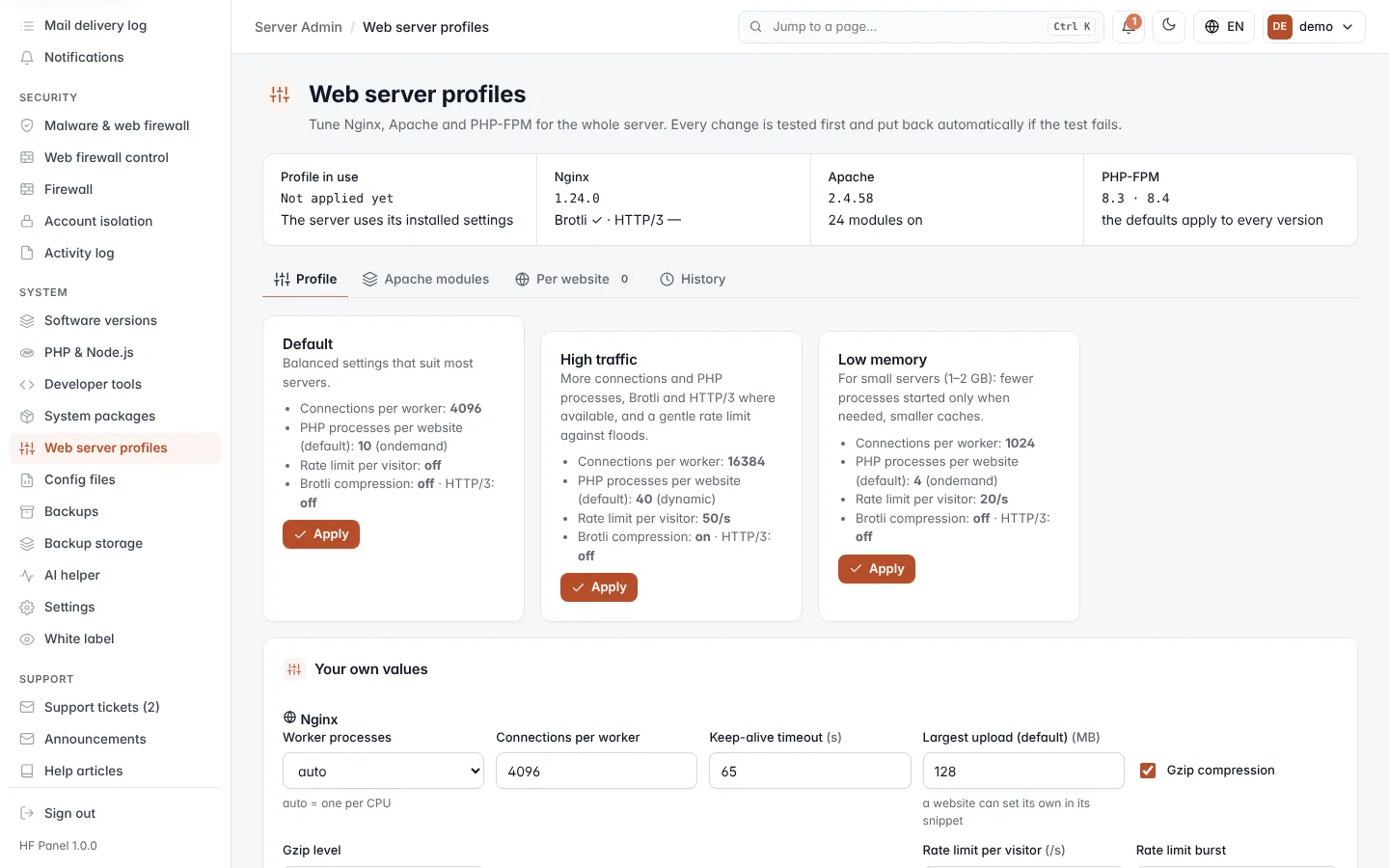
Read the overview
| Figure | What it shows |
|---|---|
| Profile in use | The profile last applied and when, or Not applied yet (the server uses its installed settings). |
| Nginx | The Nginx version, and whether Brotli and HTTP/3 are available (✓). |
| Apache | The Apache version and how many modules are on. |
| PHP-FPM | The installed PHP versions. The profile's PHP defaults apply to every version. |
The screen has four tabs: Profile, Apache modules, Per website and History.
Apply a ready-made profile
- On the Profile tab, read the three profile cards. Each lists its main values.
- Click Apply on the profile you want, and confirm.
| Profile | For |
|---|---|
| Default | Balanced settings that suit most servers. |
| High traffic | More connections and PHP processes, Brotli and HTTP/3 where available, and a gentle rate limit against floods. |
| Low memory | Small servers (1–2 GB): fewer processes started only when needed, and smaller caches. |
The profile in use shows In use. Values the server cannot use, such as Brotli or HTTP/3 without the Nginx module, are switched off when the profile is applied.
Set your own values
- On the Profile tab, scroll to Your own values. The form starts from the values in use.
- Change the values (see the table below).
- Click Test and apply and confirm.
Click Show the files it writes to see the configuration files the values in use produce.
Nginx
| Field | What it does |
|---|---|
| Worker processes | auto (one per CPU), 1, 2, 4, 8 or 16. |
| Connections per worker | 256–65535. |
| Keep-alive timeout (s) | 5–300 seconds. |
| Largest upload (default) (MB) | 1–10240 MB. A website can set its own in its directives. |
| Gzip compression | On or off. |
| Gzip level | 1 = fastest, 9 = smallest. |
| Brotli compression | On or off. Only when this server's Nginx has the module. |
| HTTP/3 (QUIC) | On or off. Only when this server's Nginx has the module. UDP port 443 must be open in the firewall. |
| Rate limit per visitor (/s) | Requests a second from one address, 0–1000. 0 = off. |
| Rate limit burst | Extra requests allowed in a short burst, 0–5000. |
Apache
| Field | What it does |
|---|---|
| Apache workers (MaxRequestWorkers) | 25–2000. |
| Apache keep-alive | On or off. |
PHP-FPM
| Field | What it does |
|---|---|
| PHP-FPM process manager | ondemand saves memory, dynamic answers faster, or static. |
| PHP processes per website (default) | 2–500. |
| PHP memory limit (default) (MB) | 64–4096 MB. |
| PHP time limit (default) (s) | 10–3600 seconds. |
| PHP upload limit (default) (MB) | 2–10240 MB. |
| OPcache memory (MB) | 32–1024 MB. |
When a value on the server differs from the saved one, the field shows On the server now: and the actual value.
How applying works
Every apply runs nginx -t, apache2ctl configtest and php-fpm -t first. If one fails, every file is put back,
nothing is reloaded, and the message shows why. If all pass, the web server and PHP-FPM are reloaded.
Tip: to undo your changes, click Back to Default under the form, or apply an earlier set of values from the History tab.
Switch Apache modules
- Open the Apache modules tab. Use Search to find a module.
- Click Switch on or Switch off next to it, and confirm.
Switching a module runs a2enmod or a2dismod, tests the configuration and reloads Apache. If the test fails, the
module is switched back. Modules the hosting setup needs, the process model (mpm_*, which stays event) and PHP
modules (PHP runs through PHP-FPM) are locked and show why.
Give a website its own Nginx directives
- Open the Per website tab.
- Choose the website in Choose a website…, or click one under Websites with their own directives.
- Type the directives in Nginx directives for this website, one per line. Up to 40 lines.
- Click Test and save.
Nginx is tested with the new directives. If the test fails, the old ones are put back. To remove a website's directives, empty the box and save.
Only the directives listed under Allowed directives may be used, for example:
client_max_body_size 512m;
fastcgi_read_timeout 300s;
expires 7d;
add_header X-Robots-Tag "noindex" always;
Note: blocks, variables, includes, file paths and proxying are not allowed, so nothing here can reach another website or a file.
Roll back to earlier settings
The History tab lists the last 15 applies: When, Profile, By and Result (Applied, or Put back with the reason). To use the settings of a successful apply again, click Apply again and confirm.