 HF Panel
Maintenance mode
Show visitors a "back soon" page while you work on a website, preview the real site with a private link, and schedule it.
Maintenance mode shows visitors a "back soon" page while you work on a website. You keep seeing the real site through your private preview link. You can switch it on now, or schedule it to switch on and off by itself.
Where: Control Panel › Websites › Maintenance mode
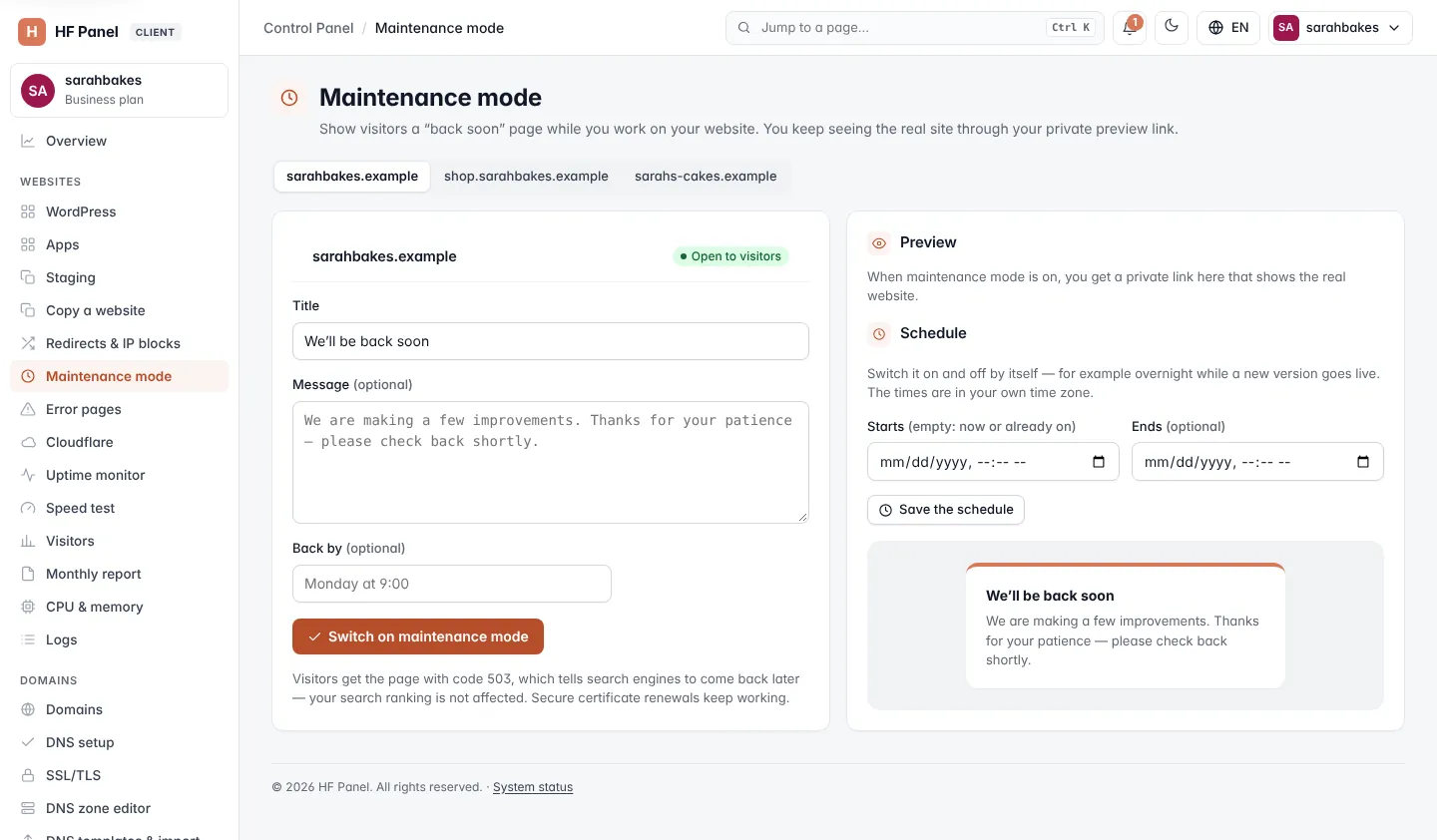
Each website has its own maintenance mode. Click a website in the picker at the top. A website in maintenance mode shows an on pill in the picker.
Switch on maintenance mode
- Choose the website in the picker.
- Fill in the page (see the table below).
- Click Switch on maintenance mode.
Visitors now see your "back soon" page. The card's pill changes from Open to visitors to Maintenance mode is on.
| Field | What it does |
|---|---|
| Title | the page's heading, up to 120 characters. Default: "We'll be back soon". |
| Message (optional) | the text under the heading, up to 2,000 characters. Empty = "We are making a few improvements. Thanks for your patience — please check back shortly." |
| Back by (optional) | when you expect to be back, up to 60 characters, for example "Monday at 9:00" |
To change the page while maintenance mode is on, edit the fields and click Save the page.
Note: visitors get the page with code 503, which tells search engines to come back later — your search ranking is not affected. Certificate renewals keep working.
Preview the real site
While maintenance mode is on, the Preview card shows a private link. Open it to see the real website on your device for 24 hours. You can share it with anyone who should see the site.
- Copy copies the link.
- Open the real site opens the link in a new tab.
- See what visitors see opens the website's normal address, where you see the "back soon" page.
Switch off maintenance mode
Click Switch off — open the site. The website is open to visitors again, and any schedule is cleared.
Schedule maintenance mode
Use a schedule to switch maintenance mode on and off by itself — for example overnight while a new version goes live. The times are in your own time zone (the time zone of your browser).
- In Schedule, choose when it Starts and, optionally, when it Ends.
- Click Save the schedule.
The schedule shows as a pill, for example Starts 24 Oct 22:00 · Ends 25 Oct 06:00. To remove it, click Clear.
| Rule | Message if broken |
|---|---|
| Choose a start, an end, or both | "Choose when maintenance mode starts, ends, or both." |
| The start can't be in the past | "The start is in the past — switch it on now instead." |
| The end must be after the start, and in the future | "The end must be after the start and in the future." |
| At most 30 days | "Schedule at most 30 days of maintenance." |
| An end only works when maintenance mode is already on | "Maintenance mode is off — choose a start too." |
Tip: to switch off maintenance mode at a set time, switch it on now and save a schedule with only an Ends time.
Related
- WordPress — WordPress's own maintenance mode
- Error pages
- Redirects & IP blocks