 HF Panel
PHP settings
Choose the PHP version, web server and page cache for each website, and set PHP limits for all websites or one.
The PHP settings screen (titled PHP) chooses a PHP version and web server for each website, switches the page cache, and adjusts PHP's limits.
Where: Control Panel › Software › PHP settings
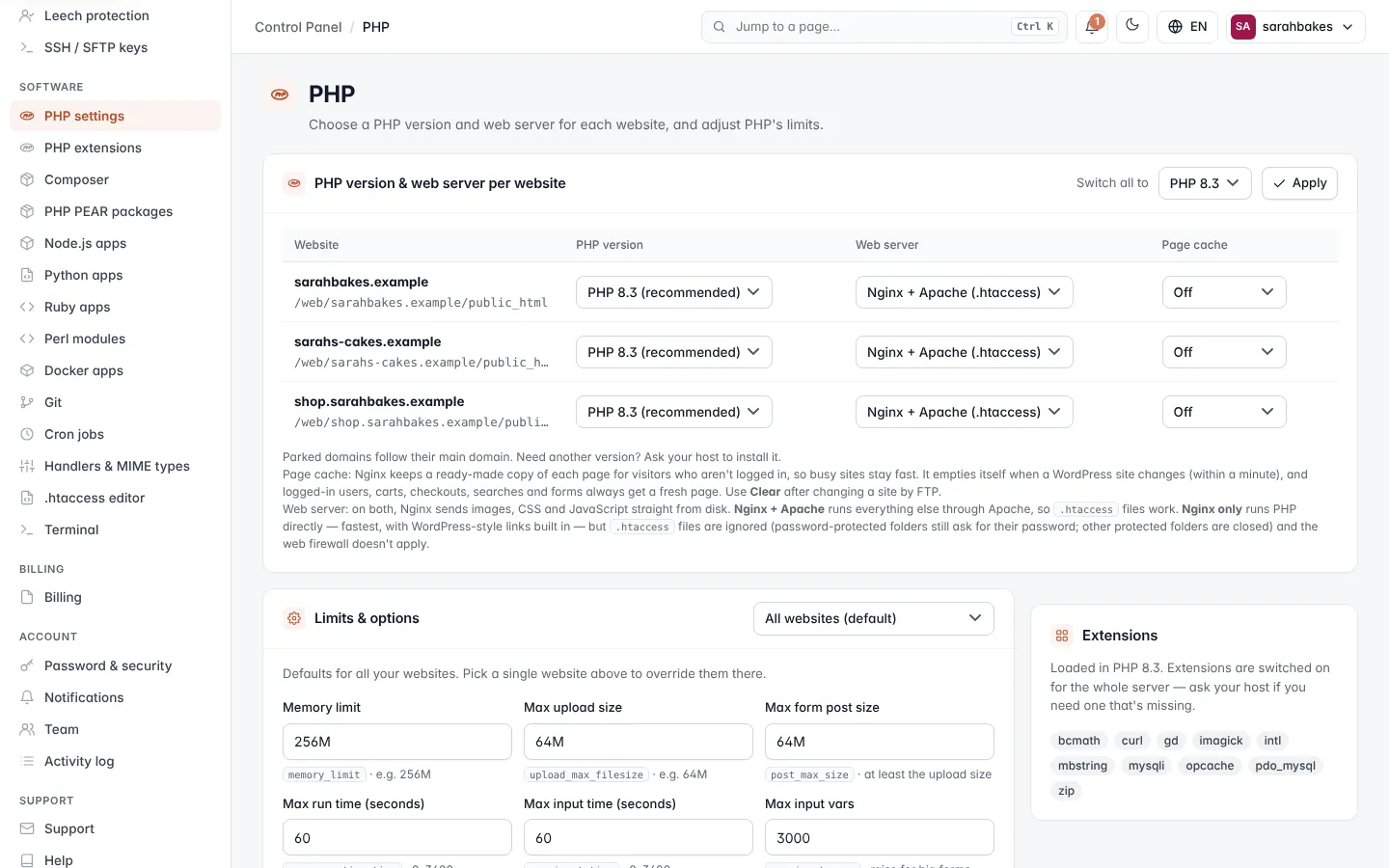
PHP version and web server per website
The table PHP version & web server per website lists your websites (parked domains follow their main domain) with their folder. Each choice saves as soon as you change it.
| Column | Choices |
|---|---|
| PHP version | the PHP versions active on the server. PHP 8.3 (recommended) is marked. |
| Web server | Nginx + Apache (.htaccess) or Nginx only (fastest) |
| Page cache | Off, On — 5 min, On — 10 min, On — 30 min or On — 1 hour |
A website that runs a Node.js app shows Node.js app instead of the web server and page cache.
Switch every website at once
- Next to Switch all to, choose the version.
- Click Apply and confirm.
All your websites, and your account's default for new websites, switch to that version.
Note: need another version? Ask your hosting provider to install it.
Web server
On both choices, Nginx sends images, CSS and JavaScript straight from disk.
- Nginx + Apache runs everything else through Apache, so
.htaccessfiles work. - Nginx only runs PHP directly — fastest, with WordPress-style links built in — but
.htaccessfiles are ignored (rewrite rules, redirects and error pages in them). Password-protected folders still ask for their password; other protected folders are closed. The web firewall doesn't apply. You confirm before switching.
Page cache
Nginx keeps a ready-made copy of each page for visitors who aren't logged in, so busy sites stay fast. It empties itself when a WordPress site changes (within a minute). Logged-in users, carts, checkouts, searches and forms always get a fresh page.
Click Clear next to the cache setting to empty a website's page cache, for example after changing the site by FTP.
Limits & options
The Limits & options card sets PHP's limits. Choose All websites (default) to set the defaults for every
website, or Only yourdomain.com to override them for one website. One website's settings are saved in the
.user.ini file in its folder; leave a box empty there to use the default.
- Choose the scope.
- Change the values.
- Click Save settings.
For one website, PHP picks up the new settings within 5 minutes.
| Field | PHP setting | Default | Allowed values |
|---|---|---|---|
| Memory limit | memory_limit |
256M | like 256M, up to 2048M |
| Max upload size | upload_max_filesize |
64M | like 64M, up to 2048M |
| Max form post size | post_max_size |
64M | like 64M, up to 2048M; at least the upload size |
| Max run time (seconds) | max_execution_time |
60 | 0–3600 |
| Max input time (seconds) | max_input_time |
60 | 0–3600 |
| Max input vars | max_input_vars |
3000 | 100–999999; raise it for big forms |
| Show errors on pages | display_errors |
Off | On or Off (keep Off on live sites) |
| Time zone | date.timezone |
Europe/London | a time zone name, for example Europe/London |
Extensions
The Extensions card lists the PHP extensions loaded in the PHP version of the scope you picked. You can switch on extra extensions your host offers on PHP extensions.