 HF Panel
Calendar
Use calendars in HF Mail: month, week and day views, events with repeats and reminders, invitations and several calendars.
HF Mail has a calendar for every mailbox. Events can repeat, remind you before they start and invite other people by email. The same calendars sync with your phone and computer through CalDAV (see Mail apps and phones).
Where: HF Mail › Tools › Calendar
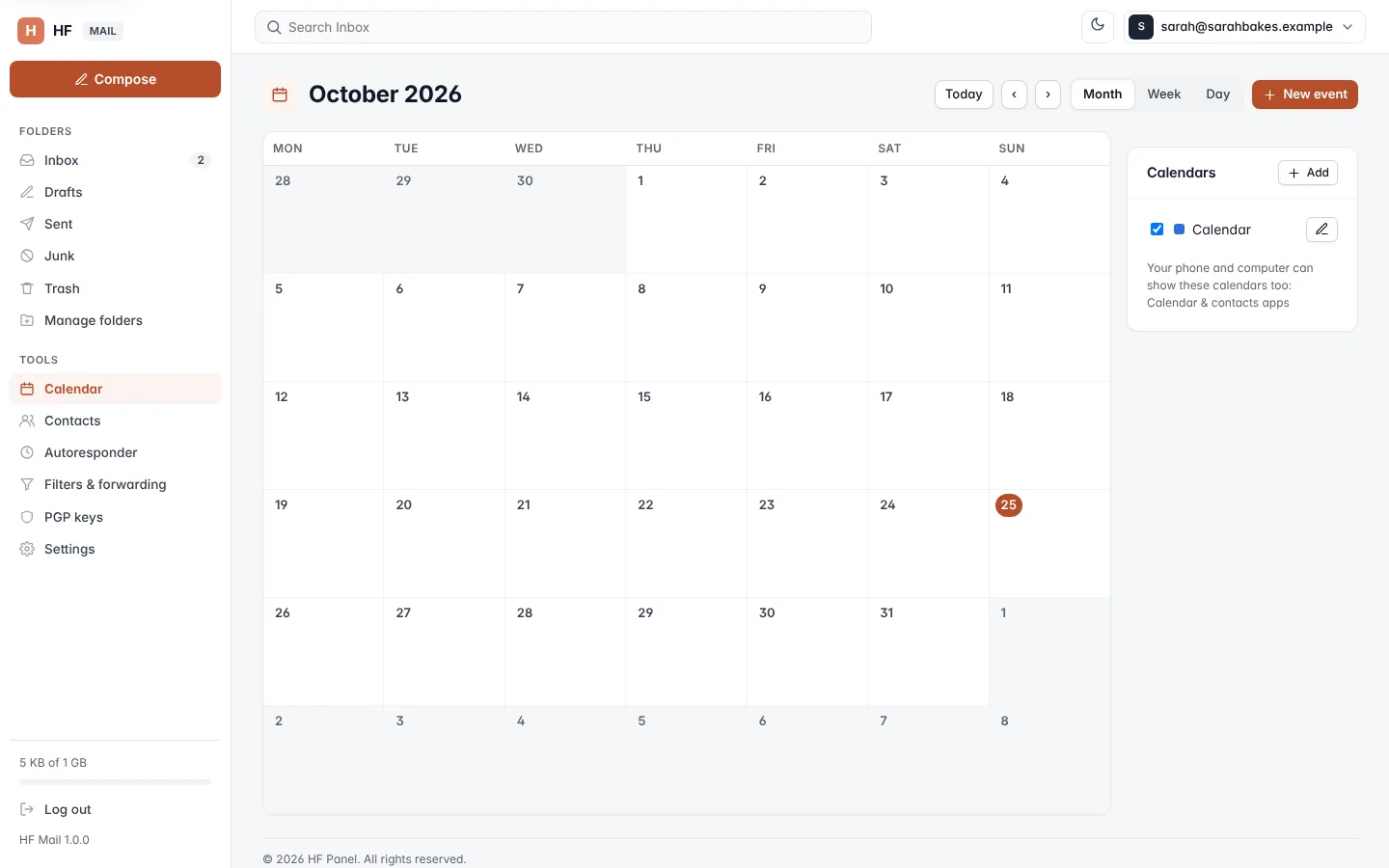
Views
Choose Month, Week or Day at the top. Today jumps to the current date, and Previous and Next move by one month, week or day. In the month view, click a day's number to open that day. Times are shown in your browser's time zone.
Add an event
- Click New event, or click a time or day in the calendar.
- Fill in the form and click Save.
| Field | What it does |
|---|---|
| Title | what the event is (required, up to 300 characters) |
| All day | an event without times, over one or more days |
| Starts / Ends | the date, and the time unless it is all day |
| Calendar | which of your calendars it goes in |
| Reminder | when to remind you: No reminder, At the start, 5, 10, 15 or 30 minutes, 1 or 2 hours, 1 day or 1 week before |
| Repeat | Does not repeat, Every day, Every week, Every month or Every year |
| Every | for a repeat: every 1 to 999 days, weeks, months or years |
| Repeat ends | Never, After a number of times (1–9,999) or On a date |
| Where | the place (up to 300 characters) |
| Notes | a description |
| Attendees | addresses of people to invite, separated by commas (optional; at most 100) |
| Send invitations by email | sends each attendee the invitation (shown when there are attendees) |
New events get a reminder 15 minutes before by default.
Note: an event made in another app may repeat in a way the form can't show. HF Mail keeps that rule unless you change Repeat.
Change or delete an event
Click an event to see its details, then Edit. Change the form and click Save. When the event has attendees, tick Send the changes to the attendees by email to tell them.
To delete, open the event and click Delete. For a repeating event, choose Delete this time only or Delete every time. If the event has attendees, HF Mail asks whether to tell them it is cancelled.
Events you were invited to can only be changed by their organizer. You answer them from the invitation message.
Reminders
While HF Mail is open in your browser, a reminder pops up at the time you chose (Starts in 10 min, Starting now). Click Open to see the day, or Dismiss to close it. Reminders for today and tomorrow are checked every few minutes.
Tip: to get reminders when webmail is closed, sync the calendar to your phone or computer.
Calendars
Your calendars are listed beside the view, each with its colour.
- Show or hide a calendar: click it.
- Add a calendar: click Add, type the New calendar name, pick a Colour and click Save.
- Rename or recolour: click the edit button next to the calendar, change it and click Save.
- Delete a calendar: click edit, then Delete. This deletes the calendar and all its events. The last calendar can't be deleted.
Invitations
When a message contains a calendar invitation, it is shown above the message text with What, When, Where, Organizer and Attendees.
| You get | What you can do |
|---|---|
| Invitation | Accept or Maybe adds the event to your calendar (or updates it); Decline takes it out. Each answer is emailed to the organizer |
| An answer to your invitation | Add this answer to my event records the attendee's answer on your event |
| This event was cancelled | Remove from my calendar deletes the event |
Open in calendar shows the event's day in your calendar.