 HF Panel
Resource usage
See the CPU, memory, disk I/O, processes, disk space and bandwidth your account uses, against your plan's limits.
The Resource usage screen shows what your websites, scripts and apps are using right now and over time, against the limits of your plan. It is read only: use it to find out why a website is slow or whether you are close to a limit.
Where: Control Panel › Websites › Resource usage
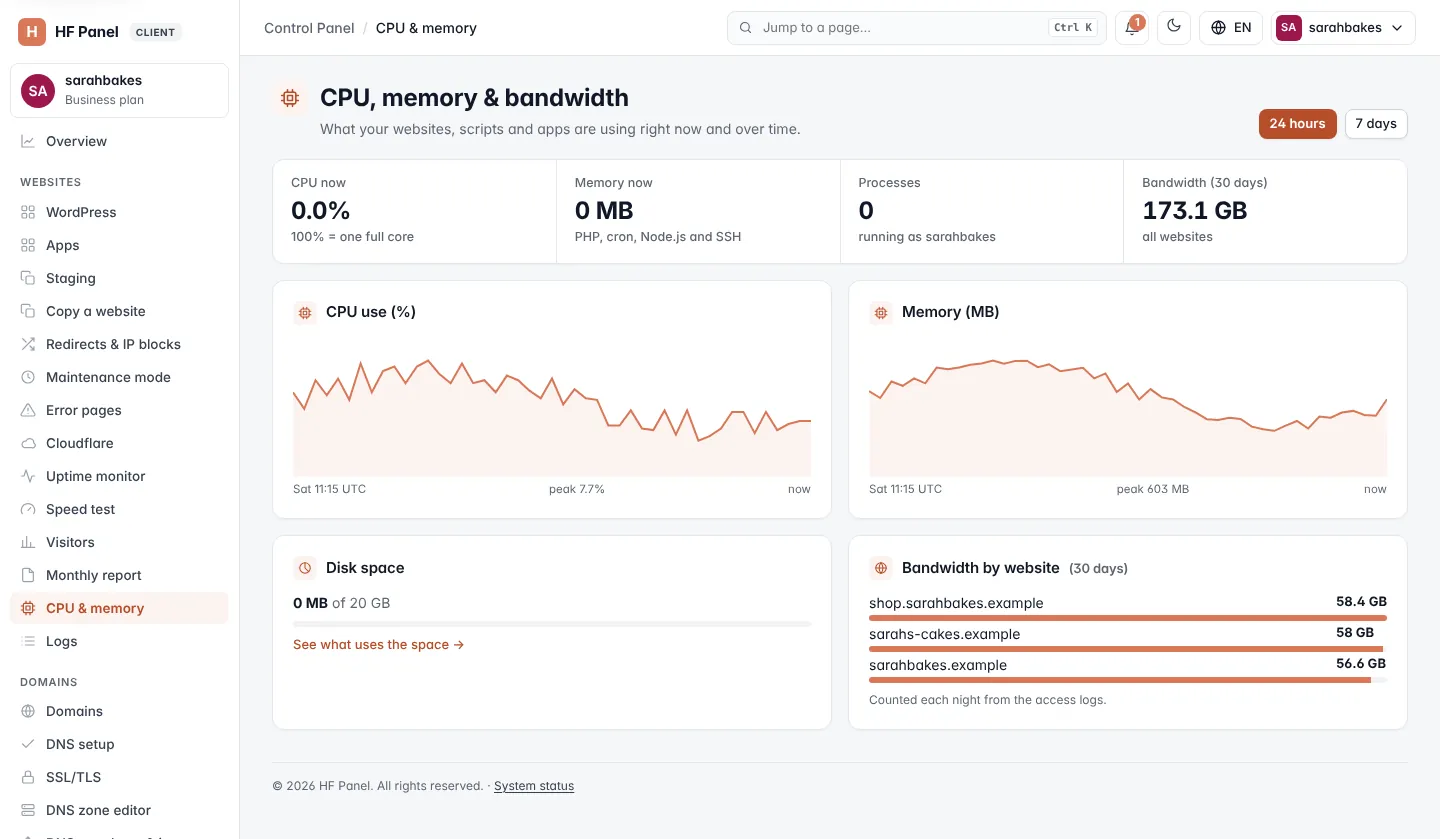
Choose the period
Click 24 hours (the default), 7 days, 30 days or 1 year at the top. The charts change to that period: a point every 5 minutes for 24 hours, every hour for 7 days, every 4 hours for 30 days and every day for a year.
Near or over a limit
When your account is close to a limit (about 80% of it), an amber notice says Your account is close to its limit and names it: CPU, Memory, Processes, Disk speed or Disk space. While your account is at a limit, a red notice says Your account is at its limit: websites and scripts slow down or stop with an error while it lasts.
When your hosting provider sells plans online, the notice has an Upgrade plan button that opens Billing, where you can move to a bigger plan.
Note: after 15 minutes at a limit, or when a process is stopped because your account ran out of memory, you also get an email (at most one a day for each kind of limit).
Figures now
| Figure | What it shows |
|---|---|
| CPU now | the CPU your account uses at this moment; 100% = one full core |
| Memory now | the memory used by everything that runs as your account: websites (PHP), cron jobs, SSH and apps |
| Disk I/O | how fast your account reads and writes its disk, in MB/s |
| Processes | how many processes run as your account |
| Disk space | the space your files, email and databases use |
Each figure shows its limit (for example limit 1.5 CPU) or no limit, with a bar of how much of it is used. Under the figures you also see the PHP workers each website may run and the processes each app may run, when your plan limits them, and the highest memory use since your account's services last restarted.
Charts
| Card | What it shows |
|---|---|
| CPU (%) | your account's CPU use, and how much of the time the CPU limit held back your account |
| Memory (MB) | memory in use; with a limit, the chart's top is the limit |
| Disk I/O (MB/s) | disk reads and writes |
| Processes and disk operations | the most processes, and disk operations per second (IOPS) |
| Disk space (MB) | the space used over the period |
| Bandwidth (MB per day) | the data all your websites sent each day, with the total |
Each chart has Show as table under it, which lists the same numbers as a table (screen readers read it too). Times are in UTC. A new account shows the older CPU and memory charts until the server has measured it twice.
Limit hits
Limit hits lists the times your account reached a limit in the period, with the kind of limit (CPU, Memory, Processes, Disk speed). The pill shows No limit hit in 24 hours, or how many there were.
Tip: if your account keeps hitting its CPU or memory limit, switch on the page cache under PHP settings, use the Redis cache, or ask your hosting provider about a larger plan.
Disk space and bandwidth by website
| Card | What it shows |
|---|---|
| Disk space | the space used, against your plan's limit (or "of unlimited"). Click See what uses the space → to open Disk usage. |
| Bandwidth by website | the data each website sent in the last 30 days, largest first. It is counted each night from the access logs. |