 HF Panel
Mailing lists
One address that reaches a whole group — a newsletter for customers or a discussion list for your team, with a one-click unsubscribe link.
A mailing list is one address that reaches a whole group — a newsletter for your customers, or a discussion list for your team. Every email sent through a list has a one-click unsubscribe link.
Where: Control Panel › Email › Mailing lists
Note: you need a domain with email switched on. If none has email yet, the screen says "Turn on email for a domain first."
Kinds of list
| Type | Who can post | Replies go to |
|---|---|---|
| Discussion | every member (and the allowed senders) | the list |
| Announcement | only the owner and the allowed senders | the author |
Messages to the list go out from the list address ("Alice via Newsletter"), so they pass the receivers' sender checks.
The subject starts with the list's name in brackets, for example [Newsletter]. Messages from someone who may not post
are bounced back to them.
Create a list
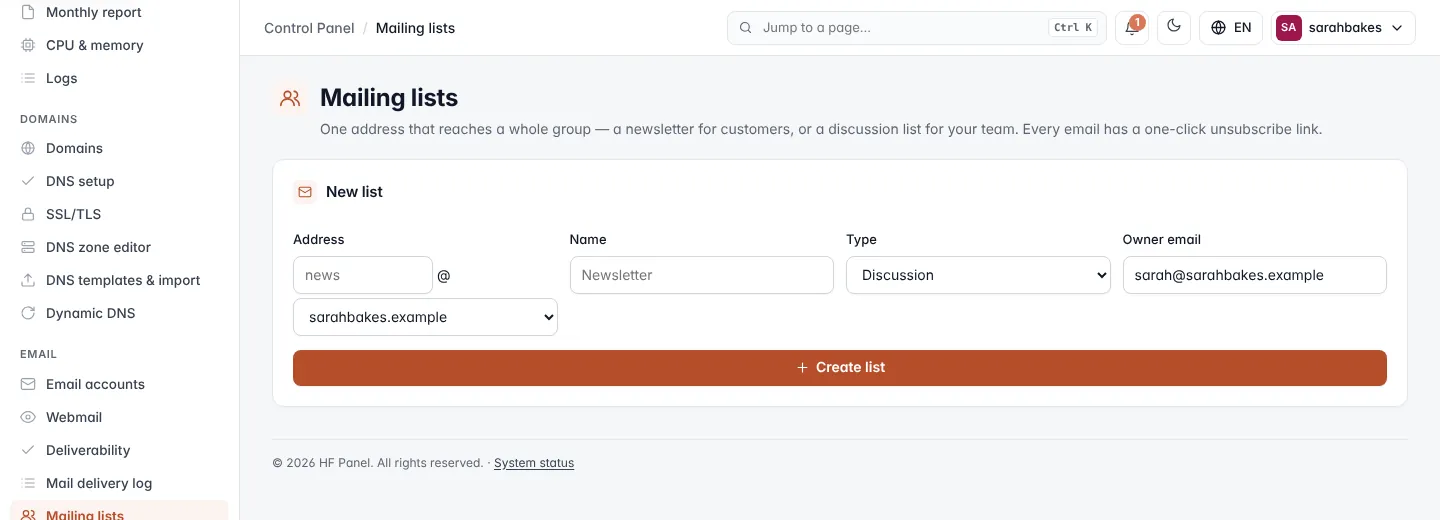
- Under New list, enter the Address, for example
news, and choose the Domain. - Optionally, enter a Name, for example "Newsletter". Empty = the address with a capital letter.
- Choose the Type: Discussion or Announcement.
- Enter the Owner email. Your account's email is filled in.
- Click Create list.
The list opens, ready for members.
| Field | What it does |
|---|---|
| Address | the part before @: letters, numbers, ., _ and -, up to 41 characters. It can't already be a mailbox or another list. |
| Name | the list's name in the subject and sender, up to 40 characters, no brackets or quotes |
| Owner email | the owner can always post, also to an announcement list |
Add members
- Click the list in the table to open it.
- Under Add members, paste the addresses, separated by commas, spaces or new lines — or paste a column from a spreadsheet.
- Click Add.
The message says how many members were added. Addresses already on the list are skipped. A list can have up to 5,000 members.
Remove members
- Open the list.
- Under Members, tick the members to remove.
- Click Remove selected.
Members can also leave on their own, with the one-click unsubscribe link in every message.
Change the list settings
- Open the list.
- Under Settings, change:
- Type — Discussion — members can post or Announcement — only owner / allowed senders;
- Owner — the owner's email;
- Also allowed to post — other addresses that may send to the list, for example
editor@example.com.
- Click Save.
Delete a list
- Open the list.
- Click Delete list and confirm.
The list and its members are deleted. Mail to the list address is no longer delivered.
Note: messages sent through a list count towards your account's hourly sending limit. See Deliverability for this hour's count.