 HF Panel
Password & security
Change your password and contact email, set up two-factor login and passkeys, manage API tokens and your support PIN.
The Password & security screen holds everything that protects your login: your password, contact email, support PIN, email notifications, passkeys, two-factor login and API tokens. It also lets you put the panel on your phone's home screen.
Where: Control Panel › Account › Password & security
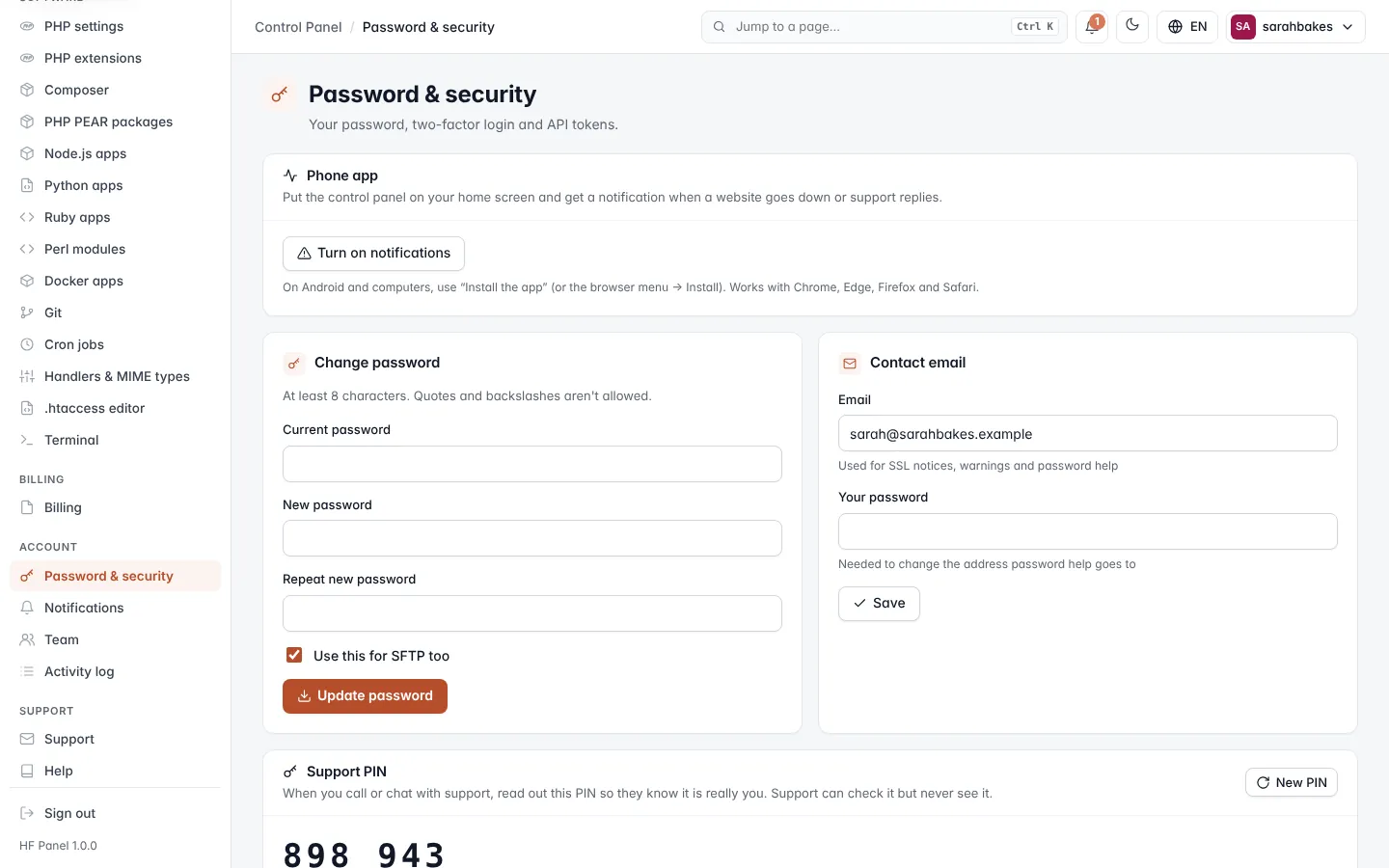
Phone app
The Phone app card puts the Control Panel on your home screen and sends a notification when a website goes down or support replies.
- Install the app appears when your browser offers to install the panel (on Android and computers; or use the browser menu › Install).
- Turn on notifications asks your browser for permission and registers this device for push notifications.
- On iPhone or iPad, tap Share › Add to Home Screen, open the app from there, then turn on notifications.
Change your password
- Under Change password, enter your Current password.
- Enter the New password and Repeat new password.
- Leave Use this for SFTP too ticked to change your SFTP password as well.
- Click Update password.
A password must be 8–128 characters and cannot contain quotes ('), backslashes or control characters.
Contact email
Your contact email is used for SSL notices, warnings and password help.
- Under Contact email, enter the new Email.
- Enter Your password (or, with two-factor login on, a code from your app).
- Click Save.
The old address gets a security notice that the email was changed.
Support PIN
When you call or chat with support, read out your Support PIN so they know it is really you. Support can check it but never see it. Click New PIN to get a different one.
Email notifications
The Email notifications card chooses what is emailed to your contact address when something changes in your hosting. Everything also appears under the bell in your panel. Tick the kinds you want and click Save.
| Kind | What it covers |
|---|---|
| Account changes | plan changes, suspensions and changes made by support |
| Security | password or email changed, two-factor login, sign-ins from a new place, API tokens |
| Websites & SSL | domains added by support, free SSL installed or failing, malware found |
| Space & limits | when your hosting space is nearly full |
| News from your host | announcements and planned maintenance |
| Support tickets | replies to your tickets |
| Monthly report | a short summary on the 1st of each month: visitors, uptime, space used, backups and speed |
Note: some emails are always sent, whatever you choose: account suspended or active again, your password or email changed by someone else, malware found, important service notices, invoices and support replies.
For alerts by webhook, Slack, Telegram or Discord, use Notifications.
Passkeys
A passkey signs you in with Face ID, Touch ID, a fingerprint, Windows Hello, your phone or a security key — no password or code to type, and it can't be phished. A passkey counts as two-factor login.
- Under Passkeys, enter a Name (optional) for the passkey (a name for your device is suggested).
- Enter your password (or a code from your app).
- Click Add a passkey and follow your device's prompt.
The table shows each Passkey, when it was Added and Last used. Click the remove button and confirm to remove one; remove it from the device too.
Note: passkeys work only when the panel is opened by its name (for example
https://panel.yourdomain.com), not by an IP address. Use an up-to-date Chrome, Edge, Safari or Firefox.
Two-factor login
Two-factor login protects your login with a 6-digit code from your phone, so a stolen password alone can't get in.
Turn it on
- Click Set up two-factor login.
- Open an authenticator app on your phone and scan the QR code. Can't scan? Add it by hand with the key shown (time-based, 6 digits, 30 seconds).
- Enter the 6-digit code the app shows and click Turn on.
- Save the backup codes that appear. Each works once instead of a code from your phone, and they won't be shown again. Copy codes copies them.
Click Cancel to stop setting it up.
While it is on
Signing in asks for a code from your authenticator app after your password. The card shows how many backup codes are left.
- New backup codes — enter a code from your app and click it. The old codes stop working.
- Turn off — enter your password and a code from your app, then confirm.
Note: if the card says Your administrator requires two-factor login for this account, you cannot turn it off. If you lose your phone, your hosting provider can turn it off for you.
API tokens
An API token lets a script or billing system use your account through the HF Panel API. The card shows the API's
address; send the token as Authorization: Bearer <token>.
Create a token
- Enter a Name, for example
Billing system. - Choose the Access: Read only or Read & change.
- Optionally enter Allowed IPs — addresses or ranges such as
203.0.113.5 198.51.100.0/24. Leave empty to allow any. - Enter your password (or a code from your app).
- Click Create token.
Important: copy the new token straight away. It is shown only once.
The table shows each token's Name, first characters, Access, Allowed IPs and when it was Last used (and from which IP). Click Delete and confirm to revoke a token; anything using it stops working. You can have up to 20 tokens.
When support works in your account
When your hosting provider uses Log in as to work in your panel, they can change your password and email without your current password, but two-factor login, passkeys and API tokens can only be changed by you.