 HF Panel
HF Studio
Sign in to HF Studio, the database app of HF Panel, see your MySQL, PostgreSQL and MongoDB databases and open one.
HF Studio shows the databases of your hosting account in the browser. You can browse and edit rows, see the structure of tables, run SQL, and import and export. MongoDB databases have their own views for collections and documents.
Where: https://db.yourdomain.com, or Control Panel › Databases › HF Studio
Open HF Studio
From the Control Panel: click HF Studio in the menu (or Browse next to a database). HF Studio opens in a new tab, already signed in. If you see That link has expired. Open HF Studio from your Control Panel again., open it from the Control Panel again.
Directly:
- Open the HF Studio address.
- Enter the Username and Password of your hosting account.
- Click Sign in.
With two-factor login on, type the 6-digit Code (or a backup code) and click Continue.
A session ends after 2 hours without use, and after 12 hours at most.
The database list
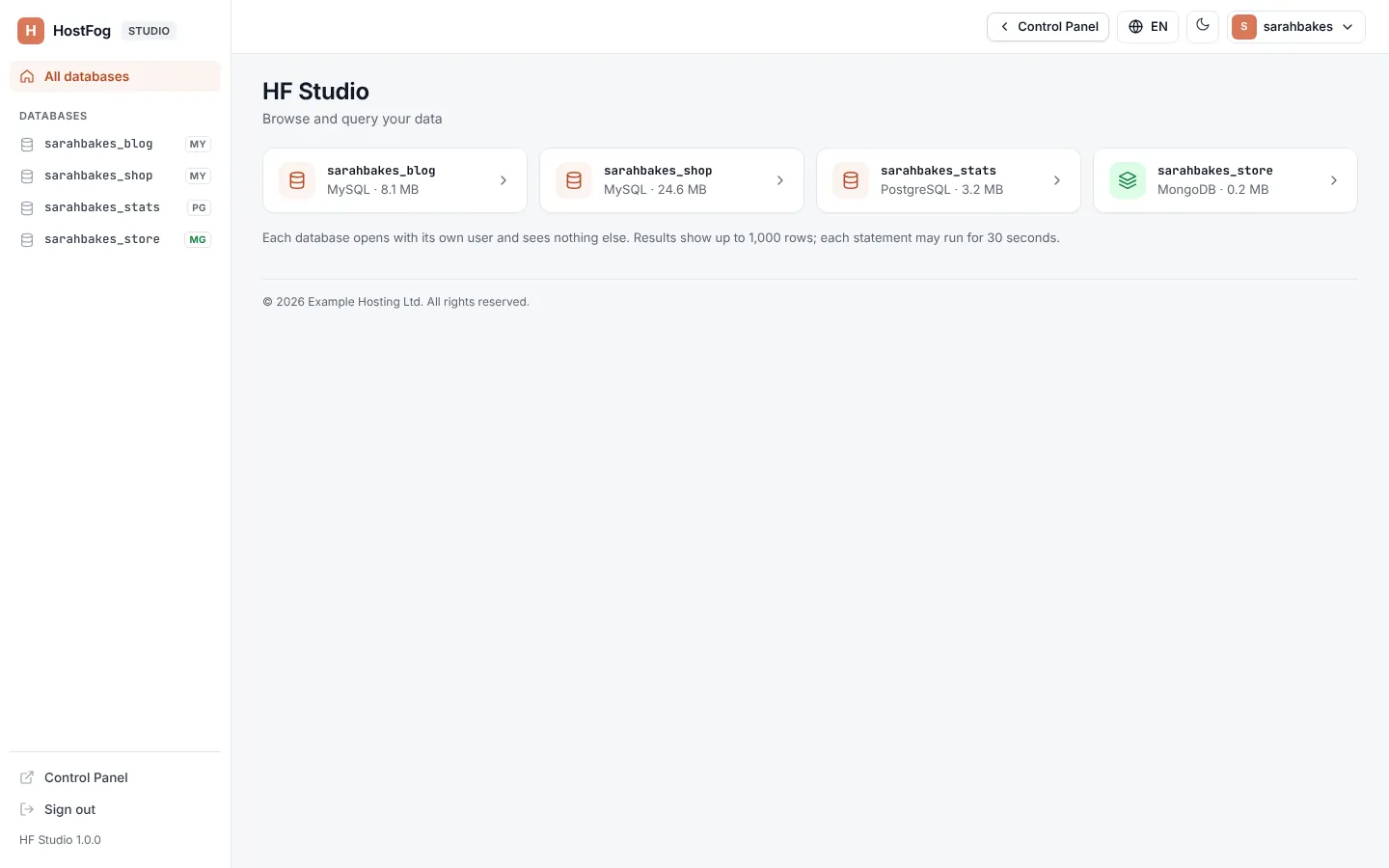
The start page lists every database of your account with its engine and size. The side menu lists them too; under the open database it lists its tables (or collections), with a filter box.
| Engine | Opens |
|---|---|
| MySQL / MariaDB | tables, rows, structure, SQL, import and export |
| PostgreSQL | the same |
| MongoDB | collections, documents, indexes, queries, import and export (see MongoDB in HF Studio) |
If you have no databases yet, create one in the Control Panel first (MySQL databases, PostgreSQL databases or MongoDB databases), then open it here.
Note: each database opens with its own database user and sees nothing else. You never type the database's password, except in the one case below. Database users themselves are managed in the Control Panel.
Unlock a PostgreSQL database
A PostgreSQL database that HF Studio can't sign in to by itself shows Unlock this database. Type the password of the database user and click Unlock. It is kept only while you are signed in.
When a database can't be opened
- PostgreSQL isn't running on this server or MongoDB isn't running on this server: those databases can't be opened until the server's administrator starts the service.
- HF Studio opens databases on this server only: your account's databases are on another server of the cluster.
A database's tabs
Open a database, then a table in the side menu. The tabs are:
| Tab | What it does |
|---|---|
| Rows | browse, search, filter, sort, add, edit and delete rows (Rows and structure) |
| Structure | columns, indexes, foreign keys and the CREATE statement |
| SQL | the SQL box (The SQL box) |
| Import & export | .sql and CSV files (Import and export) |
An empty database opens on SQL, with buttons to Open the SQL box or Import.
Limits
| Limit | Value |
|---|---|
| Time one statement may run | 30 seconds |
| Rows shown for one statement in the SQL box | 1,000 |
| Statements in one run of the SQL box | 200 |
| Text in the SQL box | 1 MB |
| One statement of an import or export | 10 minutes |
| A whole import | 30 minutes |
| Largest .sql file to import | 128 MB, unless your hosting provider set another limit |
Language and look
The language menu at the top switches the interface language. The moon and sun button switches between the light and dark look. Your username opens Control Panel, Password & security and Sign out.