 HF Panel
DNS zone editor
Add, change and delete the DNS records of your domains — A, AAAA, CNAME, ALIAS, MX, TXT, SRV, CAA and NS — reset a zone and switch on DNSSEC.
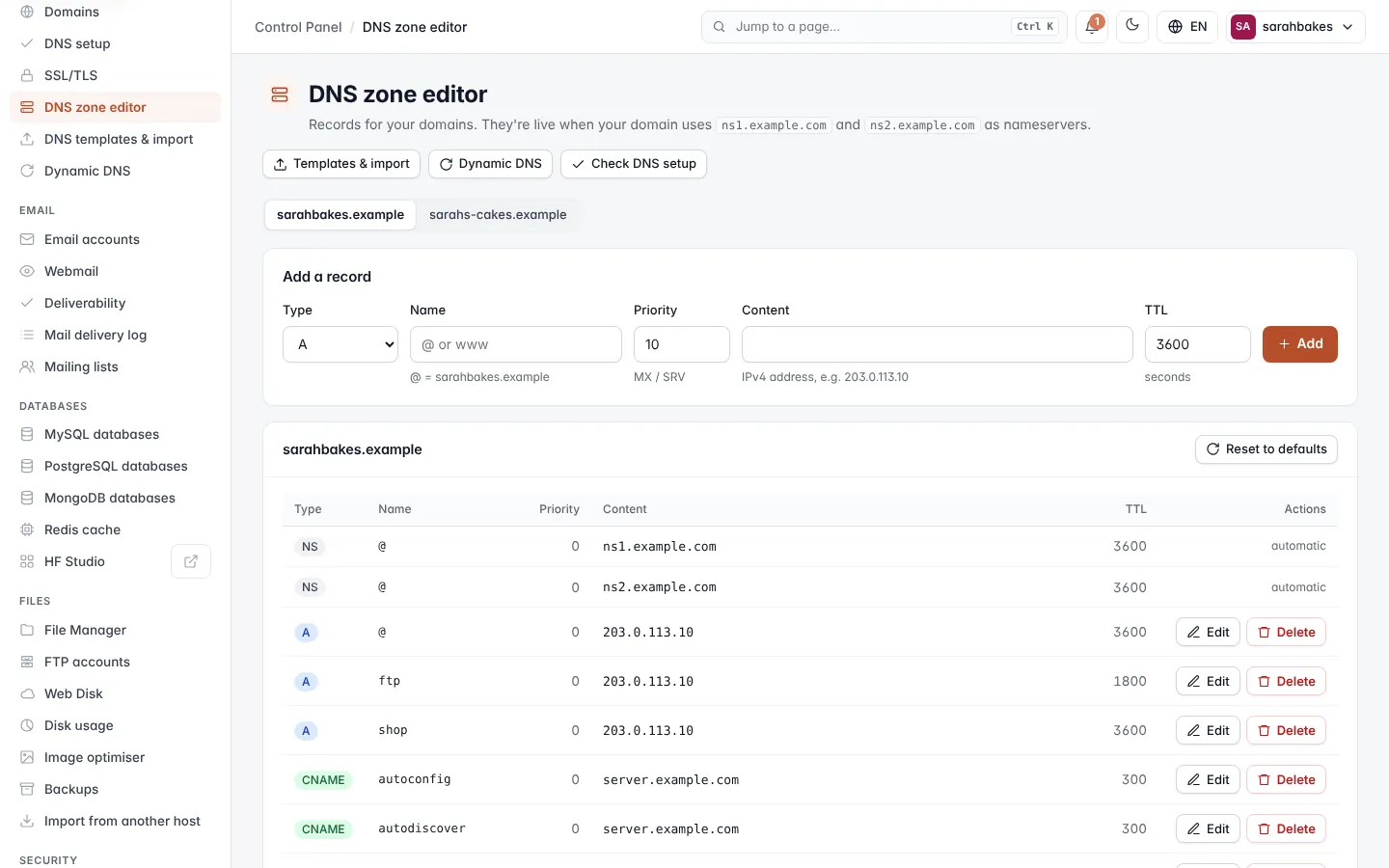
The DNS zone editor shows the DNS records of your domains and lets you add, change and delete them. The records are
live when your domain uses the server's nameservers (shown at the top of the screen, for example ns1.yourdomain.com
and ns2.yourdomain.com).
Where: Control Panel › Domains › DNS zone editor
Note: the DNS screens are only in the menu when the server runs DNS. If your domain's DNS is somewhere else, use DNS setup to see which records to add there.
Click a domain in the picker at the top. Each main domain (parked domains included) has its own zone; the records of its subdomains are in the same zone. The buttons at the top open Templates & import, Dynamic DNS and Check DNS setup.
The records table
| Column | What it shows |
|---|---|
| Type | the record type |
| Name | @ is the domain itself; www is www.yourdomain.com |
| Priority | for MX and SRV records |
| Content | the record's value |
| TTL | how long, in seconds, other servers may remember the record |
The NS records of the server's own nameservers come first and are marked automatic: they are set for you and can't be changed.
Default records
A new domain gets these records:
| Name | Type | Content |
|---|---|---|
@ |
A | the server's IP address |
www |
CNAME | @ |
ftp |
A | the server's IP address |
When email is on for the domain, it also gets an MX record, mail, autoconfig and autodiscover names, an
_autodiscover._tcp SRV record, an SPF record, a DKIM key (hf._domainkey) and a DMARC record (_dmarc). Each
subdomain gets an A record.
Add a record
- In the form under the table, choose the Type.
- Enter the Name, for example
@orwww. - Enter the Content. The hint under the field shows what each type expects.
- For MX and SRV records, enter the Priority.
- Optionally, change the TTL (in seconds).
- Click Add.
Changes reach the internet within minutes (up to the TTL).
| Type | Content | Example |
|---|---|---|
| A | an IPv4 address | the server's IP |
| AAAA | an IPv6 address | 2001:db8::1 |
| CNAME | another host name | shops.myshopify.com |
| ALIAS | a host name, also at @ — published as its addresses |
cdn.example.net |
| MX | a mail server host name, with a priority (0–65535) | mail.example.com |
| TXT | text, up to 2,048 characters, no quotes or backslashes | google-site-verification=… |
| SRV | weight, port and target, with a priority | 5 5060 sip.example.com |
| CAA | which certificate authority may issue certificates | 0 issue "letsencrypt.org" |
| NS | a nameserver for a sub-zone | ns1.example.net |
| Rule | Why |
|---|---|
| TTL between 60 and 86400 seconds | the default is 3600 |
| A CNAME must be the only record for a name | a name with a CNAME can't have other records |
@ can't be a CNAME |
use an A record or ALIAS instead |
| A name gets its address from A/AAAA records or from one ALIAS, not both | delete the other record first |
| The main nameservers can't be changed | they are set automatically |
Change or delete a record
- To change a record, click Edit on its row, change the fields and click Save (or Cancel).
- To delete a record, click Delete on its row and confirm.
Reset a zone to the defaults
- Click Reset to defaults.
- Confirm Replace all records with the defaults?
All records are replaced with the default ones: the website, its subdomains and, when email is on, the mail records.
Warning: records you added yourself — for example for an outside email service or a site verification — are deleted. Export the zone first on DNS templates & import.
DNSSEC
DNSSEC signs your DNS answers so nobody can fake them (it protects against DNS spoofing). The server re-signs the zone automatically.
- In the DNSSEC card, click Turn on DNSSEC.
- Add the DS record shown (key tag, algorithm 13 — ECDSA P-256, digest type 2 — SHA-256, and the digest) at the company where you registered the domain.
The DS record is only needed when the domain uses the server's nameservers. If your registrar asks for the DNSKEY instead, open Registrar asks for the DNSKEY instead?. If the key is still being made, the card says "The key is being created — reload in a minute."
The card shows Signed once BIND has signed the zone (Signing starts… before that) and the BIND version. BIND signs with one key and rolls it over by itself; Key status shows BIND's own report on the key. Signing needs BIND 9.16 or newer on the server; on an older version the server refuses and says so.
If you bought the domain on Domain names & SSL and the provider takes DS records, there is nothing to add: the panel sends the DS record to the registrar as soon as the key is ready (checked daily, and again whenever the key changes), and the card says so.
Turn off DNSSEC
Warning: first remove the DS record at your registrar and wait 2 days. If you turn DNSSEC off while the DS record is still there, the domain stops working.
For a domain bought here, the panel removes the DS records at the registrar itself before it stops signing; if the registrar refuses, DNSSEC stays on and the message says why.
Then click Turn off in the DNSSEC card and confirm.