 HF Panel
Dynamic DNS
Give a computer, camera or router at home or in the office a name like home.yourdomain.com that follows its changing IP address.
Dynamic DNS gives a computer, camera or router at home or in the office a name like home.yourdomain.com that follows
its changing IP address. Your router, or a small script, tells the server whenever the address changes, and the name's
DNS record is updated at once.
Where: Control Panel › Domains › Dynamic DNS
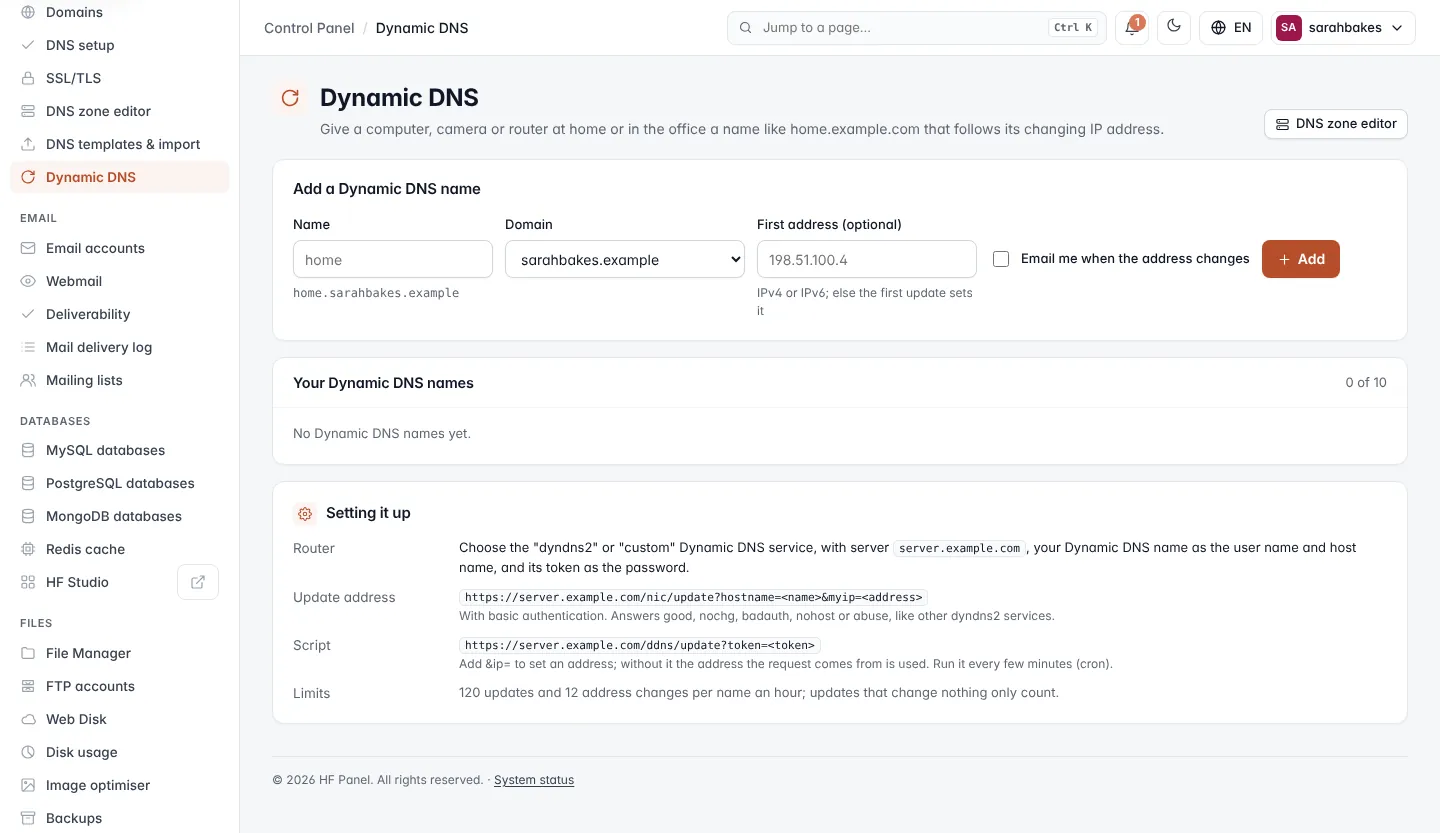
Note: the names only work when the server runs DNS for your domain (the domain uses the server's nameservers). If the server does not run DNS, the screen says so.
Add a Dynamic DNS name
- Under Add a Dynamic DNS name, enter the Name, for example
homeoroffice.vpn. - Choose the Domain.
- Optionally, enter a First address (IPv4 or IPv6). Without one, the first update sets it.
- Tick Email me when the address changes if you want an email each time.
- Click Add.
The name can use letters, digits and dashes, and can't be the domain itself. It must not already be in use — delete its records in the DNS zone editor first if needed.
After you click Add, the token is shown (see below).
Note: your plan allows a set number of Dynamic DNS names (10 by default). The card shows how many you use, for example 2 of 10.
Copy the token and the set-up details
Each name has a secret token. It is shown once, straight after you make the name or a new token:
Important: copy the token now — it is shown only once. Make a new one if you lose it.
The card Token for home.yourdomain.com shows everything you need:
| Section | Details |
|---|---|
| Token | the secret token, with a Copy button |
| Router (dyndns2) | Server, Username (your Dynamic DNS name), Password (the token) and Host name |
| Update address | the address for routers that ask for an update URL |
| From a script | a ready-made curl command |
Set up your router
Most routers have a Dynamic DNS setting. Choose the dyndns2 or custom Dynamic DNS service, then enter:
| Router field | Value |
|---|---|
| Server | the server shown on the screen |
| User name / host name | your Dynamic DNS name, for example home.yourdomain.com |
| Password | the token |
The update address uses basic authentication. It answers good, nochg, badauth, nohost or abuse, like other
dyndns2 services.
Update from a script
Run the curl command shown on the screen every few minutes, for example from a cron job on the computer at home:
curl -fsS 'https://<update address>?token=<your token>'
Add &ip= to set an address; without it, the address the request comes from is used. You can also send an IPv6
address with &ipv6=.
Your Dynamic DNS names
The table lists each name:
| Column | What it shows |
|---|---|
| Name | the full host name |
| IPv4, IPv6 | the current addresses |
| Last change | when the address last changed |
| Last update | when the router or script last checked in, and how many updates there were |
| Email me | On or Off — click to switch the email on address changes |
| Token | the first characters of the token, so you can tell which one is in use |
Buttons on each row:
- History — the last 100 updates with Time (UTC), Result, Address, From and Client.
- New token — makes a new token. The old one stops working at once: change it in your router too.
- Delete — deletes the name and its DNS records.
Limits
- 120 updates and 12 address changes per name an hour. Updates that change nothing only count.
- After 20 refused requests (wrong token or unknown name) from one address in 15 minutes, that address must wait 15 minutes.
- The records an update writes have a TTL of 60 seconds, so changes reach everyone quickly.