 HF Panel
Status page
Publish a public status page, report incidents, plan maintenance and post updates that customers can follow.
The Status page screen runs a public page that shows whether websites, email, DNS, databases and the control panel are working. The panel checks them every 5 minutes. You add incidents and planned maintenance with their updates, so customers can look there during an outage instead of opening tickets.
Where: Server Admin › Server › Status page
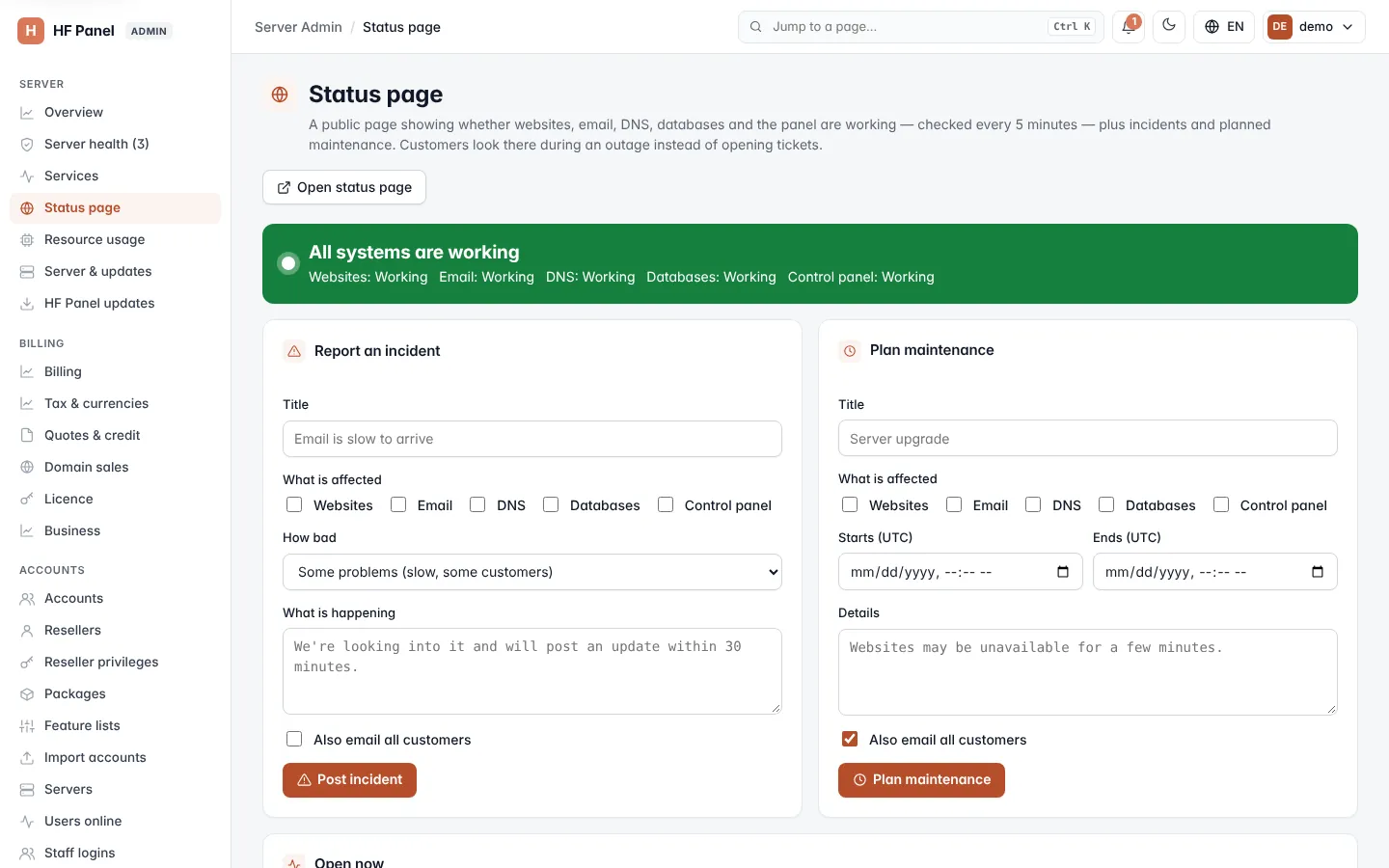
The banner at the top shows what the page says right now: the overall headline and the state of each part — Websites, Email, DNS, Databases and Control panel. Click Open status page to see the public page in a new tab.
Switch the status page on
- In Settings, tick The status page is public.
- Optionally type a Title (up to 80 characters). Left empty, the page uses your brand name followed by "status".
- Click Save.
The card shows the page's Address. Scripts and monitoring tools can read the same information as JSON at
/status.json on that address.
Tip: to give the page its own address, such as
status.yourdomain.com, runhf-panel status-page onon the server.
Report an incident
- In Report an incident, type a Title, for example "Email is slow to arrive".
- Under What is affected, tick at least one of the parts concerned.
- Choose How bad:
- Some problems (slow, some customers)
- Outage (not working)
- In What is happening, describe the problem and when you will post the next update.
- To tell every customer by email as well, tick Also email all customers.
- Click Post incident.
The incident appears on the status page at once with the status Investigating.
Plan maintenance
- In Plan maintenance, type a Title, for example "Server upgrade".
- Tick the parts affected under What is affected.
- Set Starts (UTC) and, optionally, Ends (UTC).
- In Details, explain what customers will notice.
- Also email all customers is ticked by default for maintenance; untick it if you do not want to email them.
- Click Plan maintenance.
The maintenance appears with the status Scheduled.
| Field | Limit |
|---|---|
| Title | up to 150 characters |
| What is happening / Details | up to 5,000 characters |
Post an update
Everything not yet resolved or completed is listed under Open now, with the parts affected, the time for maintenance and when it was last updated.
- Under the incident or maintenance, choose its New status.
- Incidents: Investigating, Identified, Monitoring, Resolved.
- Maintenance: Scheduled, In progress, Completed.
- Type the Update, for example "We found the cause and are fixing it."
- Tick Email customers to email the update too.
- Click Post update.
When you set an incident to Resolved or maintenance to Completed, it moves to Recent.
Edit an incident or maintenance
Click Edit under an open entry to change its Title, What is affected and, for incidents, How bad. For maintenance you can change Ends (UTC), and Starts (UTC) while it is still Scheduled. Click Save; the updates already posted stay as they are.
Email subscribers and feeds
Visitors of the public page can follow it without signing in:
- Get updates on the page takes an Email address. The panel emails a confirmation link first; nothing else is sent until the visitor opens it. From then on each new update of an incident or maintenance is emailed (within 5 minutes), and every email ends with an Unsubscribe link. At most five sign-ups an hour are accepted from one IP address.
- The Atom and RSS feeds list the last 50 updates:
/status/feed.atomand/status/feed.rss(on the status page's own address,/feed.atomand/feed.rss).
Under Settings, the screen shows how many Email subscribers there are and how many are waiting to confirm, with a link to the Atom feed. Addresses that unsubscribe are kept, marked as unsubscribed, so they are never emailed again unless they sign up again.
More than one server
When other servers are joined under Servers, the panel checks each of them every 5 minutes too. A part that stops working on one server only shows Some problems. Tick List each server under each part on the page to show each server with its state and 90-day uptime under each part; it is off by default, so your server names stay private.
Inside the panel
While an incident is open or maintenance is in progress (or starts within 48 hours), everyone signed in to the panel sees a banner above the page with its title, status and a Follow it live link to the status page. A banner can be closed; it comes back when the entry changes. For a reseller's customers, the status page opens on the reseller's own panel address with the reseller's brand.
For scripts
GET /status.jsonon the status page, orGET /v1/status/pageon the API (no token), returns each part, the open incidents and the planned maintenance.- Administrator tokens can list incidents, post one and post updates: see the API reference.
- The
status.incidentevent tells webhooks and script hooks about each new incident, update or change: see Event hooks.
Remove an entry
Recent lists the last eight closed incidents and maintenance windows. To take one off the status page, click its bin icon and confirm Remove this from the status page?.