 HF Panel
Share links
Make public download links to files and folders in HF Files, with an expiry time, a password and a download limit, and revoke them.
A share link lets anyone download a file, or a folder as a zip file, without signing in. Each link can expire, need a password and stop after a number of downloads.
Where: HF Files › More (⋯) › Share link; all links: Share links in the toolbar
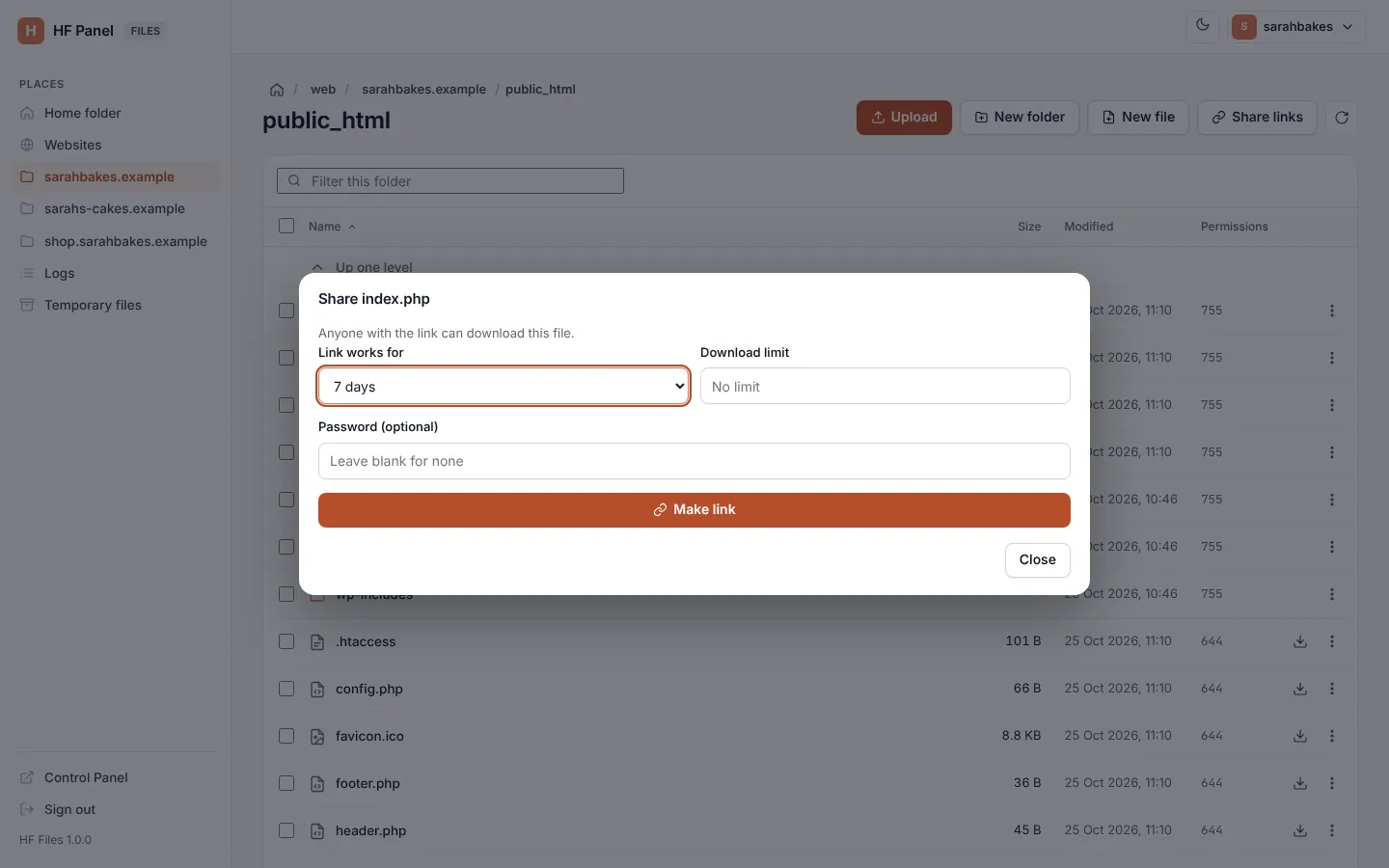
Make a share link
- Open the More menu of a file or folder and click Share link.
- Choose how long the Link works for: 1 hour, 1 day, 7 days (the default), 30 days or Never.
- Optionally set a Download limit (up to 100,000). Leave it empty for No limit.
- Optionally type a Password (optional). Leave it blank for none.
- Click Make link.
The link is made and copied to your clipboard (Share link made and copied.). It looks like
https://files.yourdomain.com/s/….
Important: the address is shown only when the link is made. Copy it then; later the list shows the link's details but not its address.
| Shared item | What the visitor gets |
|---|---|
| a file | the file |
| a folder | the folder and everything in it, as a zip file |
A visitor to a password-protected link types the password first. Wrong passwords are limited per address.
See and revoke links
The Share link dialog of an item lists Other links to this item. Share links in the toolbar lists every link of your account.
Each link shows when it Expires (or Never expires), how many downloads it has had (for example 3 of 10 downloads), and whether it has a password. A link that has expired or reached its limit shows No longer works.
To stop a link, click Revoke. It stops working at once (Share link revoked.).
Tip: your share links are also listed on the Web Disk screen of the Control Panel (Control Panel › Files › Web Disk), where you can copy or revoke them.