 HF Panel
Node.js apps
Run static React, Vue or Angular builds and Node.js server apps such as Next.js or Express on your domains.
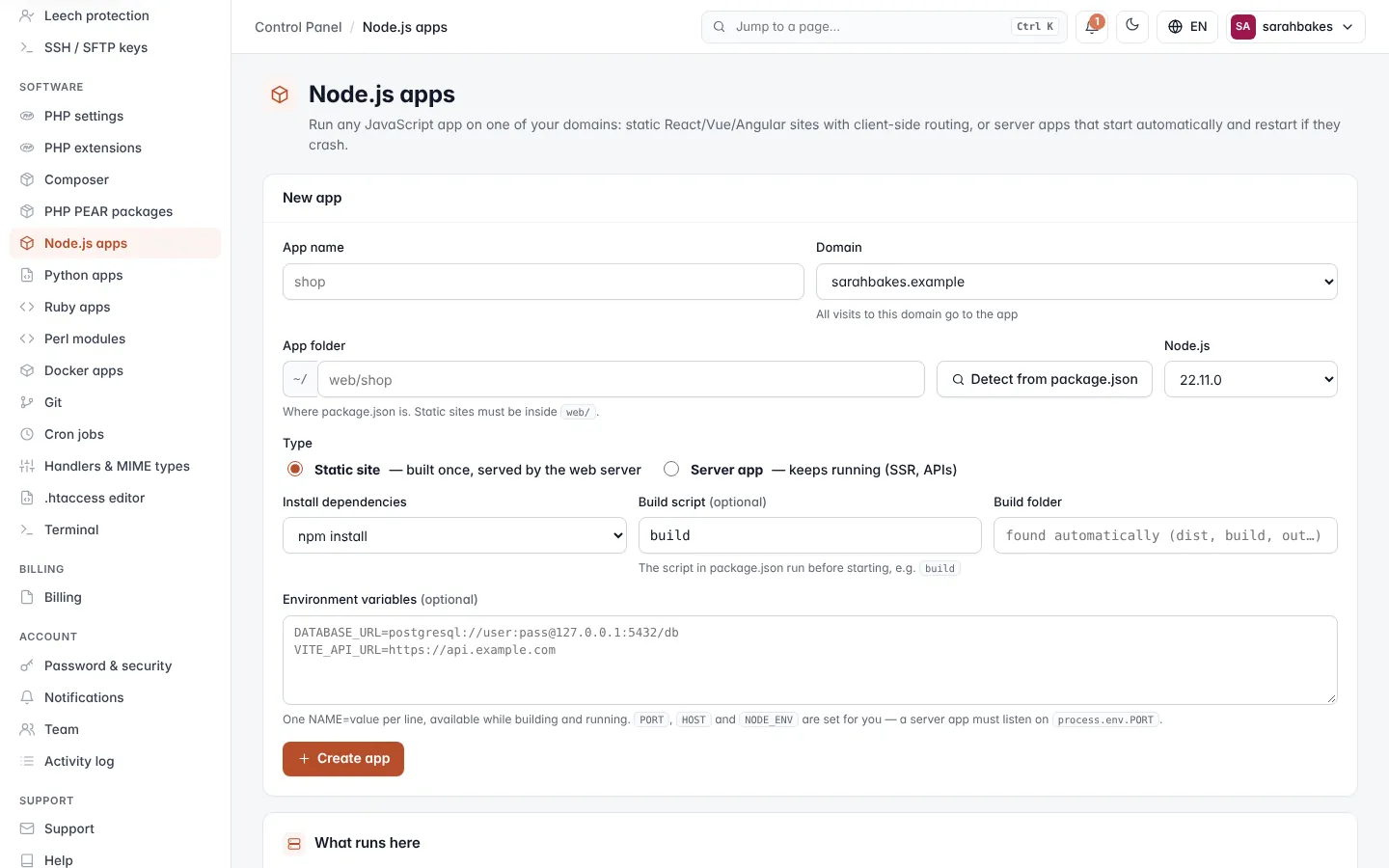
The Node.js apps screen runs JavaScript apps on your domains: static React, Vue or Angular sites with client-side routing, or server apps that start automatically and restart if they crash.
Where: Control Panel › Software › Node.js apps
| Type | How it runs | Examples |
|---|---|---|
| Static site | built once, served by the web server | React (Vite or Create React App), Vue, Angular, Svelte, Solid, Preact, Gatsby, Astro, SvelteKit with adapter-static, Next.js static export |
| Server app | keeps running as a service on its own port, behind the web server (SSR, APIs) | Next.js, Nuxt, Remix, React Router, SvelteKit, Astro SSR, Angular SSR, NestJS, Express, Fastify, Koa, Hono, Socket.IO |
Note: if the screen says Node.js isn't installed on this server yet, ask your hosting provider to install it. You also need at least one domain.
Create an app
- Upload your project (without
node_modules) to a folder in your home with the File Manager, SFTP or Git. - Under New app, enter the App name, for example
shop. - Choose the Domain. All visits to this domain go to the app.
- Enter the App folder — where
package.jsonis, for exampleweb/shop. - Click Detect from package.json. HF Panel reads
package.jsonand fills in the fields for the framework it finds; a message names the framework and any Node.js versionpackage.jsonasks for. Check the fields. - Choose the Node.js version and the Type.
- Click Create app.
- Click Build & deploy next to the app.
Build & deploy installs the dependencies, runs the build and puts the result live; a window shows every step. Do it again after each change.
App settings
| Field | What it does |
|---|---|
| App name | lowercase letters, numbers, - and _, up to 30 characters; cannot be changed later |
| Domain | a main domain (not a parked domain). Each domain can run one app. |
| App folder | a folder inside your home. A static site's folder must be inside web/. |
| Node.js | the Node.js versions installed on the server |
| Type | Static site or Server app |
| Install dependencies | npm install, npm ci (uses package-lock.json), yarn install, pnpm install or Nothing (already installed) |
| Build script (optional) | the script in package.json run before starting, for example build |
| Build folder | static sites: where the build ends up; found automatically (dist, build, out…) when empty |
| Start command | server apps: node, npm, npx, yarn or pnpm followed by plain words, for example npm start, node dist/main.js or node .output/server/index.mjs (up to 200 characters) |
| Mode | server apps: Production or Development |
| Environment variables (optional) | one NAME=value per line, available while building and running |
Environment variable names are upper-case letters, numbers and _ (up to 64 characters). Values cannot contain
quotes or backslashes and are at most 500 characters. You can set up to 30 variables; lines starting with # are
ignored.
Important:
PORT,HOSTandNODE_ENVare set for you. A server app must listen onprocess.env.PORT.
Manage apps
The apps table shows each app's type and mode, Domain, Folder (and start command), Node.js version and Status: Static, Running, Starting or stopped.
| Button | What it does |
|---|---|
| Build & deploy | installs, builds and puts the app live (a server app is restarted) |
| Restart / Stop / Start | controls a server app's service |
| Settings | opens the app's settings in the form below |
| Files | opens the app folder in the File Manager |
| Log file | opens the logs folder in the File Manager (server apps) |
| Remove app | removes the app after you confirm |
If a server app does not come up, the message points to its log, ~/logs/node-<app name>.log.
Removing an app keeps its files; the domain serves its website folder again.