 HF Panel
Settings
Set your name and signature in HF Mail, reading options, two-factor login, the daily spam summary, language and appearance.
Settings control how your messages look and behave. They are saved for your mailbox, so they follow you to any browser.
Where: HF Mail › Tools › Settings (or your address at the top right › Settings)
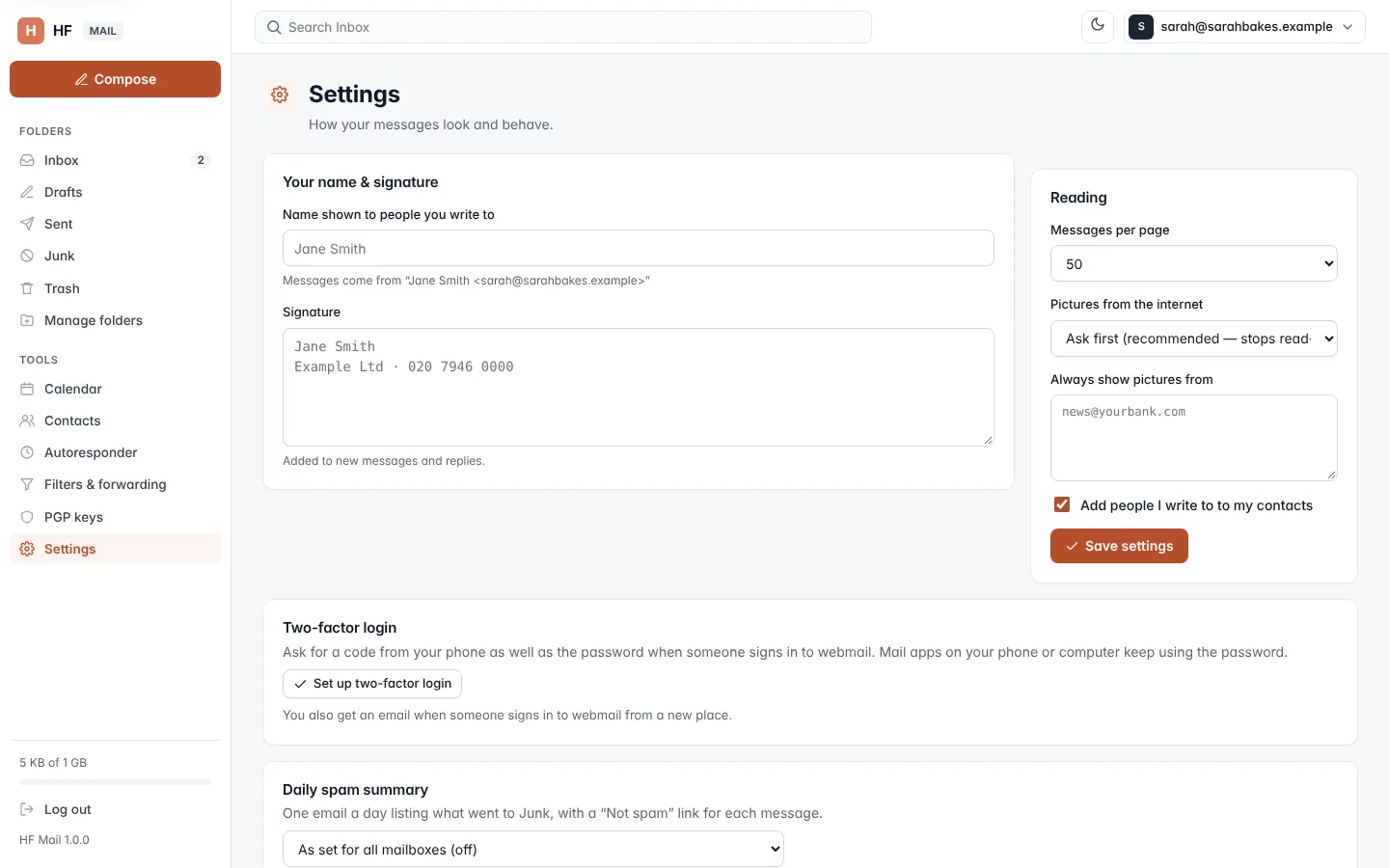
Your name & signature
| Field | What it does |
|---|---|
| Name shown to people you write to | your name on outgoing mail (up to 80 characters). The hint shows how messages will look, for example Messages come from "Sarah Baker sarahbakes@yourdomain.com" |
| Signature | text added to new messages and replies (up to 2,000 characters) |
Click Save settings to keep your changes.
Reading
| Field | What it does |
|---|---|
| Messages per page | 25, 50, 100 or 200 messages in the list |
| Pictures from the internet | Ask first (recommended — stops read-tracking) or Always show |
| Always show pictures from | senders whose pictures are always shown, one address per line |
| Add people I write to to my contacts | adds every address you send to your contacts |
Click Save settings.
Two-factor login
Two-factor login asks for a code from your phone as well as the password when someone signs in to webmail. Mail apps on your phone or computer keep using the password.
Turn it on
- Click Set up two-factor login.
- Scan the QR code with an authenticator app, or type the key shown under Or enter this key by hand: into the app.
- Type the 6-digit Code from the app and click Turn on.
- Save the backup codes that are shown. There are 10, and each works once.
Important: keep the backup codes somewhere safe. If you lose your phone, a backup code is the only way to sign in to webmail.
When it is on
The section shows On and how many backup codes are left. To change it, type a current code from your app, then click:
- New backup codes: makes 10 new codes (the old ones stop working).
- Turn off: switches two-factor login off.
Note: with two-factor login on, calendar and contacts apps must use an app password instead of your mailbox password.
You also get an email when someone signs in to webmail from a new place.
Daily spam summary
When the server offers it, you can get one email a day listing what went to Junk, with a Not spam link for each message. Choose:
- As set for all mailboxes (on) or (off): follow the choice made in the Control Panel.
- On for this mailbox or Off for this mailbox: your own choice.
Click Save.
Language
Choose a language and click Change. HF Mail is available in English, Español, Português, Français, Deutsch, Italiano, Nederlands, Polski, Türkçe, Русский, Українська, العربية, فارسی, اردو, हिन्दी, বাংলা, Bahasa Indonesia, Tiếng Việt, 简体中文, 日本語 and 한국어. Arabic, Persian and Urdu are shown right to left. Dates use the language's own month and day names.
Appearance
Choose Auto, Light or Dark. Auto follows your phone or computer. The moon and sun button at the top of every page switches between light and dark at once.
Use this mailbox on your phone or computer
The bottom of the page shows the settings for mail apps (incoming and outgoing servers, ports and username) and for calendar and contacts apps, with your app passwords. See Mail apps and phones.