 HF Panel
Quotes & credit
Send quotes that become invoices when accepted, give or take account credit, and issue credit notes against your invoices.
Quotes & credit has two parts. Quotes are price offers for customers or for people who are not customers yet; when accepted, a quote becomes an invoice. Account credit is money an account has with you, taken off its next invoices automatically; credit notes, overpayments and referral rewards add to it.
Where: Server Admin › Billing › Quotes & credit (on the official edition: Server Admin › Business › Quotes & credit)
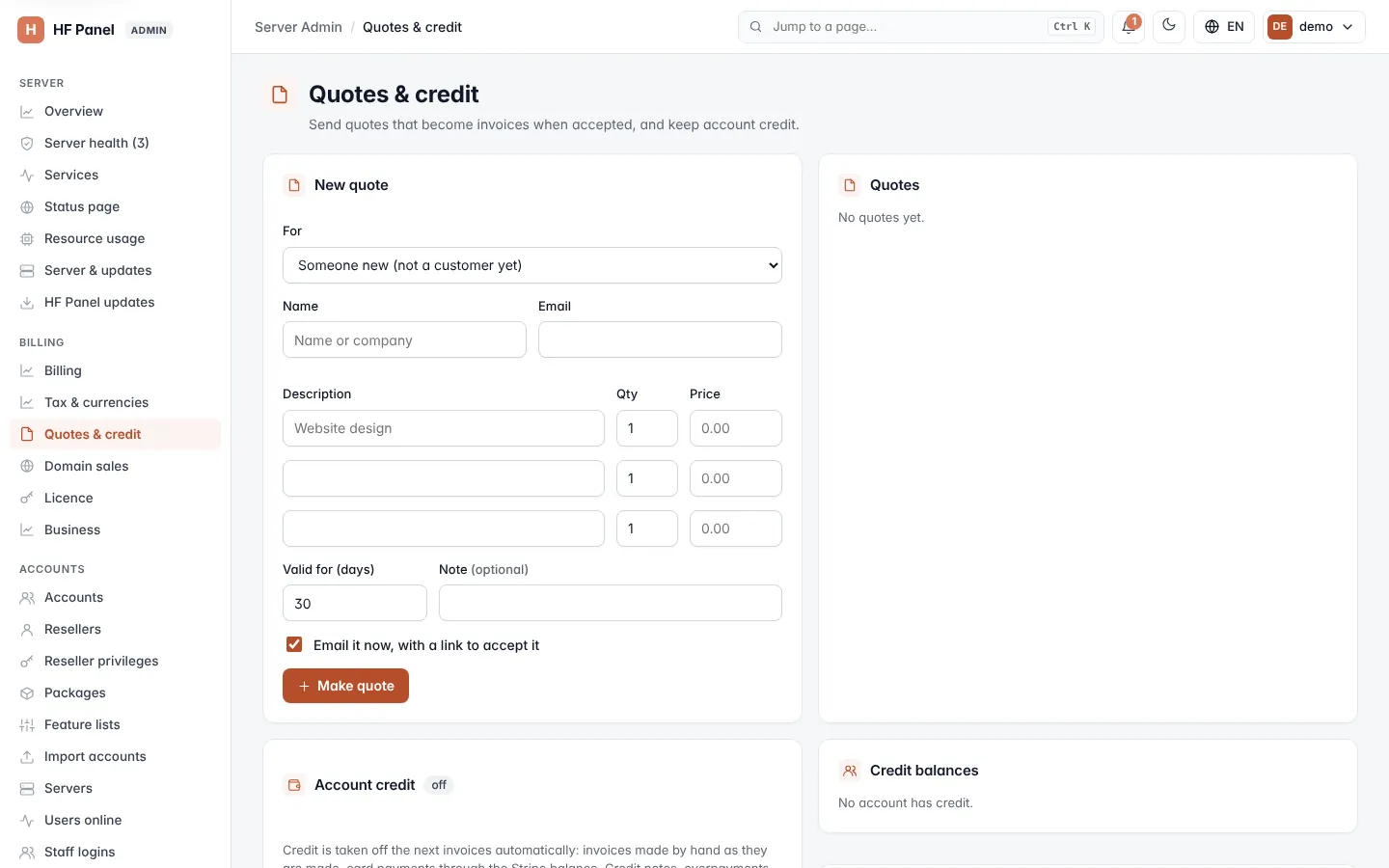
Make a quote
- In New quote, choose who it is For: one of your customer accounts, or Someone new (not a customer yet).
- For someone new, fill in their Name (up to 100 characters) and Email, and choose the Currency. With the VAT rules on, also choose their Country and, optionally, their VAT number.
- Fill in up to three lines: Description (up to 200 characters), Qty and Price. The price label says whether it includes VAT (Price incl. VAT) or has VAT added (Price + VAT).
- Set Valid for (days), 1 to 90 (30 when left empty), and an optional Note (up to 500 characters).
- To send it straight away, tick Email it now, with a link to accept it.
- Click Make quote.
The quote gets its own number and a link where the recipient can read and accept it. VAT is worked out as on an invoice, in the recipient's currency.
Manage quotes
The Quotes list shows the last 100 quotes: number, who it is for, total, status and how long it is valid.
| Status | Meaning |
|---|---|
| Not sent | Made but not emailed yet. |
| Sent | Emailed and waiting for an answer. |
| Accepted | Accepted; its invoice number is shown. |
| Declined | The recipient declined it. |
| Expired | Its valid-until date has passed. |
| Void | Cancelled; its link no longer works. |
| Button | What it does |
|---|---|
| Opens the quote as a PDF. | |
| Copy | Copies the link to accept it (open quotes). |
| Emails the quote again (open quotes). | |
| Mark accepted | Accepts an open quote on the recipient's behalf; its invoice is made and emailed now. |
| Void | Cancels the quote and its link. An accepted quote cannot be voided; void its invoice instead. |
Switch account credit on
- In Account credit, tick Keep account credit.
- Click Save.
Credit is taken off the next invoices automatically: invoices made by hand as they are made, and card payments through the Stripe balance. While credit is off, existing balances are kept but not used or added to.
Add or take away credit
- In Add credit, choose the Account.
- Enter the Amount. A negative amount takes unused credit away.
- Type Why (the customer sees it), up to 200 characters, for example "Goodwill for the outage on 3 May".
- Click Add credit.
An account that pays by card gets the credit in its Stripe balance too.
Issue a credit note
A credit note is a refund kept as credit, against one of your invoices. It gets its own number and PDF.
- In Credit note, choose the Invoice. Only your own, non-void invoices with something left to credit are listed.
- Enter the Amount — more than 0 and no more than what is left on the invoice.
- Give a Reason (up to 200 characters).
- Tick Email it to the customer to send it.
- Click Issue credit note.
The amount is added to the account's credit.
Balances and history
- Credit balances — every account with credit, and whether it is also in the Stripe balance.
- Latest credit changes — the last 50 changes, with the amount, kind and note.
- Credit notes — the last 50 credit notes, each with PDF and an Email button to send it again.