 HF Panel
Web firewall control
Decide whether customers may turn the web firewall off or let rules and paths through, as a server default and per package.
The web firewall protects every website. The Web firewall control screen decides whether customers may change it themselves: turn it off for their websites, or let rules and paths through after a false alarm. You set a default for the server and, if you want, a different choice for each hosting package.
Where: Server Admin › Security › Web firewall control
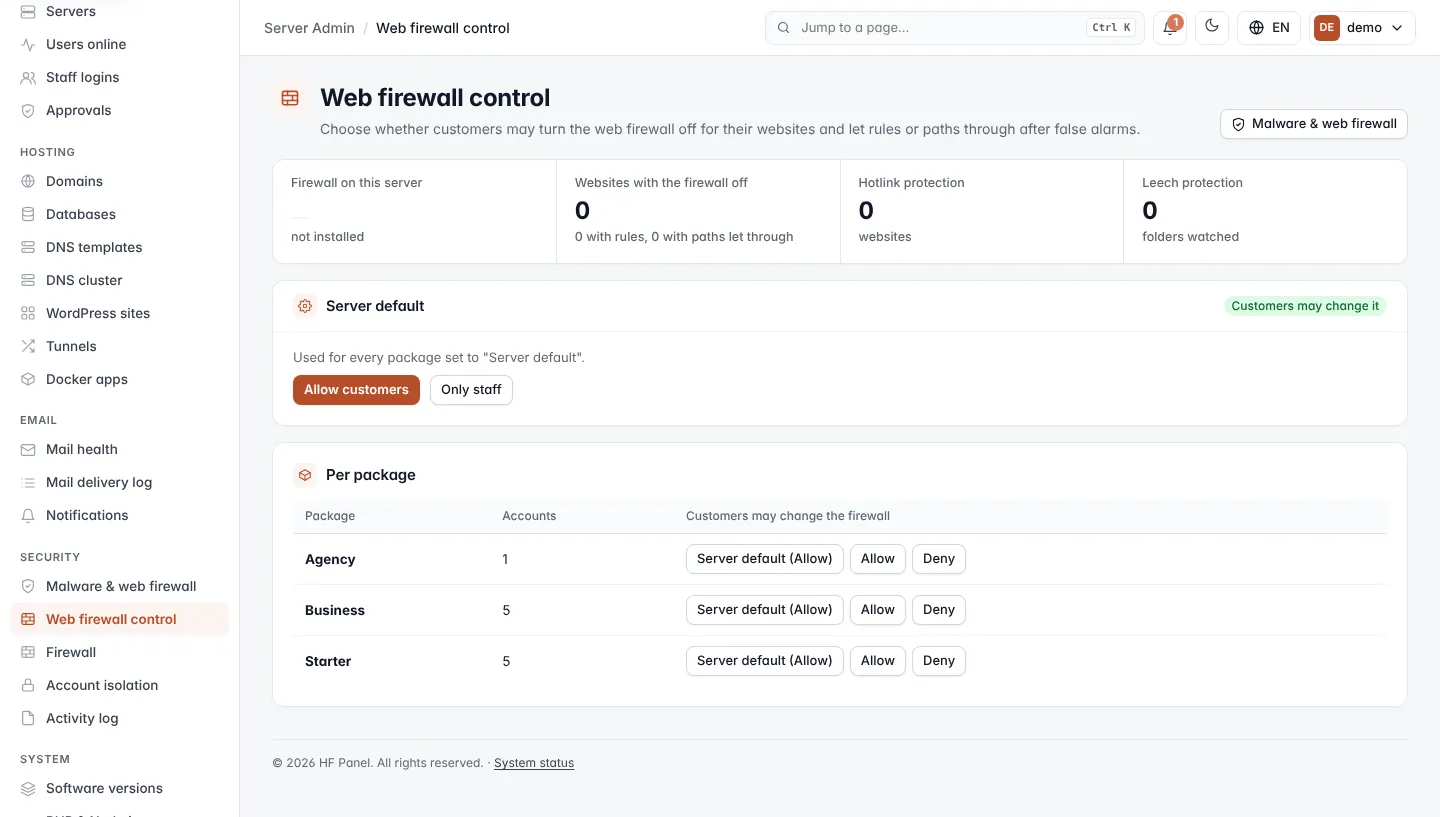
Staff can always change a customer's firewall, on Malware & web firewall or by logging in as the customer. Click Malware & web firewall at the top of the screen to go there.
Read the overview
| Figure | What it shows |
|---|---|
| Firewall on this server | The server's firewall mode and rules version. |
| Websites with the firewall off | How many websites have the firewall switched off, and how many have rules or paths let through. |
| Hotlink protection | How many websites use hotlink protection. |
| Leech protection | How many folders have leech protection. |
Set the server default
In the Server default card, click:
- Allow customers: customers may change their websites' firewall. This is the default.
- Only staff: only staff may change it.
The label next to the heading shows the current choice: Customers may change it or Only staff. The default applies to every package set to Server default.
Set a choice per package
The Per package table lists every package with its number of Accounts. Under Customers may change the firewall, click:
| Choice | What it does |
|---|---|
| Server default | Uses the server default. The button shows which one, (Allow) or (Deny). |
| Allow | Customers on this package may change their firewall, whatever the default. |
| Deny | Only staff may change the firewall for this package's accounts. |
The highlighted button is the current choice.
Tip: use Deny for packages where you manage websites for customers, and Allow for developers who may need to let a rule through quickly.