 HF Panel
PHP settings
Change common php.ini settings in HF Server, such as memory and upload limits, and turn PHP extensions on or off.
The PHP page changes the most common php.ini settings without editing the file. Saving restarts Apache.
Where: HF Server › PHP
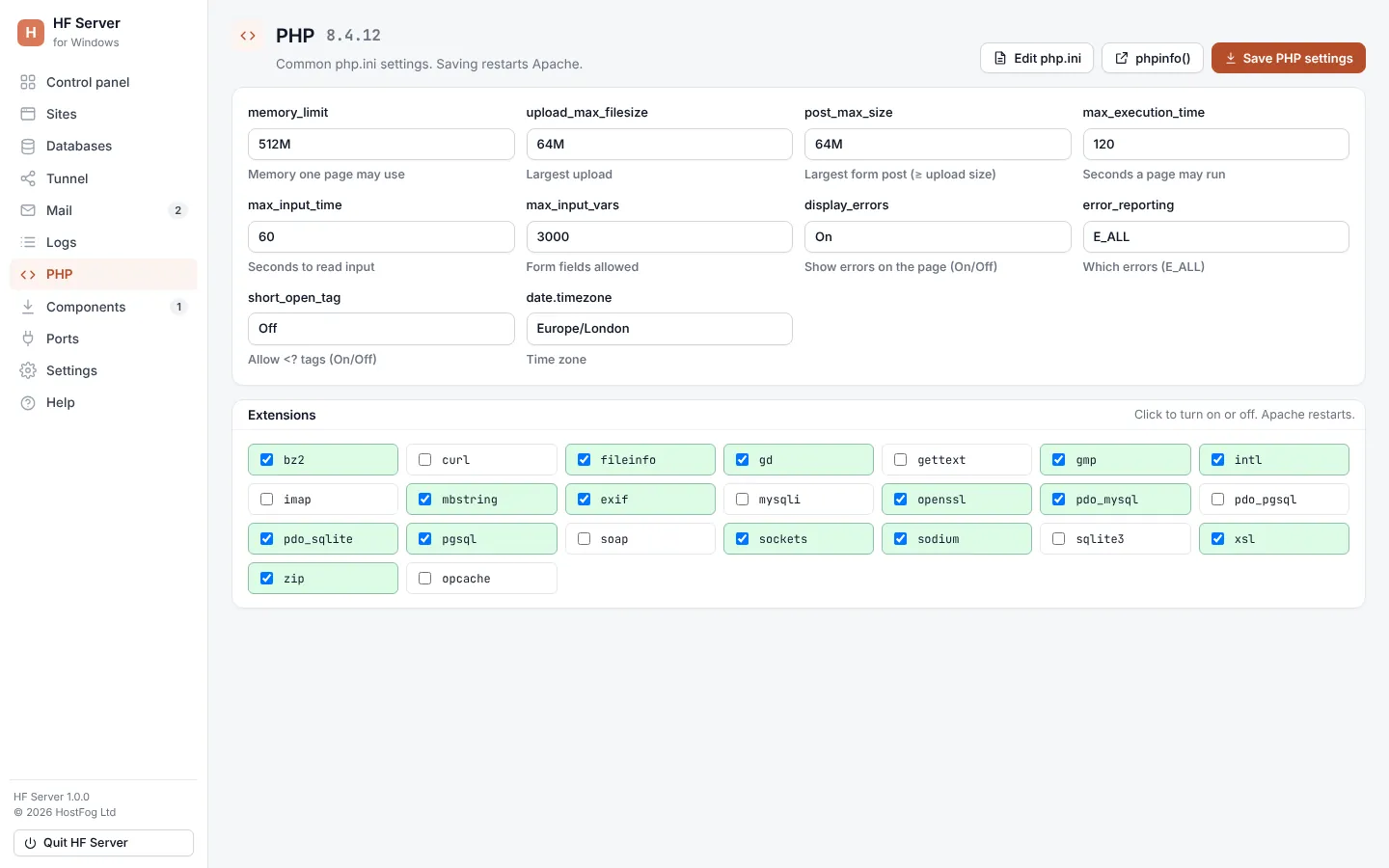
Settings
| Setting | What it does |
|---|---|
memory_limit |
memory one page may use |
upload_max_filesize |
largest upload |
post_max_size |
largest form post (at least the upload size) |
max_execution_time |
seconds a page may run |
max_input_time |
seconds to read input |
max_input_vars |
form fields allowed |
display_errors |
show errors on the page (On/Off) |
error_reporting |
which errors (for example E_ALL) |
short_open_tag |
allow <? tags (On/Off) |
date.timezone |
time zone |
Change the values and click Save PHP settings. Apache restarts.
Edit php.ini opens the whole file in your text editor, and the phpinfo() button shows PHP's full configuration. If you see php.ini isn't there yet, install PHP, then start Apache once.
Extensions
The Extensions list shows PHP's extensions.
- On Windows: click an extension to turn it on or off. Apache restarts.
- On macOS: the list shows what Homebrew's PHP loads. Add more with PECL.
- On Linux: the list shows what your system's PHP loads. Add more with your package manager (for example
php-redis).
Note:
php.iniis yours to edit. HF Server only keeps its folder paths and time zone up to date. Restart Apache after changing it by hand.