 HF Panel
Tunnels
Run your own HF Tunnel service, set tunnels per account, and manage the free share links of the HF Server desktop app.
HF Tunnel is your own tunnel service. It lets a website running on someone's computer be shared at an address like
https://shop.port.yourdomain.com, through this server. Customers create tunnels in their own panel, and people
using the free HF Server desktop app can click Share on a site to get a link with no account. On the
Tunnels screen you switch the service on, set the limits and see every tunnel.
Where: Server Admin › Hosting › Tunnels
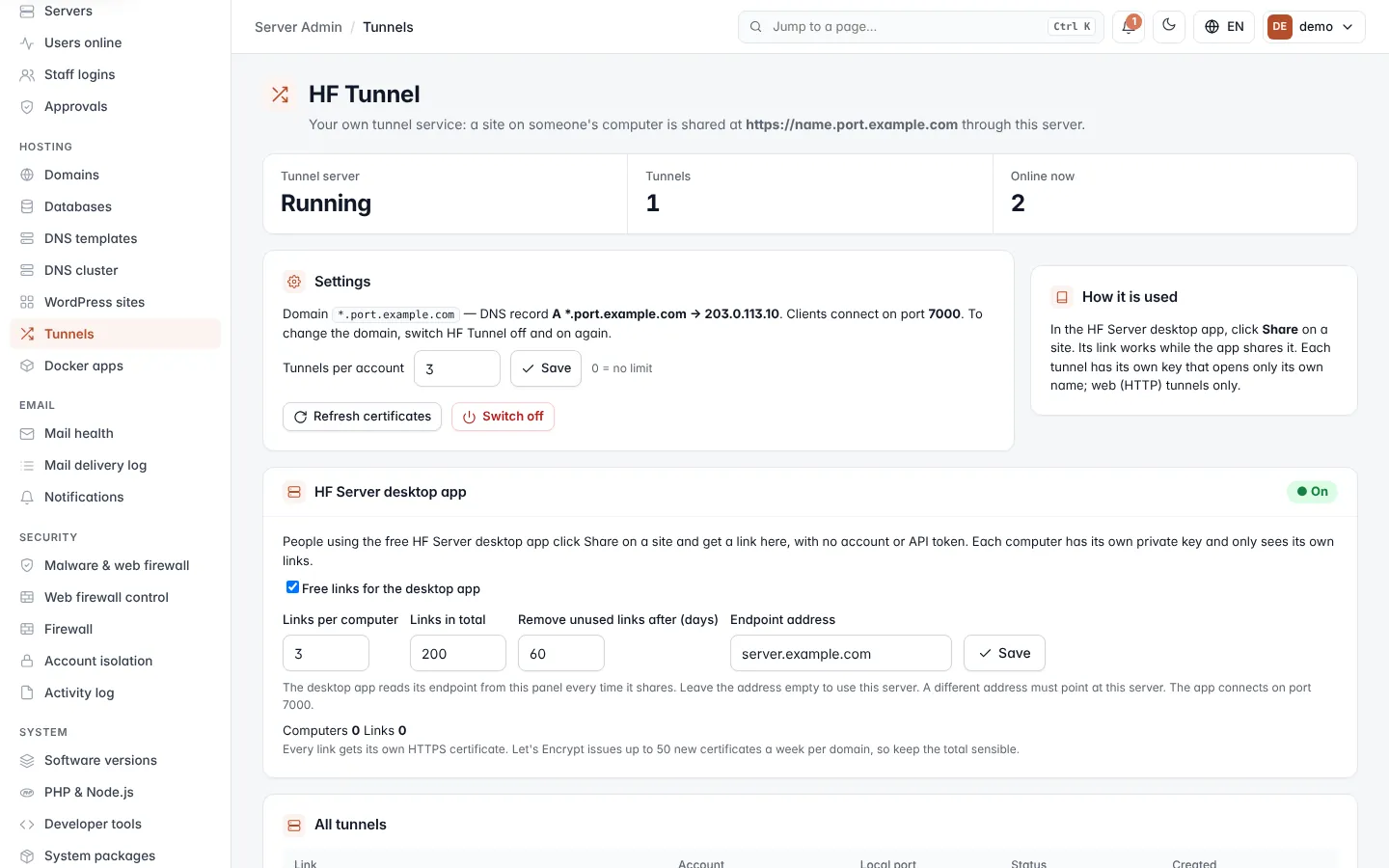
Each tunnel has its own key that opens only its own name. Only web (HTTP) tunnels are supported. Tunnel keys are never shown on this screen.
Switch HF Tunnel on
- Pick the domain tunnels live under. You can use a subdomain such as
port.yourdomain.com(links likeshop.port.yourdomain.com), oryourdomain.comitself (links likeshop.yourdomain.com). Your own addresses and websites can never be taken as a tunnel name. - At the company that runs that domain's DNS, add one A record:
*.followed by the tunnel domain, pointing to this server's IP address. The screen shows the exact IP. Records you already have, such aswwworpanel, keep working. - In Tunnel domain, check the domain (it is filled in with
port.and your panel's domain). - Click Switch on.
The set-up opens in a progress window. It downloads frp (open source, checksum verified), starts the tunnel server and opens port 7000 in the server firewall.
Important: clients connect to the tunnel server on port 7000. If your server provider has its own firewall, open port 7000 there too.
Read the overview
Once HF Tunnel is on, the top of the screen shows:
| Item | What it shows |
|---|---|
| Tunnel server | Running, or the tunnel server's current state when it is not running. |
| Tunnels | How many customer tunnels exist. |
| Online now | How many tunnels are connected now. |
Change the settings
The Settings card shows the tunnel domain, the DNS record it needs, and the client port (7000).
| Setting | What it does |
|---|---|
| Tunnels per account | How many tunnels each customer may create, 0–100. 0 = no limit. The default is 3. Click Save. |
| Refresh certificates | Rewrites every tunnel's configuration and renews its HTTPS certificate. Opens a progress window. |
| Switch off | Stops every tunnel. Tunnels and their keys are kept for when you switch it back on. |
Note: to change the tunnel domain, switch HF Tunnel off and on again with the new domain.
Free links for the HF Server desktop app
People using the HF Server desktop app click Share on a site and get a link from this server, with no account or API token. Each computer has its own private key and sees only its own links. A link works while the app is sharing the site.
- In the HF Server desktop app card, set the options below.
- Click Save.
| Field | What it does |
|---|---|
| Free links for the desktop app | Allows or stops new desktop links. The card shows On while links work. |
| Links per computer | How many links one computer may have, 1–20. The default is 3. |
| Links in total | How many desktop links there may be on the server, 0–5000. 0 = no limit. The default is 200. |
| Remove unused links after (days) | Links not used for this many days are removed, 1–365. The default is 60. |
| Endpoint address | The address the desktop app connects to. Leave it empty to use this server's own name (shown as the placeholder). |
Endpoint address
The desktop app reads its endpoint from this panel every time it shares, and connects to it directly on port 7000. The Endpoint address must therefore point at this server: either this server's IP address, or a host name whose DNS record is this server's IP. It must not go through a website address or a proxy such as Cloudflare, because the proxy does not pass port 7000 through.
When you save, HF Panel checks the address. If it does not point at this server, the save is refused with a message that says so, and a warning is shown on the card. Leave the box empty to use this server's own name.
Manage desktop links
The card shows how many Computers have registered and how many Links exist, and lists up to 200 links, most recently used first:
| Column | What it shows |
|---|---|
| Link | The link's address. Click it to open it. |
| Computer's IP | The IP address of the computer that created it. |
| Status | Online while the app is sharing, otherwise Offline. |
| Last used | The date the link was last used. |
To remove a link, click Remove and confirm. The computer can make a new one.
Note: every link gets its own HTTPS certificate. Let's Encrypt issues up to 50 new certificates a week per domain, so keep Links in total sensible.
See all customer tunnels
The All tunnels card lists every customer tunnel: its Link, the Account that owns it, the Local port it forwards to on the customer's computer, its Status (Online or Offline) and the date it was Created.