 HF Panel
Overview
The Server Admin dashboard — accounts, revenue, server load, traffic, websites that are down and every tool in one place.
Overview is the first screen you see after signing in to Server Admin. It sums up everything happening on the server: how many accounts and websites you host, how much they bring in each month, how busy the server has been, and whether anything needs your attention.
Where: Server Admin › Server › Overview
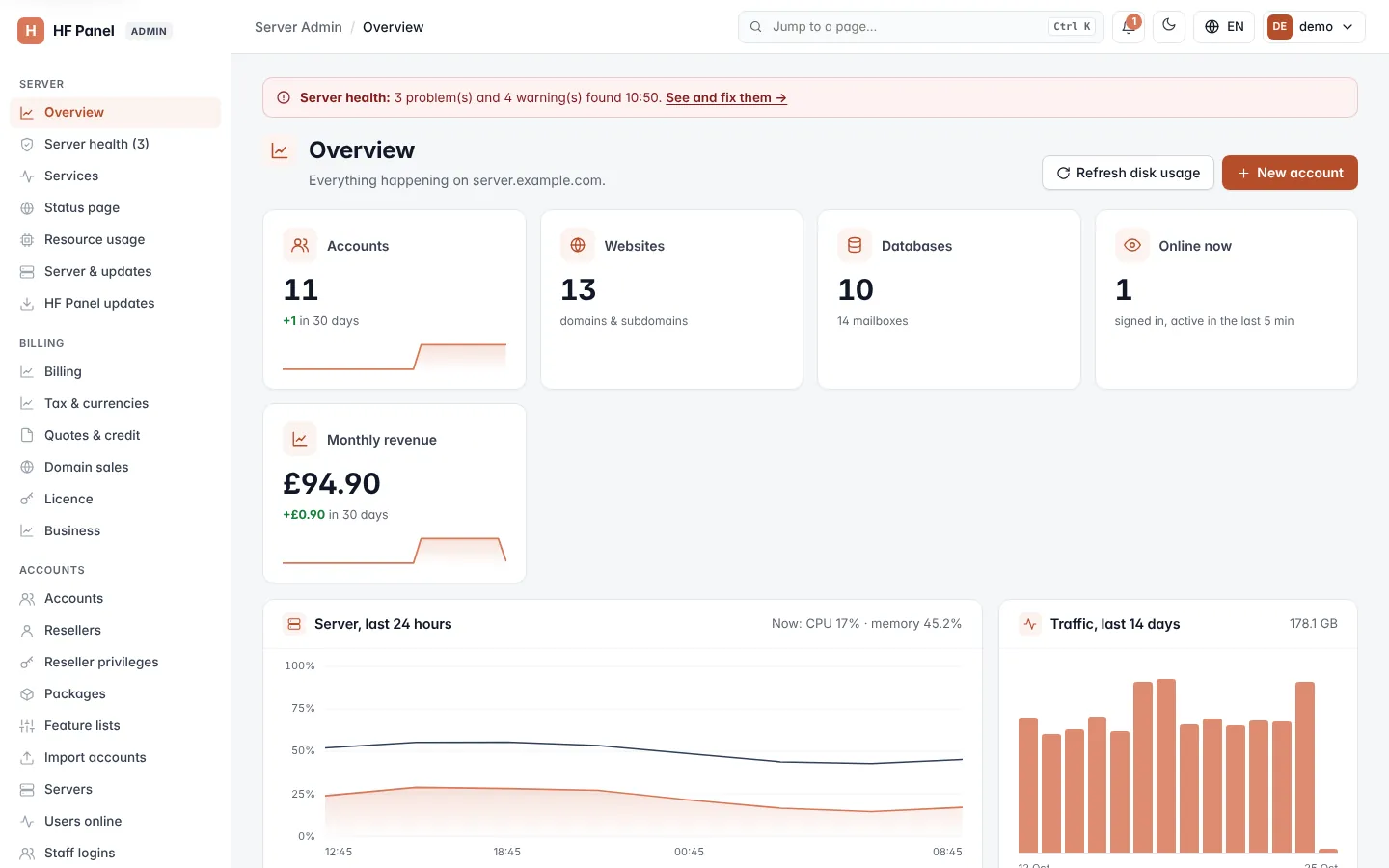
Warnings at the top
Two kinds of warning can appear above the figures:
- Server health: the last health check found problems or warnings. The notice says how many and when they were found. Click See and fix them → to open Server health.
- Customer websites are down (uptime monitor): one or more customer websites watched by the uptime monitor are not answering. Each entry shows the address, the account and how long it has been down. Paused monitors are left out. Up to 10 are listed.
Key figures
| Figure | What it shows |
|---|---|
| Accounts | All hosting accounts. Underneath: the change over the last 30 days, or the number suspended and the number of resellers. Click it to open Accounts. |
| Websites | Domains and subdomains of every account. |
| Databases | Databases of every account, with the number of mailboxes underneath. |
| Online now | People signed in and active in the last 5 minutes. Click it to open Users online. |
| Monthly revenue | Active accounts multiplied by their package's monthly price, with the change over the last 30 days. Click it to open Business. |
The small line charts under Accounts and Monthly revenue show the last 30 days. They are built from a nightly record, with today's figure counted live.
Charts
- Server, last 24 hours — the server's CPU and memory in percent. The header shows the current values.
- Traffic, last 14 days — the data served by all customer websites, one bar per day, with the total in the header.
The CPU and memory chart appears once the server has collected enough samples. Samples are taken every 5 minutes.
Server health card
The Server health card shows how long the server has been up, the load average over 1, 5 and 15 minutes, memory and disk use, and a coloured label for each main service: Web, PHP, MySQL, Mail and DNS. Green means running; red means stopped. Click Manage services → to open Services.
If the panel cannot read the figures, the card says Could not read server stats with the reason.
A Capacity forecast card ("Disk · full in about 9 days") appears next to it only when a partition or the memory is expected to run out within 60 days — see Capacity forecast. When nothing runs out soon there is no card.
Buttons
| Button | What it does |
|---|---|
| Refresh disk usage | Measures the disk use of every account now, instead of waiting for the regular count. |
| New account | Opens the new account form on Accounts. |
All tools
The All tools section at the bottom shows the screens of the menu as tiles, grouped by area — Server, Accounts, Support, Hosting, Security, System and Business & settings — each with a one-line description. Click a tile to open that screen.
Note: resellers also have an Overview, limited to their own customers. It has no server charts or server health card, and shows a Getting started list until they hide it.