 HF Panel
Accounts
Create, suspend, change the plan of and delete your customers' hosting accounts from the Reseller Panel.
The Accounts screen lists your own customers' hosting accounts. It works like the administrator's Accounts screen; this page covers what is different for resellers.
Where: Reseller Panel › Accounts › Accounts
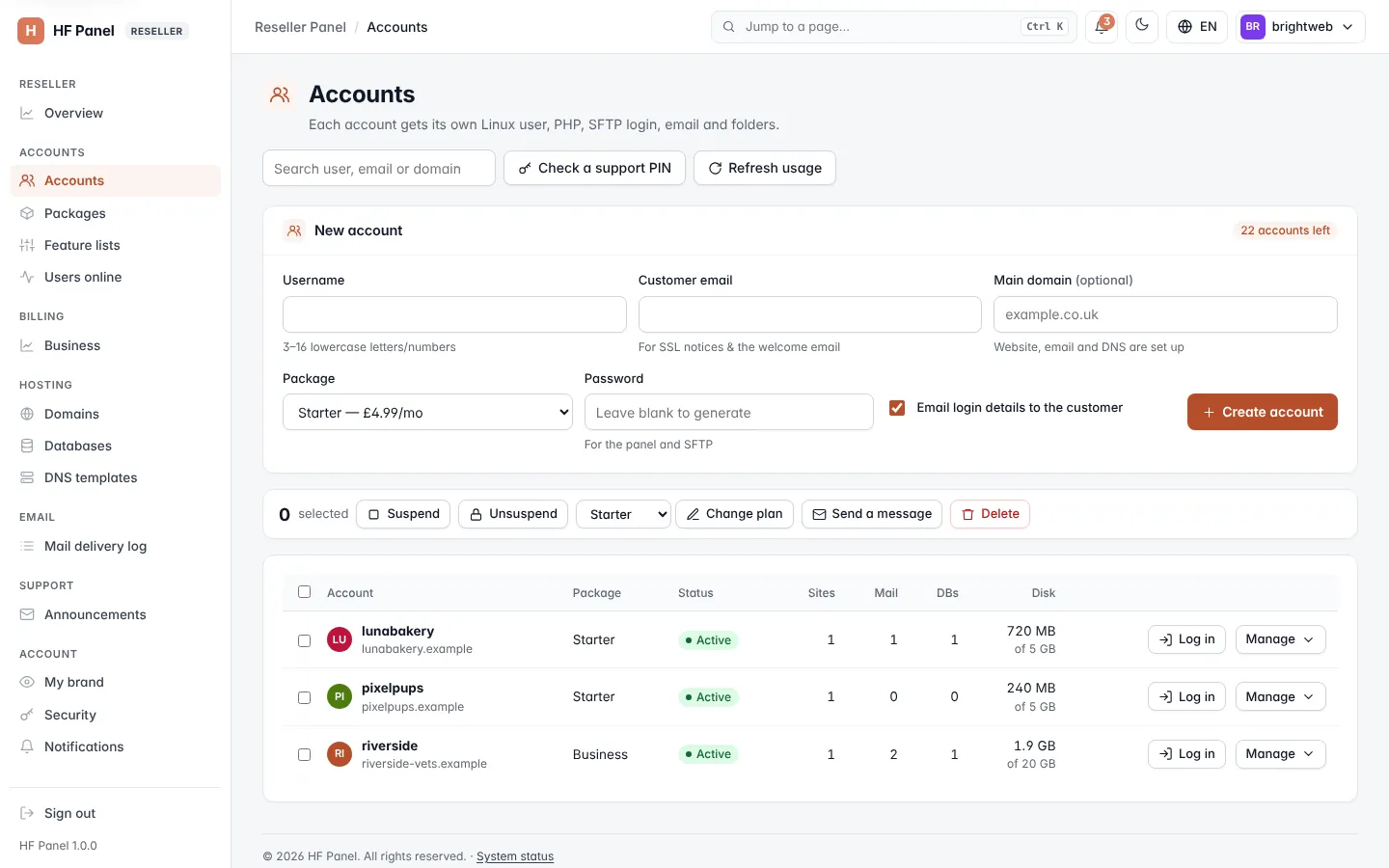
What you see
- Only accounts you created (your customers). There is no Reseller column and no server choice.
- When the administrator gave you an account limit, a badge shows how many accounts you have left, for example 3 accounts left (red when none are left).
- Search by user, email or domain, filter by your own tags, and keep Staff notes (customers never see these).
Create an account
- Click New account.
- Enter the Username (3–16 lowercase letters/numbers), the Customer email, a Password (or leave it blank to generate one) and optionally the Main domain.
- Choose the Package.
- Leave Email login details to the customer ticked to send the welcome email.
- Click Create account.
The panel and SFTP password is shown once. New accounts belong to you, so they appear only in your lists.
Creating an account is refused when:
| Reason | Message or rule |
|---|---|
| Account limit reached | "You have reached your account limit." |
| Disk pool | without overselling, the package's disk size must fit in what is left of your disk pool; a package without a disk limit can't be handed out from a pool |
| Bandwidth pool | there must be bandwidth left in your pool this month |
| Privilege off | the administrator has switched off Create accounts |
Manage accounts
From each account's Manage menu, and with the bulk actions for ticked accounts, you can:
| Action | Privilege needed |
|---|---|
| Suspend / Unsuspend | Suspend and unsuspend accounts |
| Change plan | Change plans (and room in your disk pool) |
Delete (type the username) or bulk delete (type DELETE) |
Delete accounts; may also need an administrator's approval |
| Reset password, Contact email, Turn off two-factor login, tags and notes | — |
| Send a message to ticked accounts | — |
| Log in (open the customer's Control Panel) | Use Log in as |
Moving accounts to another server is for the administrator only.
Check a support PIN
When a customer calls, ask for the support PIN shown in their panel. Under Check a support PIN, enter their username and the PIN and click Check. You only see whether it matches.