 HF Panel
DNS templates & import
Set up many DNS records at once — apply a template, import a zone file or paste records — and export a zone, with a preview of every change.
DNS templates & import sets up many DNS records at once. You can apply a template (for example for Google Workspace mail), import a zone file from your old DNS provider, or paste a list of records. You see every change before it is made.
Where: Control Panel › Domains › DNS templates & import
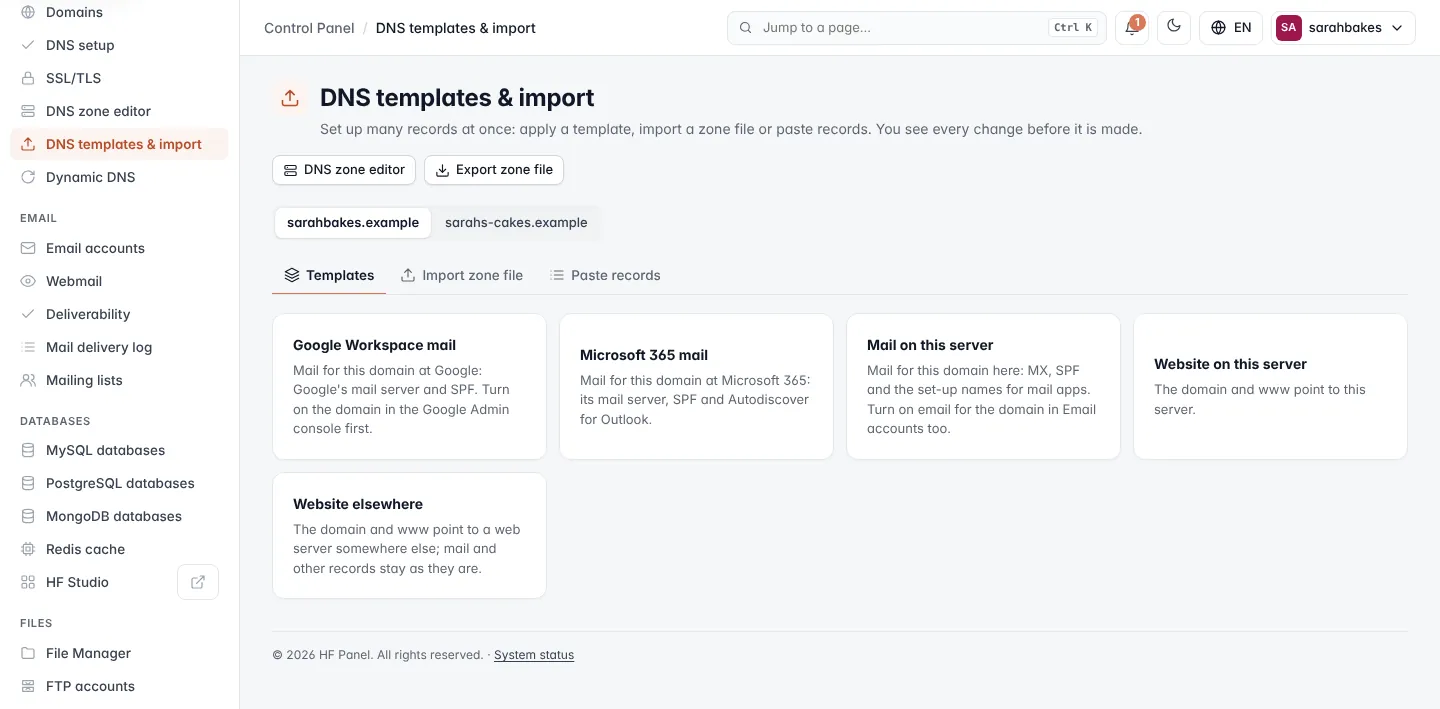
Click a domain in the picker at the top. The screen has three tabs: Templates, Import zone file and Paste records.
Note: if the server does not run DNS, a notice says "DNS is not hosted on this server: records are saved but not published."
How changes are made
Every tab works the same way:
- Fill in the tab and click Preview.
- Check the preview: the records to add, to remove and unchanged. Problems are listed under Fix these first: — nothing can be applied while there are any.
- Click Apply these changes.
The message tells you how many records were added and removed. Changes reach the internet within minutes (up to the TTL).
Note: if the zone was changed (for example in the DNS zone editor) after your preview, the panel says "The zone changed since the preview — preview again."
A zone can have up to 2,000 records.
Apply a template
- Click the Templates tab and click a template.
- Check the records the template adds.
- If the template asks for a value, enter it. It fills in
{value}in the records. - Click Preview, then Apply these changes.
Each record of a template replaces the records it conflicts with (the same name and type; for TXT the same kind, like SPF). Other records stay.
| Template | What it sets up |
|---|---|
| Google Workspace mail | mail for the domain at Google: Google's mail server and SPF. Turn on the domain in the Google Admin console first. |
| Microsoft 365 mail | mail for the domain at Microsoft 365: its mail server, SPF and Autodiscover for Outlook. Asks for the MX host Microsoft 365 shows for the domain. |
| Mail on this server | mail for the domain here: MX, SPF and the set-up names for mail apps. Turn on email for the domain in Email accounts too. |
| Website on this server | the domain and www point to this server |
| Website elsewhere | the domain and www point to a web server somewhere else; mail and other records stay. Asks for the other server's IPv4 address. |
Templates your hosting provider added are marked From your host.
Import a zone file
Use this to move your DNS here from another provider.
- Click the Import zone file tab.
- Choose the Zone file (
.zoneor.txt, at most 512 KB), or paste it under Or paste it. - Choose how to apply the records (see below).
- Click Preview, then Apply these changes.
Names without a final dot are relative to the zone, as in any zone file. The SOA record and the domain's NS records are skipped: they are set automatically.
Paste records
- Click the Paste records tab.
- Paste one record per line: name, TTL (optional), type and value.
@is the domain itself. - Choose how to apply the records.
- Click Preview, then Apply these changes.
shop      CNAME shops.example.net
vpn  300  A     198.51.100.7
@         TXT   "google-site-verification=abc123"
@         MX    20 backup-mx.example.net
- old A
A line that starts with -, such as - old A, removes those records.
How to apply the records
| Option | What it does |
|---|---|
| Add | adds the records that are not there yet; keeps everything else |
| Replace matching | each record replaces the records with the same name and type |
| Replace the whole zone | the zone gets exactly these records. Only for Import zone file. |
Export a zone file
Click Export zone file at the top to download the domain's zone as a BIND zone file, yourdomain.com.zone. Use it as
a backup, or to move the DNS to another provider.