 HF Panel
MongoDB databases
Create MongoDB databases and users, set read or read-write roles, allow remote TLS connections, import and export.
The MongoDB databases screen manages document databases for your apps. MongoDB drivers and mongosh connect
with host 127.0.0.1, port 27017. Databases have users, and each user has a role on each database it may use.
Where: Control Panel › Databases › MongoDB databases
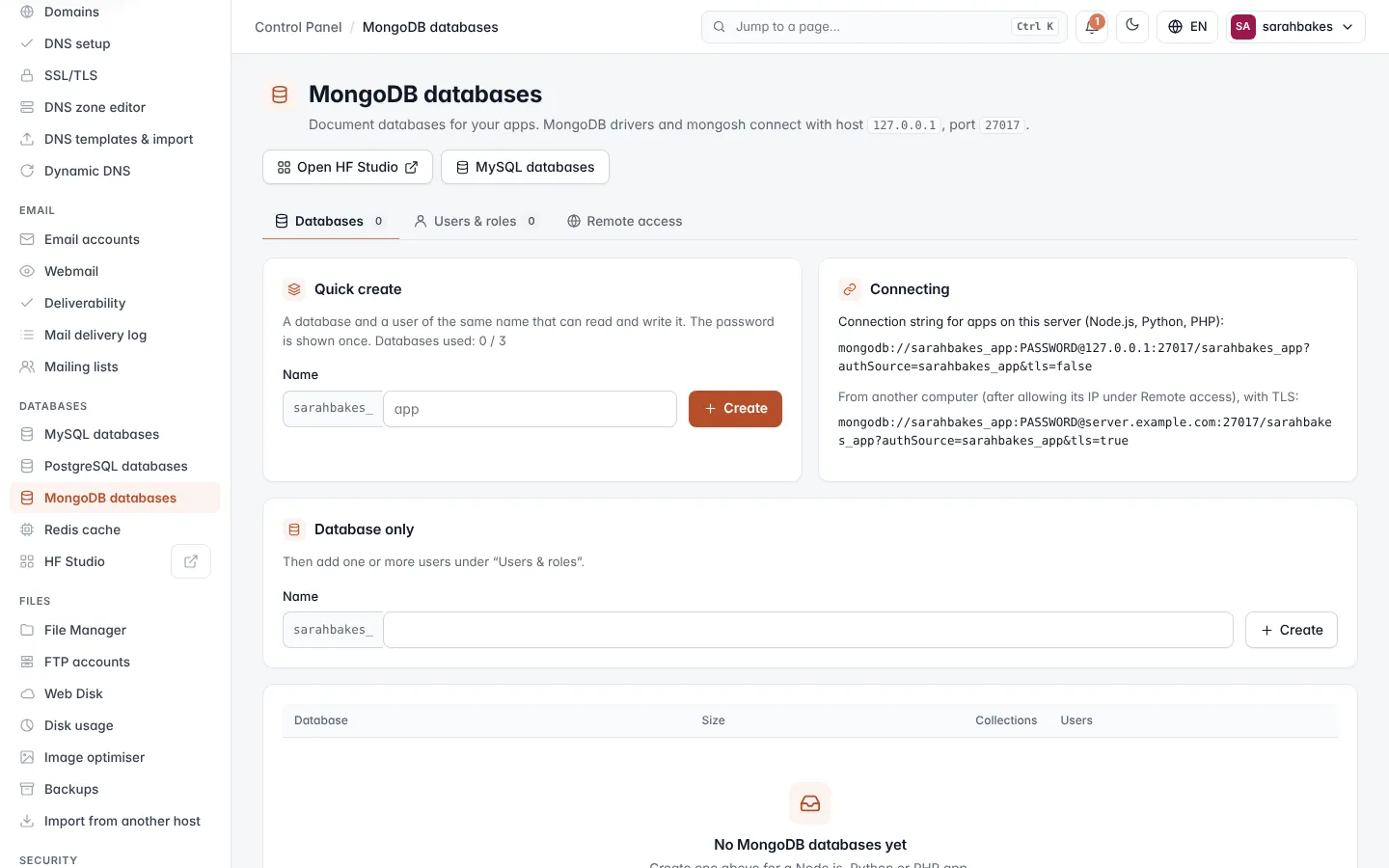
The screen has three tabs: Databases, Users & roles and Remote access. The buttons at the top right open HF Studio in a new tab and go to MySQL databases.
Note: if the screen says Your package does not include MongoDB databases, the Create buttons are switched off. Ask your hosting provider. If it says MongoDB isn't running on this server right now, your provider needs to check the service.
Create a database and user in one step
- Open the Databases tab.
- Under Quick create, type the rest of the Name after your account prefix.
- Click Create.
You get a database and a user of the same name that can read and write it. The message shows the user, a random password and a ready-made connection string.
Important: the password is shown only once. Save it before you leave the page.
The Quick create card also shows Databases used, out of your package's MongoDB limit (∞ = no limit).
Create a database only
- Under Database only, type the rest of the Name.
- Click Create.
- Add a user to it on the Users & roles tab.
| Rule | Detail |
|---|---|
| Name | your account name, _, then 1–15 lowercase letters, numbers or _ |
| Limit | MongoDB databases have their own limit in your package (0 = none allowed) |
Connecting
The Connecting card shows two connection strings:
- for apps on this server (Node.js, Python, PHP):
mongodb://sarahbakes_app:PASSWORD@127.0.0.1:27017/sarahbakes_app?authSource=sarahbakes_app&tls=false - from another computer, after you allow its IP under Remote access, with TLS:
mongodb://sarahbakes_app:PASSWORD@<server name>:27017/sarahbakes_app?authSource=sarahbakes_app&tls=true
Manage a database
The table shows each database's Size, number of Collections and Users.
| Button | What it does |
|---|---|
| Browse | opens the database in HF Studio, in a new tab |
| Export | downloads the database as a gzipped mongodump archive (.archive.gz) |
| Import | uploads an archive made by mongodump --archive (optionally --gzip) or exported here, up to 1 GB. Collections with the same names are replaced. |
| Delete | deletes the database after you type its name. All data in it is lost; its users stay. |
Users and roles
Create a user
- Open the Users & roles tab.
- Under New user, type the rest of the User name and a Password (leave it blank to generate one).
- Click Create user. The password is shown once.
Give a user a role on a database
- Under Add a user to a database, choose the User, the Database and the Role.
- Click Save role.
| Role | What the user can do |
|---|---|
| Read and write | read and change the database (readWrite) |
| Read only | read the database (read) |
The users table shows every database a user Can use, with its role. Click × to remove the user from a database. Click Manage to set a New password (blank = generate, then Set) or to Delete user.
Remote access
Remote MongoDB lets programs on other computers — MongoDB Compass or another server — connect to your databases, always with TLS. Only the addresses you list get through the firewall.
- Open the Remote access tab.
- In Allowed IP addresses, enter one address per line. The hint shows your current IP address.
- Click Save.
Once saved, the screen shows the Host (the server's name) and port 27017 (TLS). Any of your MongoDB users can
sign in.
| Rule | Detail |
|---|---|
| Addresses | up to 20; IPv4 addresses with an optional range such as /24, or single IPv6 addresses |
| Switch off | leave the box empty and click Save |