 HF Panel
Overview
Your first screen in the Control Panel — usage against your plan, traffic and CPU charts, account health, every tool and your connection details.
The Overview is the first screen you see after you sign in to the Control Panel. It shows how much of your hosting plan you use, how busy your websites are, whether anything needs your attention, and the details you need to connect FTP and mail apps.
Where: Control Panel › Overview
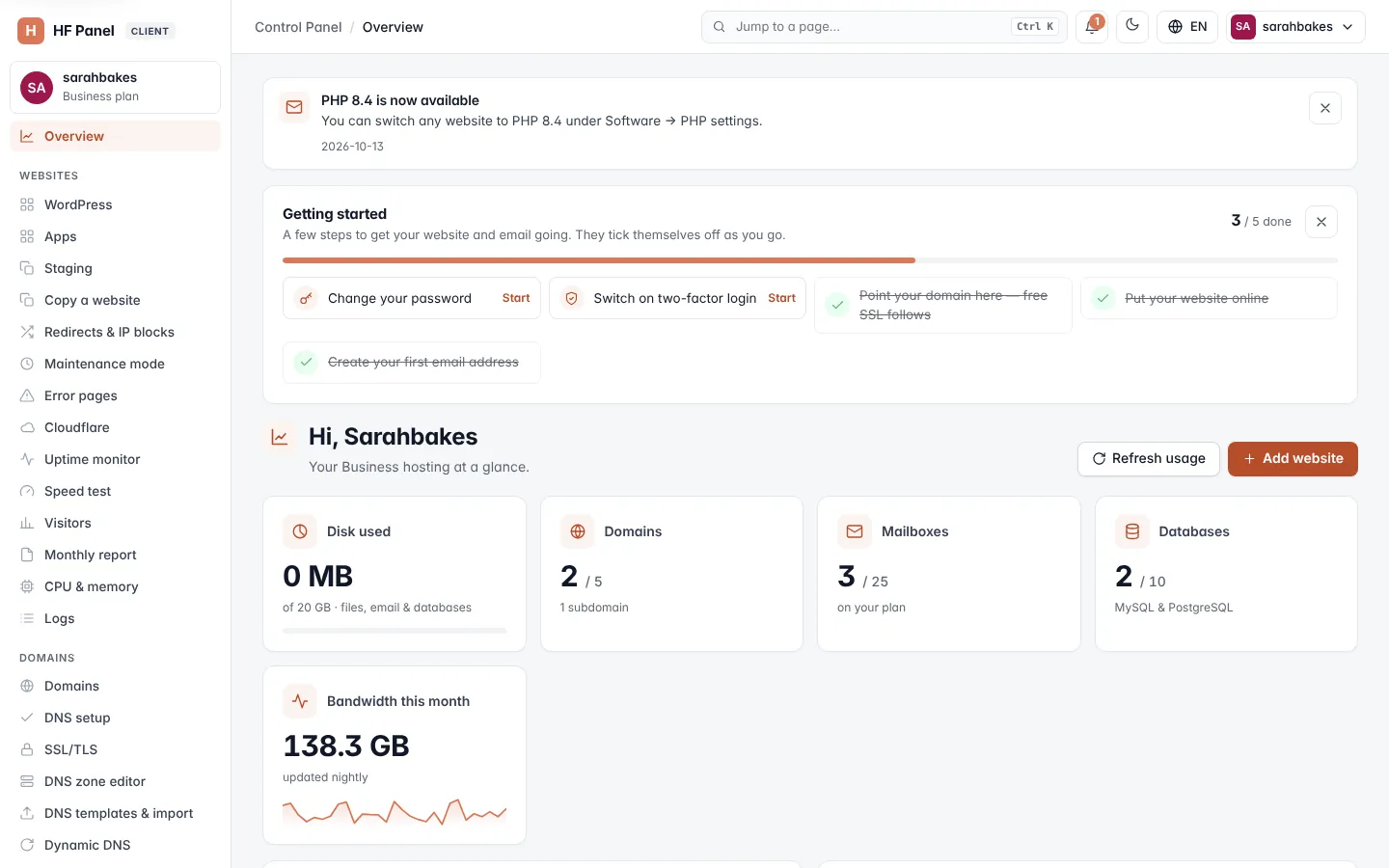
What the Overview shows
The screen is built from these parts, top to bottom. A part only appears when it applies to your account.
| Part | What it shows |
|---|---|
| Announcement | the current message from your hosting provider. A service notice has a warning icon. Click the × (Close) to dismiss it. |
| Getting started | a checklist for new accounts (see below) |
| Hi, sarahbakes | the page heading, with the name of your hosting plan: "Your plan hosting at a glance." |
| Key figures | Disk used, Domains, Mailboxes, Databases and Bandwidth this month |
| Traffic, last 30 days | a bar chart of the data your websites sent each day, with the 30-day total |
| CPU, last 24 hours | your account's CPU use every 5 minutes, with the peak CPU and peak memory |
| Account health | the status of your account and the limits that matter most |
| All tools | every tool in the menu, by area |
| Connection details | the host names, ports and user name for SFTP, email and DNS |
Key figures
| Figure | What it means |
|---|---|
| Disk used | the space your account uses, against your plan's limit. It counts files, email and databases together. The meter turns red above 90 %. |
| Domains | your main domains against your plan's limit, and how many subdomains you have. Click it to open Domains. |
| Mailboxes | your email accounts against your plan's limit. Click it to open Email accounts. Only shown when the server runs email. |
| Databases | your MySQL and PostgreSQL databases against your plan's limit |
| Bandwidth this month | the data your websites sent this calendar month, with a small 30-day chart. It is updated nightly. |
Note: traffic figures are collected once a night. A new account shows "Traffic shows here from tomorrow." on its first day.
Account health
| Row | What it shows |
|---|---|
| Status pill | Active, or Suspended when your hosting provider has suspended the account |
| Disk | space used against your limit (∞ when unlimited) |
| Files | the number of files (inodes) against your limit. Only shown when your plan limits the number of files. |
| SSL certificates | how many of your main domains have a certificate, out of all of them. Green when every domain is covered. |
| Domains expiring soon | domains whose registration ends within 30 days |
| Two-factor login | On or Off for your own login |
Click Password & security → to change your password or switch on two-factor login.
Getting started
New accounts see a Getting started card. Each step links to the screen where you do it, and ticks itself off when it is done:
- Change your password
- Switch on two-factor login
- Point your domain here — free SSL follows (opens DNS setup)
- Put your website online (done once you install WordPress or an app, edit a file, create a Git repository, import a site or push a staging copy)
- Create your first email address (only when the server runs email)
The card shows how many steps are done, for example 2 / 5 done. When every step is done the card goes away by itself. To hide it earlier, click the × (Hide these steps) in its corner. Hidden steps do not come back.
Note: when your hosting provider's staff sign in to your account to help you, they cannot hide the steps for you.
Refresh your disk usage
Disk usage is measured regularly in the background. To measure it now:
- Click Refresh usage at the top of the Overview.
- Wait for the message Disk usage refreshed.
Add a website
Click Add website at the top of the Overview. It opens Domains, where you add a new domain with its own website folder.
All tools
All tools lists everything you can use, grouped as Email, Files, Databases, Domains, Software, Security, Metrics, Advanced and Account. Each tile has a short description. Webmail and HF Studio open in a new tab.
Only the tools that your hosting plan includes are listed. If you sign in as a team member, you only see the tools your role opens.
Connection details
| Detail | Value |
|---|---|
| SFTP / FTP host | the server's FTP host name, port 22 for SFTP |
| Username | your account's user name, for example sarahbakes |
| Website folder | /web/yourdomain/public_html — each domain has its own folder |
| Email (IMAP) | the incoming mail server, port 993 (SSL) |
| Email (SMTP) | the outgoing mail server, port 587 (STARTTLS) or 465 (SSL) |
| Nameservers | the nameservers to set at your domain registrar, for example ns1.yourdomain.com and ns2.yourdomain.com |
| Server IP | the IP address of your server |
The email rows are only shown when the server runs email, and the nameservers only when it runs DNS.
Tip: for step-by-step mail app settings, see Set up mail apps.