 HF Panel
Notifications
Send alerts to email, webhooks, Slack, Telegram or Discord, choose which events go where, and set quiet hours.
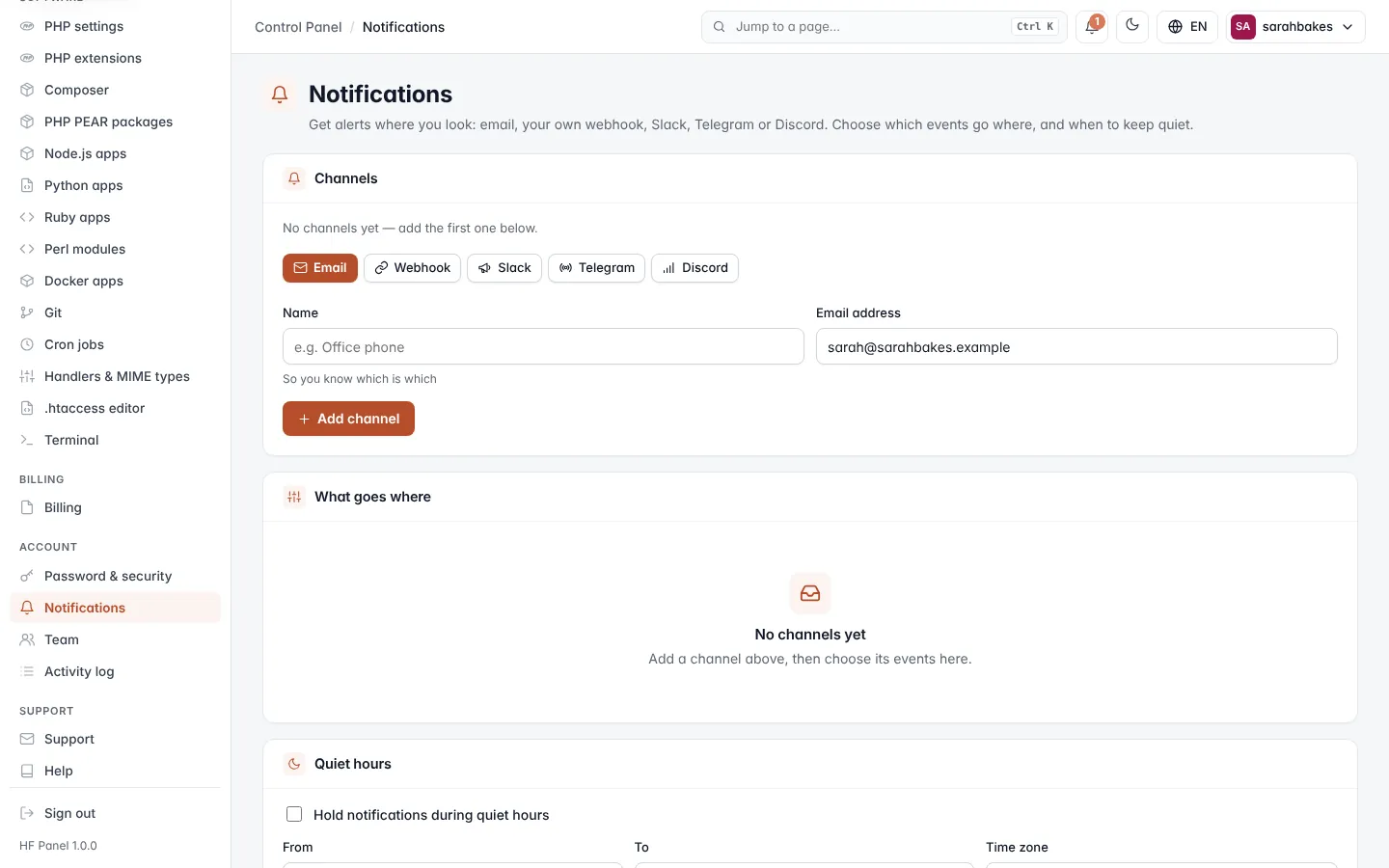
The Notifications screen sends alerts where you look: email, your own webhook, Slack, Telegram or Discord. You choose which events go to which channel, and when to keep quiet.
Where: Control Panel › Account › Notifications
Note: if the screen says Notifications are switched off on this server for now, your hosting provider has turned the notifications centre off. Your provider also decides which channel types are offered.
Add a channel
-
Under Channels, choose the type: Email, Webhook, Slack, Telegram or Discord.
-
Enter a Name so you know which is which, for example
Office phone. -
Fill in what the channel needs:
Channel What to enter Email the Email address (your contact email is filled in) Webhook the Webhook address. HF Panel posts JSON to it, signed with HMAC-SHA256 in the X-HF-Signatureheader.Slack the Slack incoming webhook address (in Slack: Apps › Incoming WebHooks › Add to a channel) Discord the Discord webhook address (channel settings › Integrations › Webhooks › Copy webhook URL) Telegram the Bot token (make a bot with @BotFather) and the Chat id (or @channelnamefor a channel) -
Click Add channel.
A new channel gets the urgent events at first. Tick more under What goes where, then send a test. You can add up to 10 channels unless your provider set another limit.
Manage channels
Each channel shows On or Paused, its type and target, and the result of the last test.
| Button | What it does |
|---|---|
| Send test | sends a test message (up to 5 tests in 10 minutes) |
| Pause / Switch on | stops or restarts deliveries to the channel |
| New secret | for a webhook: makes a new signing secret after you confirm; the old one stops working |
| Bin icon | removes the channel after you confirm |
A webhook channel shows its Signing secret with a Copy button, for checking the signature where the webhook is received.
What goes where
The table lists the events you can receive, grouped, with one column per channel. Tick an event in a channel's column to send it there, or tick the box in the column heading to send every event. Click Save.
Events marked urgent can come through quiet hours. For a Control Panel login the events are:
| Group | Events |
|---|---|
| Websites | Website down (urgent), Website back up, SSL certificate ends in 14 days, SSL certificate ends in 7 days, SSL certificate ends tomorrow (urgent), Malware found (urgent) |
| Space & limits | Space 80% used, Space 90% used, Space full (urgent), CPU limit reached, Memory limit reached, Process limit reached, Disk speed limit reached |
| Backups & security | Backup failed (urgent), Sign-in from a new IP address (urgent) |
| Support | Support replied |
The same event is sent once per window, and each channel gets at most a set number of messages an hour (20 unless your provider changed it).
Quiet hours
- Tick Hold notifications during quiet hours.
- Set From and To, and the Time zone (your browser's is suggested).
- Tick Let urgent events through (website down, malware, backup failed …) if you still want those.
- Click Save quiet hours.
Held notifications are sent when the quiet hours end.
Recent deliveries
Recent deliveries lists the last 50 messages, with every retry: when, the event, the channel and the status — Sent, Sending, Will try again, Held (quiet hours), Failed or Not sent (hourly limit).