 HF Panel
Servers
Run hosting accounts on more than one server from this panel — join a server with its join code and choose where new accounts go.
Servers lets you run accounts on more than one VPS from this one panel. Customers always sign in here; their websites, email and files live on the server you choose. This server keeps the accounts, DNS (ns1/ns2), billing and logins; each account's websites, email, databases and files live on its own server, and its backups are made there too.
Where: Server Admin › Accounts › Servers
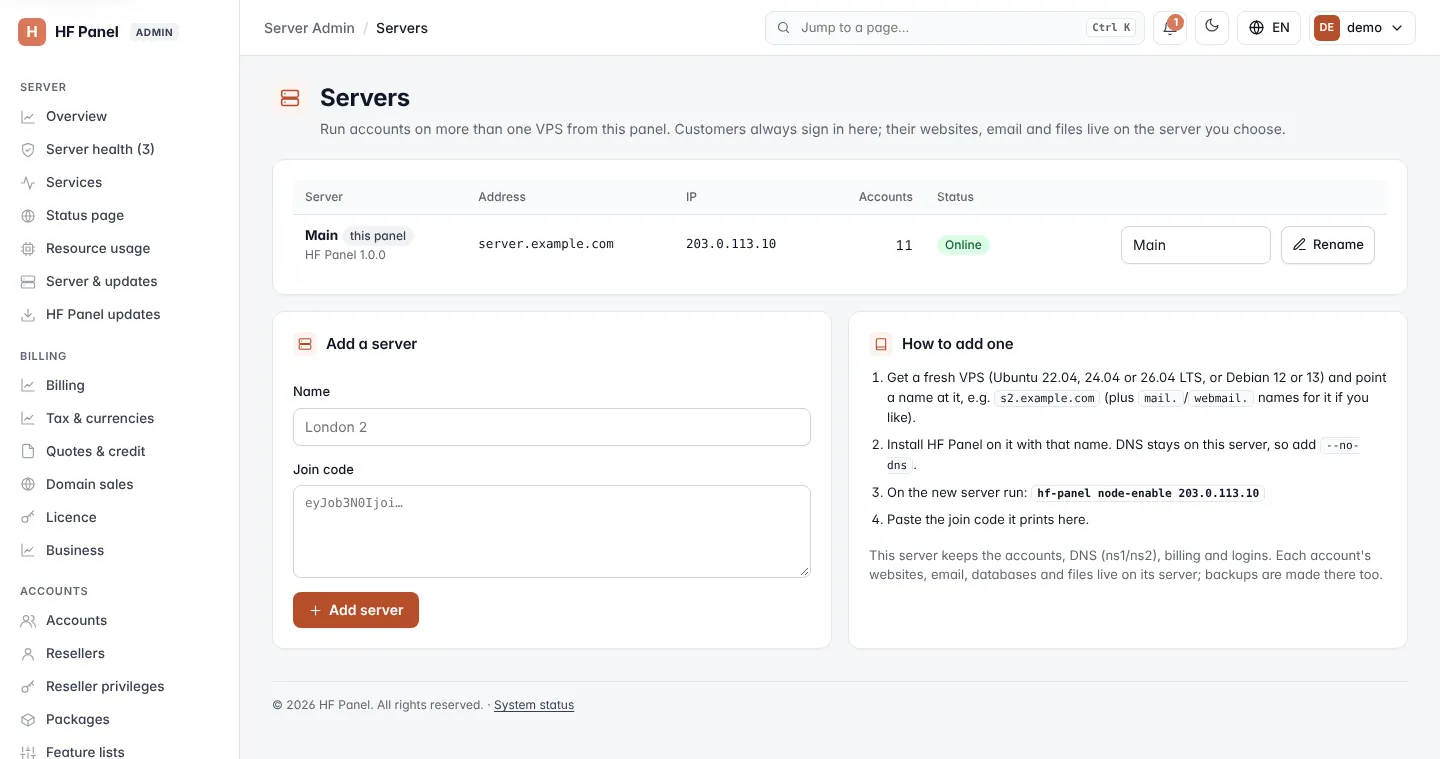
The server list
The first row is this panel's own server, marked this panel. Every joined server is asked for its details when you open the screen.
| Column | What it shows |
|---|---|
| Server | Its name and HF Panel version. |
| Address | Its host name. |
| IP | Its public IPv4 address. |
| Accounts | Hosting accounts on it. |
| Status | Online, or Not answering with the reason; No new accounts when it is left out of automatic placement. |
Add a server
- Get a fresh VPS running Ubuntu 22.04, 24.04 or 26.04 LTS, or Debian 12 or 13, and point a name at it, for example
s2.yourdomain.com(plusmail.andwebmail.names for it if you like). - Install HF Panel on it with that name. DNS stays on this server, so add
--no-dnsto the install. - On the new server, run the command shown on the card:
hf-panel node-enablefollowed by this server's IP. - Back here, in Add a server, type a Name (up to 40 characters, for example "London 2") and paste the Join code the command printed.
- Click Add server.
The server joins, and new accounts can be placed on it. If its certificate is self-signed, its key is pinned.
Manage a joined server
| Action | What it does |
|---|---|
| Check | Asks the server for its details again: version, IP and addresses. |
| Stop placing new accounts here / Place new accounts here again | Whether Automatic — fewest accounts may choose this server for new accounts. You can still choose it by hand. |
| Public IP used in DNS → Save | Sets the server's public IPv4 address. If its accounts used the old address, republish their DNS zones. |
| Remove server | Removes a server that has no accounts left. Move or delete its accounts first. |
After removing a server, run hf-panel node-disable on it to close its side too.
To rename this panel's own server, type a new name in its row (1–40 characters) and click Rename.
Put accounts on a server
- When you create an account, choose its Server under Accounts, or leave Automatic — fewest accounts.
- To move an existing account, use Manage → Move to server; see Move accounts.