 HF Panel
Apps
Install WordPress, Joomla, Drupal, Nextcloud and other popular apps on your websites in one click, then update or uninstall them.
The App installer puts a popular app on one of your websites in one click. It creates a database for each app that needs one, sets up the admin login you choose, and later updates the app with a backup first.
Where: Control Panel › Websites › Apps
Note: you need at least one domain first. Without one the screen shows Add a domain first and an Add domain button.
The catalogue
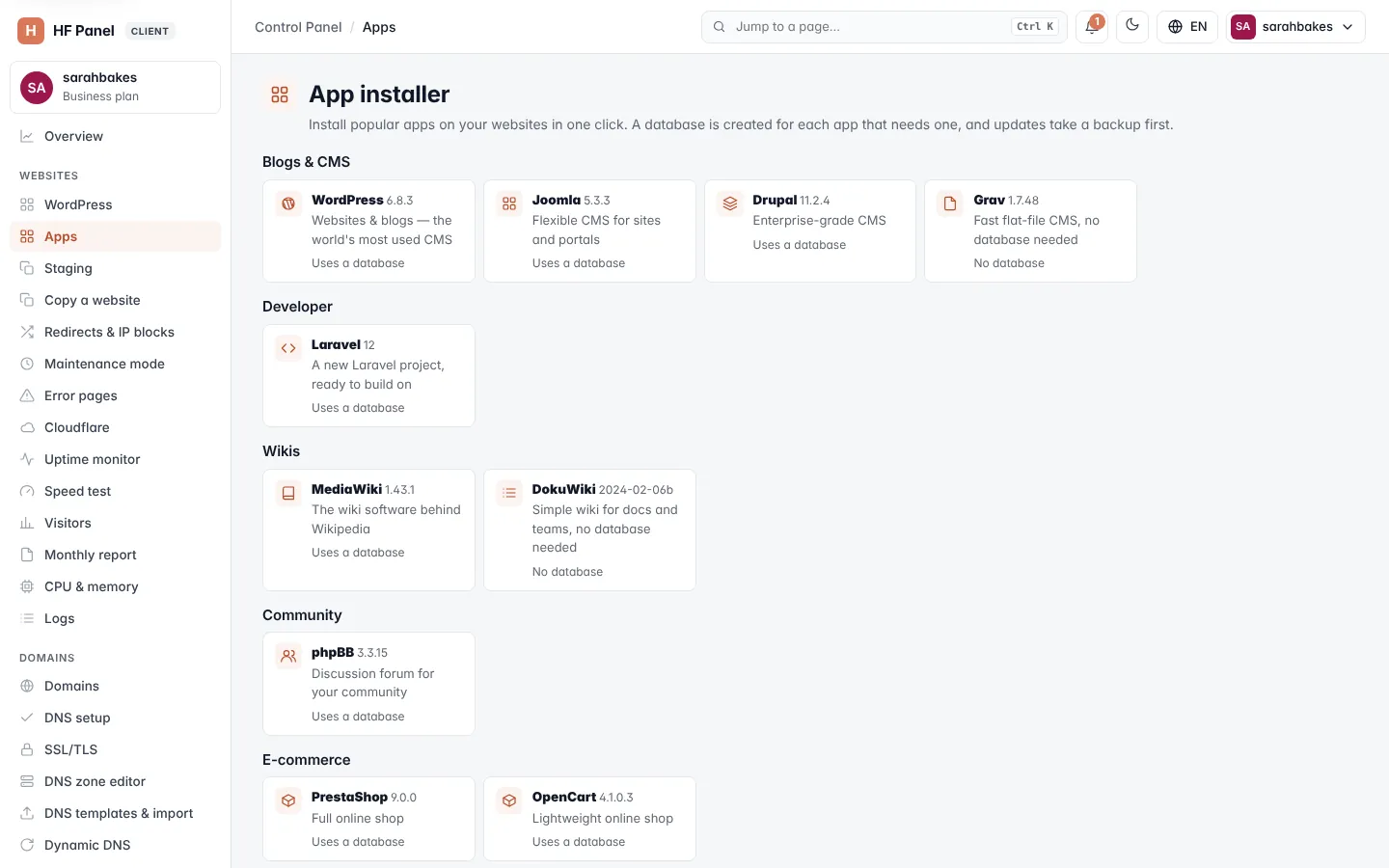
The apps are grouped by category. Each tile shows the app's name, the version that is installed, a short description and whether it Uses a database or needs No database.
| Category | Apps |
|---|---|
| Blogs & CMS | WordPress, Joomla, Drupal, Grav, Ghost (Node.js) |
| Developer | Laravel |
| Wikis | MediaWiki, DokuWiki |
| Community | phpBB |
| E-commerce | PrestaShop, OpenCart |
| Files & office | Nextcloud |
| Analytics | Matomo |
| Education | Moodle |
Every download comes from the app's official release address, is pinned to an exact release and is checked against its SHA-256 before it is installed. An app whose download is not yet pinned to a checksum cannot be installed; its form says so. Your hosting company can hide apps from the catalogue (Apps catalogue).
Each app's page shows its Requirements (PHP version, Node.js version, database) and, under Install steps, what the installer does, in order — for example Download the release from its official address, Check its SHA-256 checksum, Create a new database, Unpack it into the chosen folder, Run the app's own installer with your admin login.
Install an app
- Click the app's tile.
- Fill in the form (see the table below).
- Click Install app name, for example Install WordPress.
- Watch the installation in the live window. When it is done, the message gives the site's address and the login.
| Field | What it does |
|---|---|
| Domain | the website to install on. Parked domains are not listed: install on the main domain. |
| Folder (optional) | a sub-folder, for example blog for yourdomain.com/blog. Empty = the main site. Letters, numbers, - and _, up to 32 characters. |
| Site title | the site's name (up to 100 characters). Empty = "My app site". Only for apps that have a title. |
| Admin username | the app's administrator login: 3–40 letters, numbers, ., _ or -. It can't be admin — bots guess it. |
| Admin email | the administrator's email address; your account's email is filled in |
| Admin password | leave blank to generate a strong one. The password is shown once in the success message. |
The folder you install into must be empty. The HostFog placeholder page is removed for you.
Important: write down the admin password from the success message. It is not shown again.
How each kind of app is set up
| Kind | Apps | What happens |
|---|---|---|
| Fully set up | WordPress, Joomla, Drupal, Grav, MediaWiki, DokuWiki, phpBB, PrestaShop, OpenCart, Nextcloud, Moodle | the app is ready to log in to with the admin login from the form |
| A Node.js app | Ghost | unpacked into ~/apps/ghost, its database created and its settings written, then started as a Node.js app of the whole website. Open /ghost/ once to create your login. The website must not run another Node.js app. |
| Finished in the browser | Matomo | the app is unpacked and its database created. Open it once to create your login. The message shows the database host (localhost), name, user and password. |
| A project for your own code | Laravel | a new project is created with Composer. Its database settings are already in the project's .env file. |
Drupal and Laravel always go in a website's main folder: the project is created with Composer and its web/ (Drupal)
or public/ (Laravel) folder becomes the website's root, so the rest of the project is never served. Leave
Folder empty for them; the website's main folder must be empty.
PHP version
Each app needs a range of PHP versions. If the domain you chose uses a PHP version outside that range, the form says, for example, "Joomla 5.3.3 needs PHP 8.1–8.4; yourdomain.com uses PHP 7.4. Change it under PHP settings first." Change the version under PHP settings, then come back.
Installed apps
The Installed apps card lists every app you installed here:
| Column | What it shows |
|---|---|
| App | the app's name |
| Address | the site's address (opens in a new tab) |
| Version | the installed version and its state: up to date, version available, version — update by hand, or not checked yet |
| Database | the app's database, or — |
| Installed | how long ago |
Buttons on each row:
| Button | What it does |
|---|---|
| WP Admin / Admin | opens the app's admin login page |
| Dry run | checks everything and shows what the update would do, without changing anything |
| Update | updates the app to the version shown (see below) |
| Uninstall | deletes the app's files and its database |
| × (Remove) | removes the app from this list only. The site and its database stay. |
When you click an app's tile, the right-hand card Your app sites lists your installs of that app with their admin user and database.
Update an app
- Click Check for updates to read the installed version of every app again. The message says "Checked: your apps are up to date." or how many updates are waiting.
- On the app's row, click Dry run to see the plan. Nothing is changed.
- Click Update and confirm.
A backup of the app's files and database is made first, and put back automatically if anything fails. The success message names the backup file in your backups folder.
Some updates are not done in one click. Hover over the version to see why:
| Situation | What to do |
|---|---|
| PrestaShop | update with PrestaShop's own 1-Click Upgrade module (take a backup first) |
| OpenCart | follow OpenCart's upgrade guide (take a backup first) |
| Laravel | it is your own code: update its packages with Composer from the terminal |
| A new major version | check that your add-ons support it, take a backup and update it by hand |
| More than one major version behind | updates go one major version at a time: update to the next major version by hand first |
| not checked yet | click Check for updates |
Recent updates
The Recent updates card lists the last updates: the app, address, the versions (from → to), the Result (updated, failed — rolled back or failed), the Backup file and when.
Uninstall an app
- On the app's row, click Uninstall.
- Confirm.
A backup of the app's files and database is made first, in ~/backups/apps/ (for example
joomla-yourdomain.com-cms-20261025-101500.tar.gz and .sql.gz); then the files and the database are deleted. The
Recent updates card lists it as Uninstalled with the backup's name. If the backup can't be made, nothing is
removed.
Tip: to stop listing an app but keep the site, use × (Remove) instead.
Note: Moodle keeps its data folder outside the website, in
~/moodledata/. Add a cron job foradmin/cli/cron.phpevery minute on the Cron jobs page.