 HF Panel
Notifications
Set up the notifications centre, see which events go to whom, and follow every alert delivery with retries.
The notifications centre sends alerts to customers and staff by email, webhook, Slack, Telegram and Discord: for example when a website goes down, a certificate is about to end or a backup fails. On the Notifications screen you switch the centre on or off, choose which channels people may use, set limits and retries, see every event the panel sends and who receives it, and follow every delivery.
Where: Server Admin › Email › Notifications
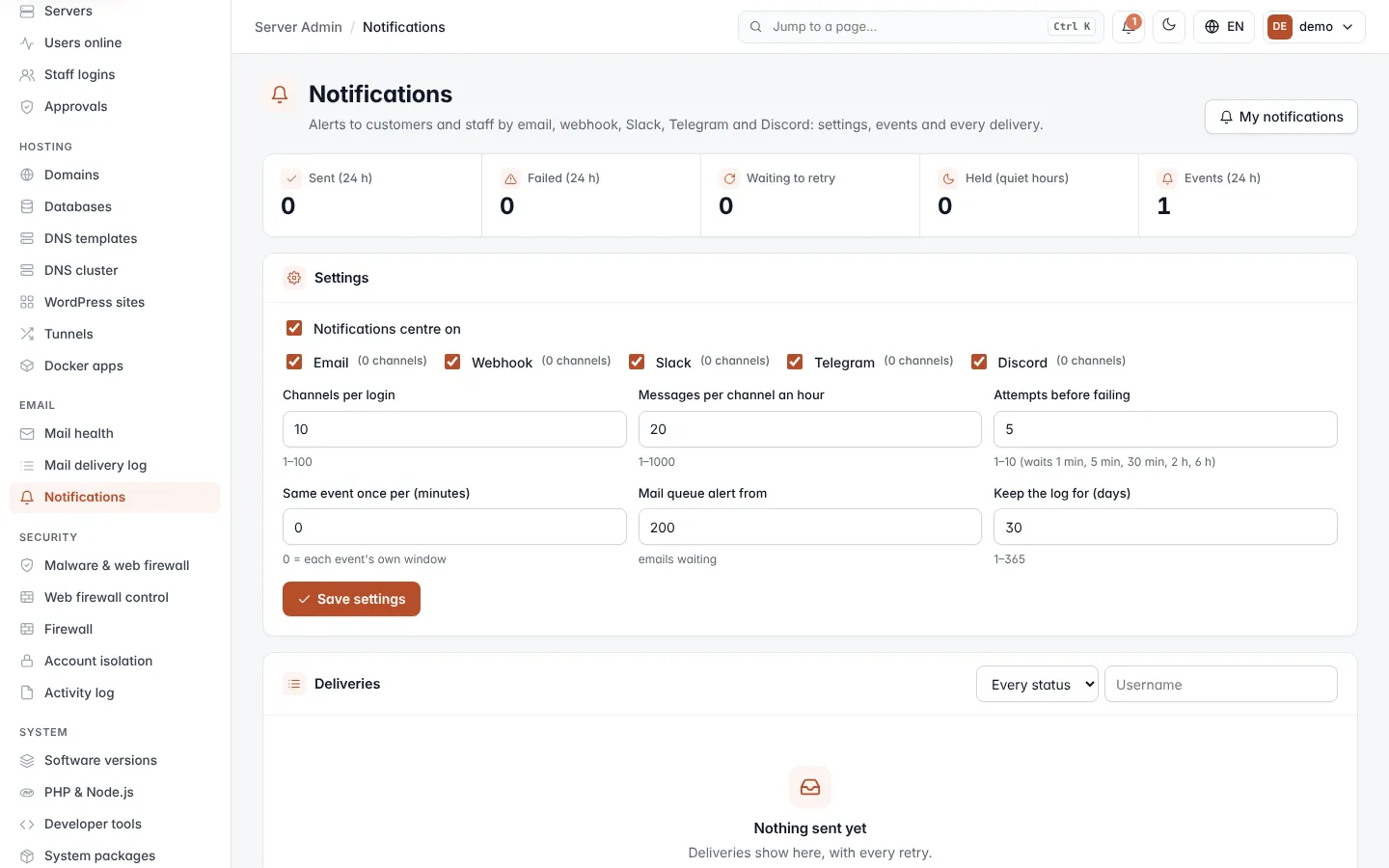
Each person chooses their own channels and the events they want on their own Notifications screen. Click My notifications at the top of this screen to open yours.
Read the figures
| Figure | What it counts |
|---|---|
| Sent (24 h) | Messages delivered in the last 24 hours. |
| Failed (24 h) | Messages that failed after every attempt, in the last 24 hours. |
| Waiting to retry | Messages waiting for their first or next attempt. |
| Held (quiet hours) | Messages held until the recipient's quiet hours end. |
| Events (24 h) | Events the panel raised in the last 24 hours. |
Change the settings
- In the Settings card, change the options below.
- Click Save settings.
| Setting | What it does |
|---|---|
| Notifications centre on | Switches every alert on or off. On by default. |
| Email, Webhook, Slack, Telegram, Discord | The channel kinds people may add. The number of existing channels of each kind is shown. At least one must stay ticked. |
| Channels per login | How many channels one login may have, 1–100. The default is 10. |
| Messages per channel an hour | The most messages one channel receives in an hour, 1–1000. The default is 20. Messages over the limit are marked limited. |
| Attempts before failing | How often a message is tried, 1–10. The default is 5. The waits between attempts are 1 min, 5 min, 30 min, 2 h and 6 h. |
| Same event once per (minutes) | Sends the same event at most once in this many minutes, for every event, up to 10,080 (one week). 0 = each event's own window (see the table below). |
| Mail queue alert from | The number of emails waiting in the mail queue that raises the Mail queue is long alert, 10–100,000. The default is 200. |
| Keep the log for (days) | How long events and deliveries are kept, 1–365. The default is 30. |
Note: people can set quiet hours on their own Notifications screen. Messages that arrive during quiet hours are held until they end, except urgent events, which may still come through.
Events and who receives them
The Events the panel sends table lists every event, who it goes to, how often it may repeat, and how many people have subscribed to it. Events marked urgent may come through quiet hours.
| Event | Goes to | Once per |
|---|---|---|
| Website down (urgent) | The account | 30 min |
| Website back up | The account | 10 min |
| SSL certificate ends in 14 days | The account | 20 days |
| SSL certificate ends in 7 days | The account | 20 days |
| SSL certificate ends tomorrow (urgent) | The account | 20 days |
| Malware found (urgent) | The account and its staff | 60 min |
| Space 80% used | The account | 7 days |
| Space 90% used | The account | 7 days |
| Space full (urgent) | The account | 3 days |
| CPU limit reached | The account | 6 hours |
| Memory limit reached | The account | 6 hours |
| Process limit reached | The account | 6 hours |
| Disk speed limit reached | The account | 6 hours |
| Backup failed (urgent) | The account and its staff | 1 day |
| Sign-in from a new IP address (urgent) | The account | 60 min |
| New support ticket | The account's staff | every time |
| Customer replied to a ticket | The account's staff | every time |
| Support replied | The account | every time |
| Service down (urgent) | Administrators | 30 min |
| Service back up | Administrators | 10 min |
| Mail queue is long | Administrators | 6 hours |
| Server IP on a blocklist (urgent) | Administrators | 1 day |
"The account's staff" means the reseller and administrators who look after the account. The screen shows each window in minutes. A value in Same event once per (minutes) replaces every one of these windows.
Follow deliveries
The Deliveries card lists the latest 200 deliveries, newest first, with When, User, Event, Channel and Status. Failed rows show the error, how many attempts were made and when the next one is due.
- To filter by status, choose one in the status list: sent, pending, retry, held, failed or limited. Choose Every status to see all.
- To filter by person, type a Username and press Enter.
- To send a failed, limited or waiting message again now, click Try again. The message tells you whether it was sent or why not.
Latest events
The Latest events card lists the last 30 events: When (UTC), the Event title and key, the Account it is about (Server for server-wide events), how many times it Repeats within its window, and Sent (delivered messages out of all deliveries).